


User Permissions
Control what each team member can access in Medicasimple by assigning permissions that match their clinic role.
Updated
User Permissions
Why It Matters
Every dental clinic has different team roles, from administrators and doctors to assistants and receptionists. Not everyone needs access to all patient or financial information.
With User Permissions in Medicasimple, you can control and customize what each user can see or do, ensuring both data security and smooth operational management across your clinic.
This feature helps you maintain confidentiality, avoid accidental changes, and comply with privacy regulations such as GDPR or HIPAA (depending on your region).
How It Works
1. Accessing User Permissions
Go to Settings → Users, select the user whose permissions you want to modify, and open the "Permissions" tab.

Here, you’ll find a structured permissions panel divided into four main sections.
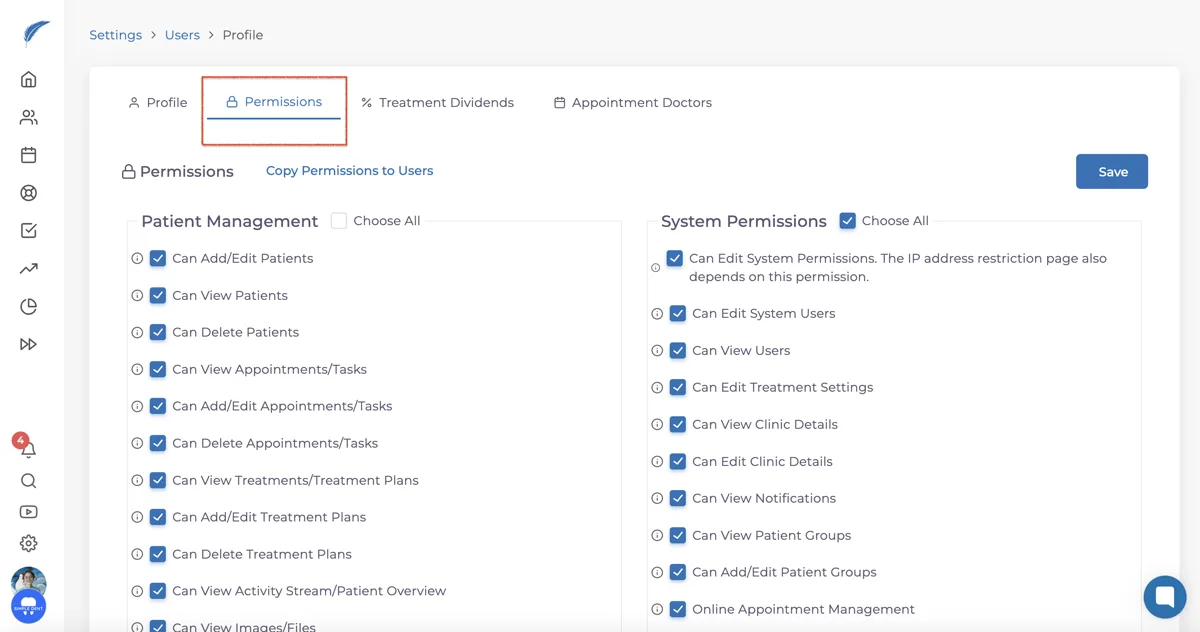
Each permission row represents an action
(for example: View Patient Records, Edit Payments, Delete Appointments)
while the columns allow you to toggle:
View – grants read-only access
Edit/Create – allows modifications or new entries
Delete – permits removal of data
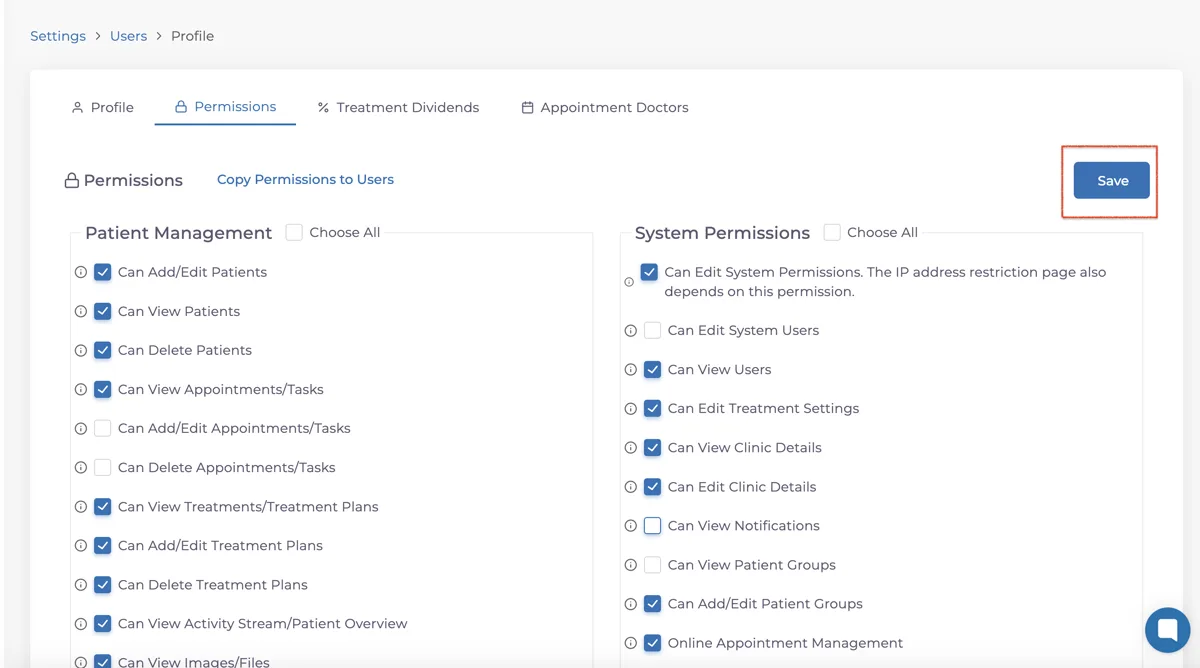
After adjusting permissions, click "Save" to apply the changes instantly.
2. Role-Based Access Examples
To give you a sense of how flexible this can be:
🧾 Clinic Managers usually have full access, including the ability to edit payments, users, and reports.
👩⚕️ Doctors can view and update their own treatment plans but may not need to see other doctors’ financials.
🧑💼 Front Desk Staff can schedule appointments, record payments, and access patient profiles; but not delete or modify treatments.
🧍♂️ Assistants or Interns may only view records or add notes without editing core data.
3. Feature-Specific Permissions
Some system actions depend on special permissions.
For example:
Only users with “Unlock Treatment Plans” permission can reopen locked treatment plans.
To add or edit communication records, users must have both “Can Add/Edit Communication Records” and “Can Add/Edit Appointments or Tasks” active.
To edit treatment settings (name, price, code, or category), users need “Can Edit Treatment Settings.”
⚠️ Important: Granting “Can Edit Treatment Settings” also provides access to doctor commission settings. If you want to restrict access to financial data, do not enable “Can View Users.”
Best Practices
Define roles clearly: Before assigning permissions, decide what each staff role should and shouldn’t do.
Apply the principle of least privilege: Grant the minimum level of access required to perform their daily tasks.
Review regularly: Update user permissions when team roles change or new features are added.
Audit access logs: Regularly check who has edit or delete rights over sensitive modules like payments or reports.
Pro Tip
If a user reports that a button or feature is missing, it’s likely a permission issue.
You can easily verify this by going to Settings → Users → Permissions and confirming the relevant access toggles are active.
Keep going