


Inventory Management
Track products, stock entries, distributions, counts, critical limits, and inventory reports from one Medicasimple workflow.
Updated
Inventory Management
Inventory tracking helps clinic teams manage every material used in daily operations, from implants and anesthetics to gloves, cleaning supplies, and consumables. With the inventory module, you can see which products are consumed most, which products are below the critical limit, and which items need to be purchased without relying on spreadsheets.
A healthy inventory workflow in Medicasimple is built in four steps: define the institutions you purchase from, create product records, enter new products into stock, and then record distribution, exits, and periodic counts.
Note: The user must have the relevant inventory permissions before they can create products, enter stock, or correct transactions.
What you can manage
Register products with barcode, unit price, unit type, category, and critical limit details.
Record stock entries, exits, transfers, and periodic counts so balances stay accurate.
Track expiration dates by batch or lot when your clinic needs expiry control.
See products below the critical quantity before shortages affect appointments or treatment rooms.
Review consumption trends and inventory reports for purchasing, finance, and audit follow-up.
Correct or delete incorrect transactions with permission-based access.
1. Access the inventory screen
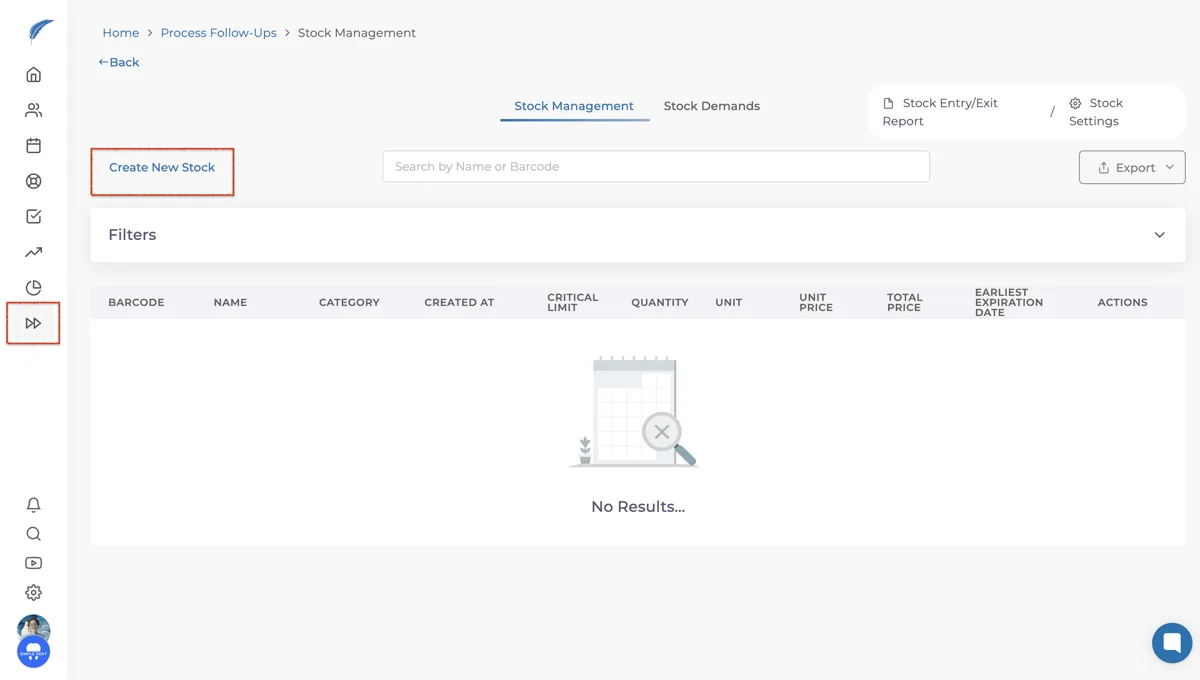
Go to Process Follow-Ups → Stock Management. This screen lists registered products and their current quantities. You can search by product name, filter the list, create a new product, enter stock, or review reports from the same area.
Tip: Use the critical quantity filter to focus on products that need attention first.

2. Define purchasing institutions
Before tracking purchases clearly, define the institutions you buy from. These may be suppliers, laboratories, pharmacies, banks, or any other organization connected to clinic inventory purchasing. Keeping institutions clean helps reporting and transaction history stay understandable later.
Open Settings → Institutions, add the institution name and relevant details, then save the record before using it in inventory transactions.

3. Create product records
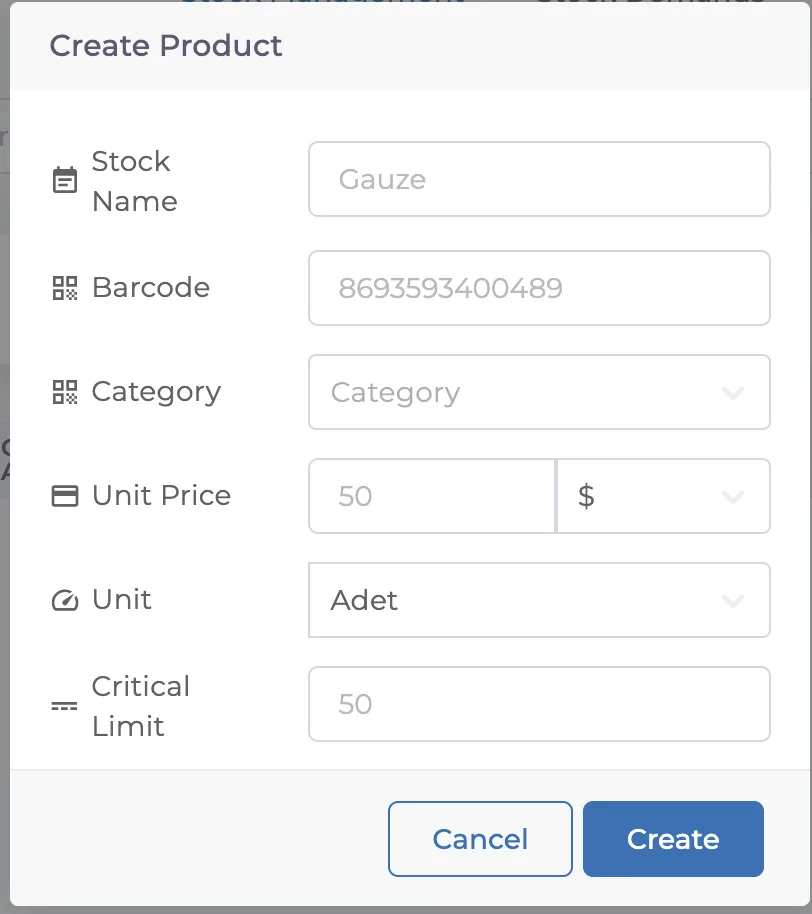
From Stock Management, click Create New Stock. In the window that opens, fill in the core product information:
Name: the product name shown in inventory lists and reports.
Barcode: the barcode used for faster tracking when available.
Unit price: the price for one unit.
Unit: the measurement type such as Piece, Kg, or Lt.
Critical limit: the quantity where the clinic should receive a warning.
4. Enter products into stock
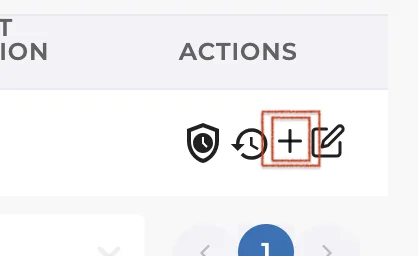
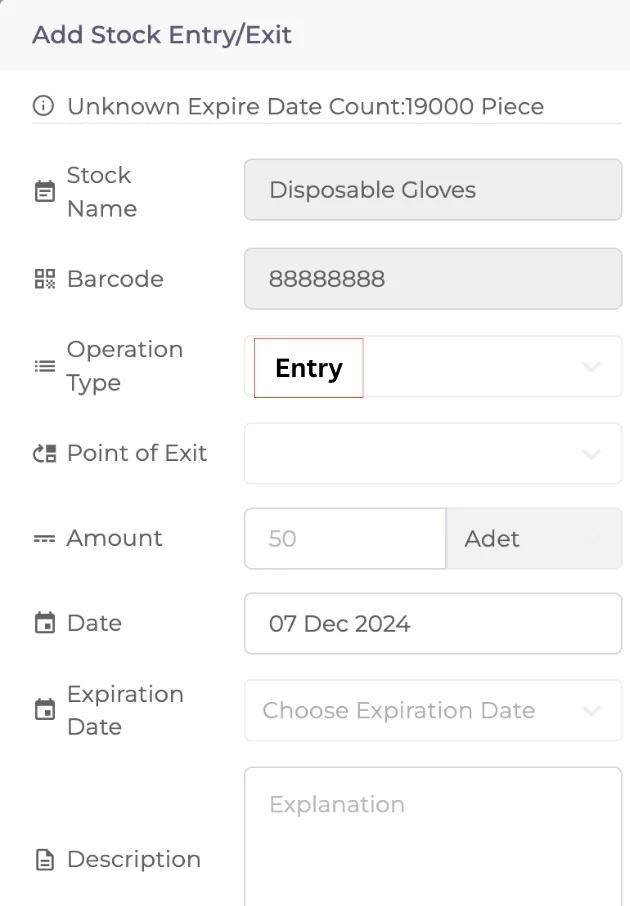
After creating the product record, use the + action next to the product to enter new quantities into stock. Select the institution, add the quantity, price, invoice or reference details if needed, then save the entry.
Stock entries update the available quantity immediately, so the clinic can see the latest balance without waiting for manual spreadsheet updates.
5. Record distribution, exits, and counts
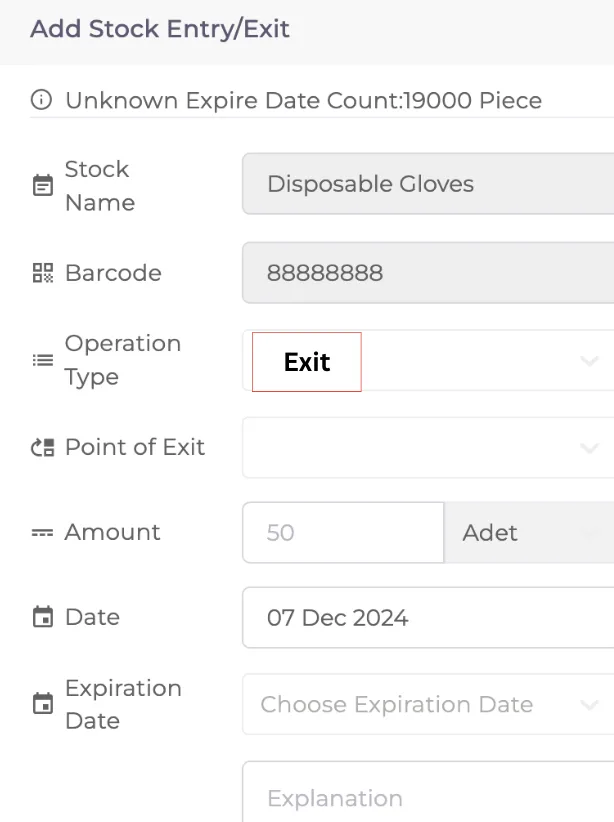
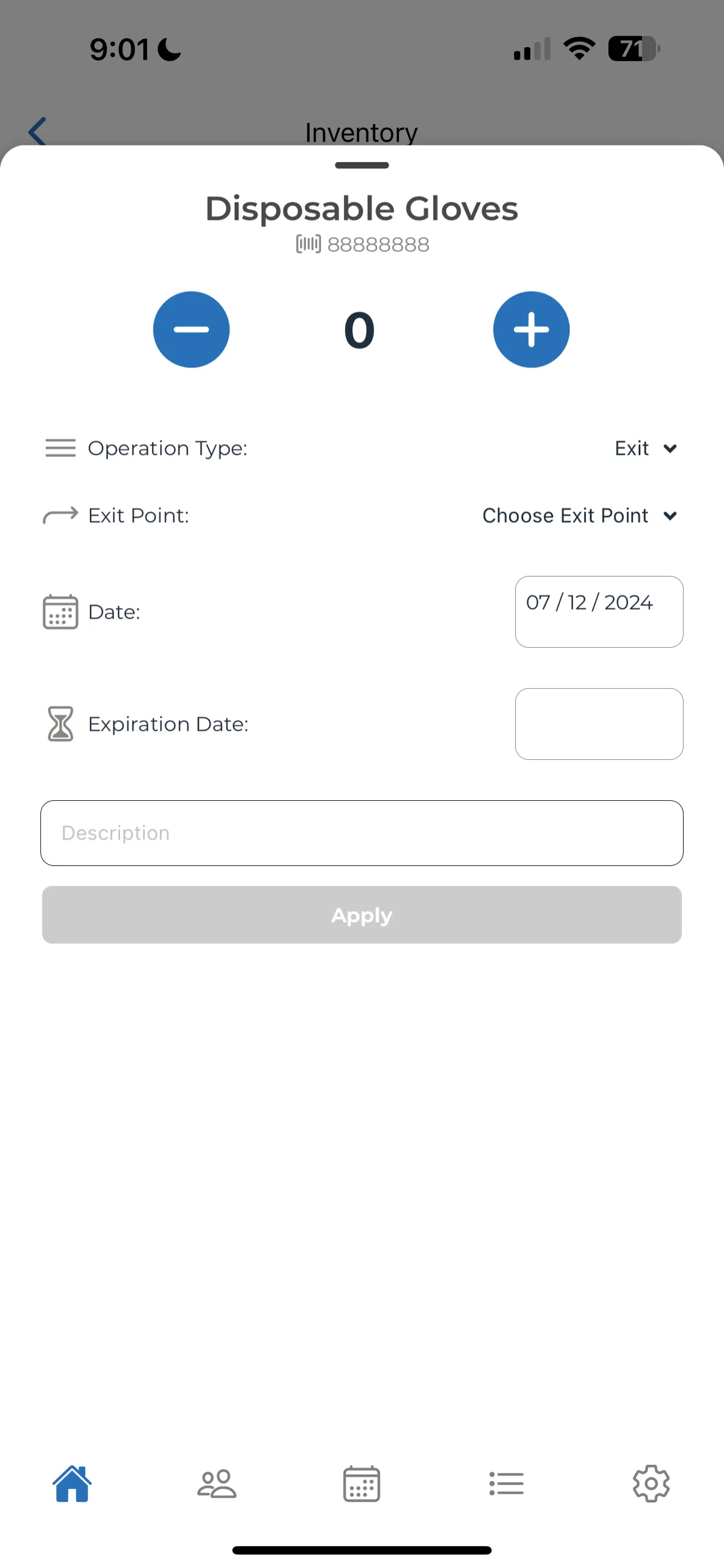
When products are used in the clinic, record the movement from the same inventory area. You can distribute products to a department or room, record a stock exit, and keep periodic counts so the digital balance matches the real shelf quantity.
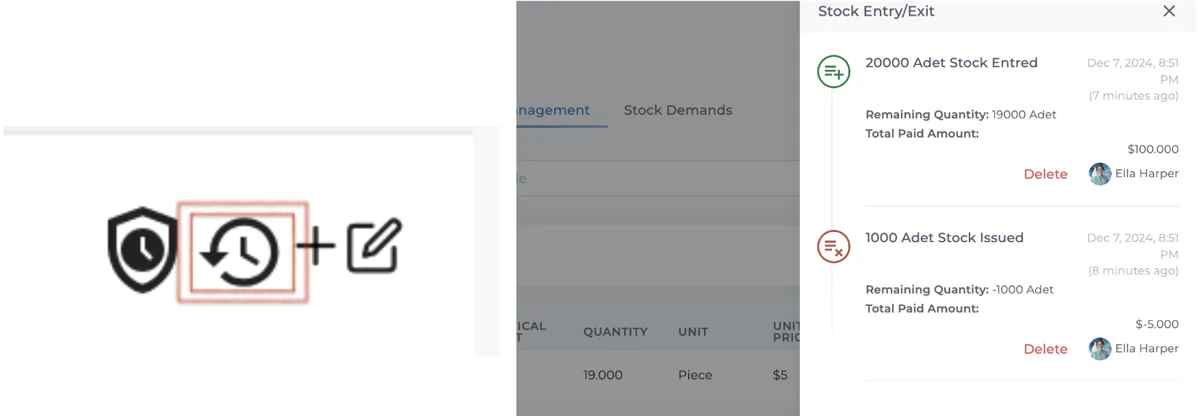
Regular counting is important for detecting missing items, expired products, and high-consumption materials before they become operational problems.
6. Review reports and critical stock
Use inventory reports to understand product consumption, purchase history, and stock movements. Reports help the clinic plan purchasing, avoid overstocking, and spot materials that are consumed faster than expected.
Products below the critical limit should be reviewed regularly so treatment rooms do not run out of required materials during the day.

Best practices
Keep product names and units consistent so reports remain clean.
Set realistic critical limits for frequently used treatment materials.
Record stock exits as close to real usage as possible.
Review low-stock and consumption reports weekly.
Give stock correction permissions only to the team members who need them.