


Task Addition
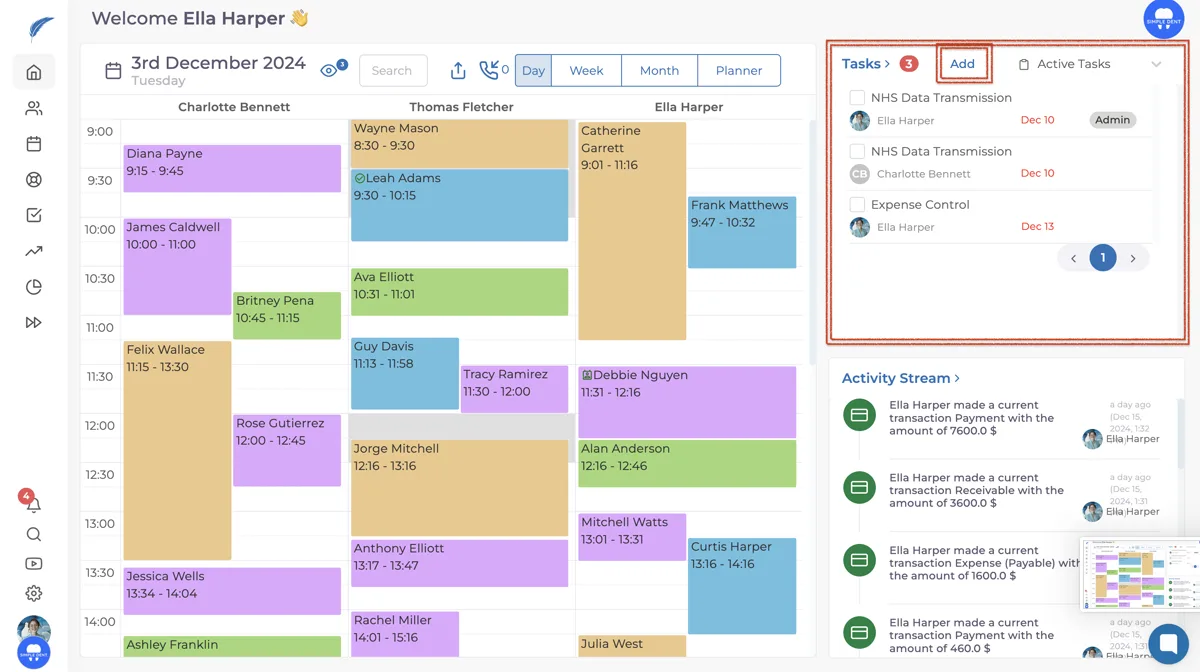
To manage and track tasks within the clinic, we use the task management screen. To assign tasks to individuals, first, navigate to the task management page and click the "Add Task" button.
Updated
To manage and track tasks within the clinic, we use the task management screen. To assign tasks to individuals, first, navigate to the task management page and click the "Add Task" button.
In the window that opens, first enter the Task Title. Then, select the Responsible Person, Relevant Patient, End Date, and Department. Finally, if there are any important details or issues that should not be overlooked for the task, be sure to mention them in the Description field.
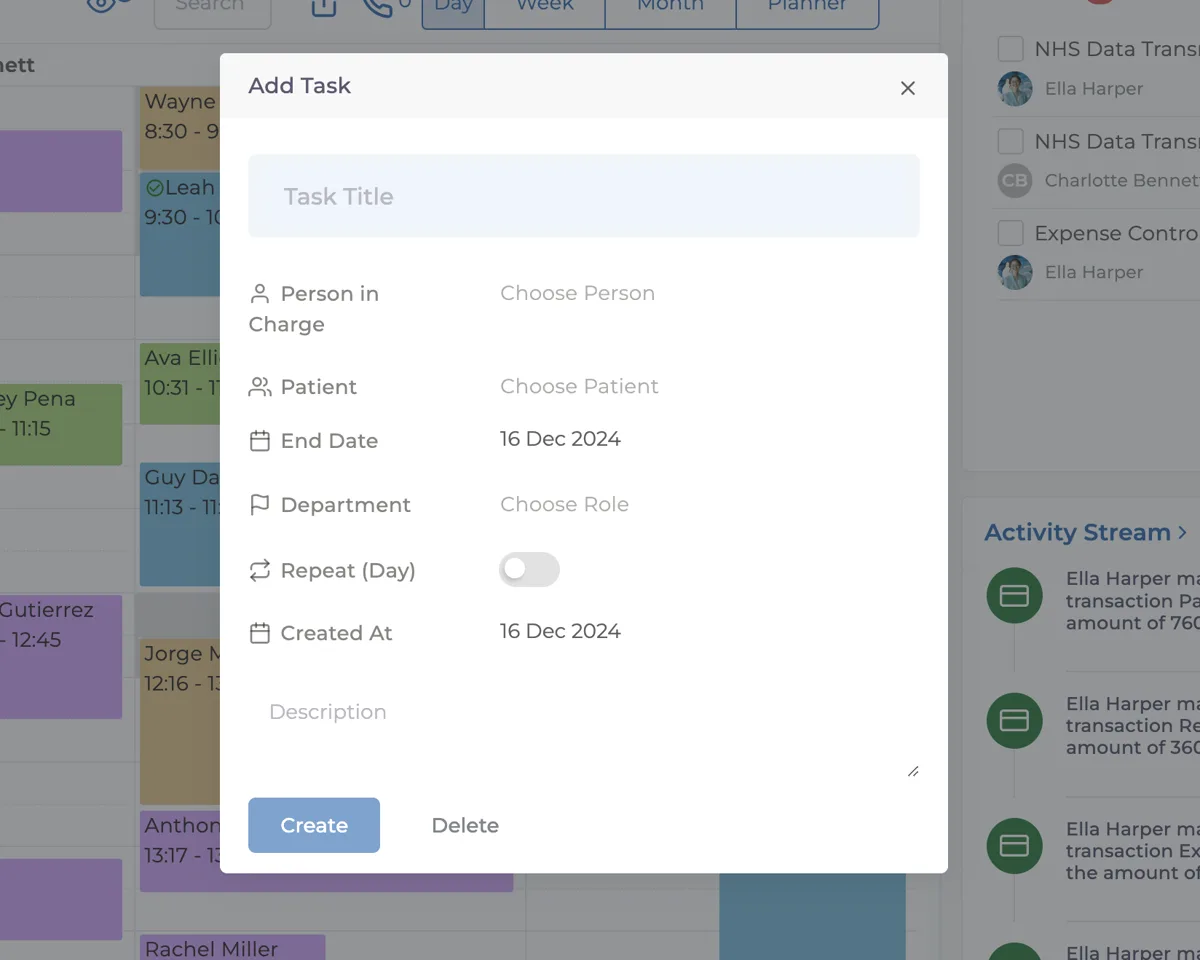
After filling in all the necessary fields, you will create the task by clicking the "Add" button. When the task is created, the person assigned to the task will automatically receive a notification. This helps to minimize job losses.
Note: It is possible to create tasks by only selecting a department, but it is still recommended to choose a responsible person in every case.
If you have difficulties with task creation, you can contact our team at any time using the live chat button in the lower right corner.
Keep going