


Creating Recurring Tasks
Every clinic has tasks that need to be done at regular intervals. You can create tasks to repeat at intervals such as weekly, monthly, quarterly, and annually.
Updated
Every clinic has tasks that need to be done at regular intervals. You can create tasks to repeat at intervals such as weekly, monthly, quarterly, and annually. To create these tasks, click the "Add Task" button on the Tasks screen.
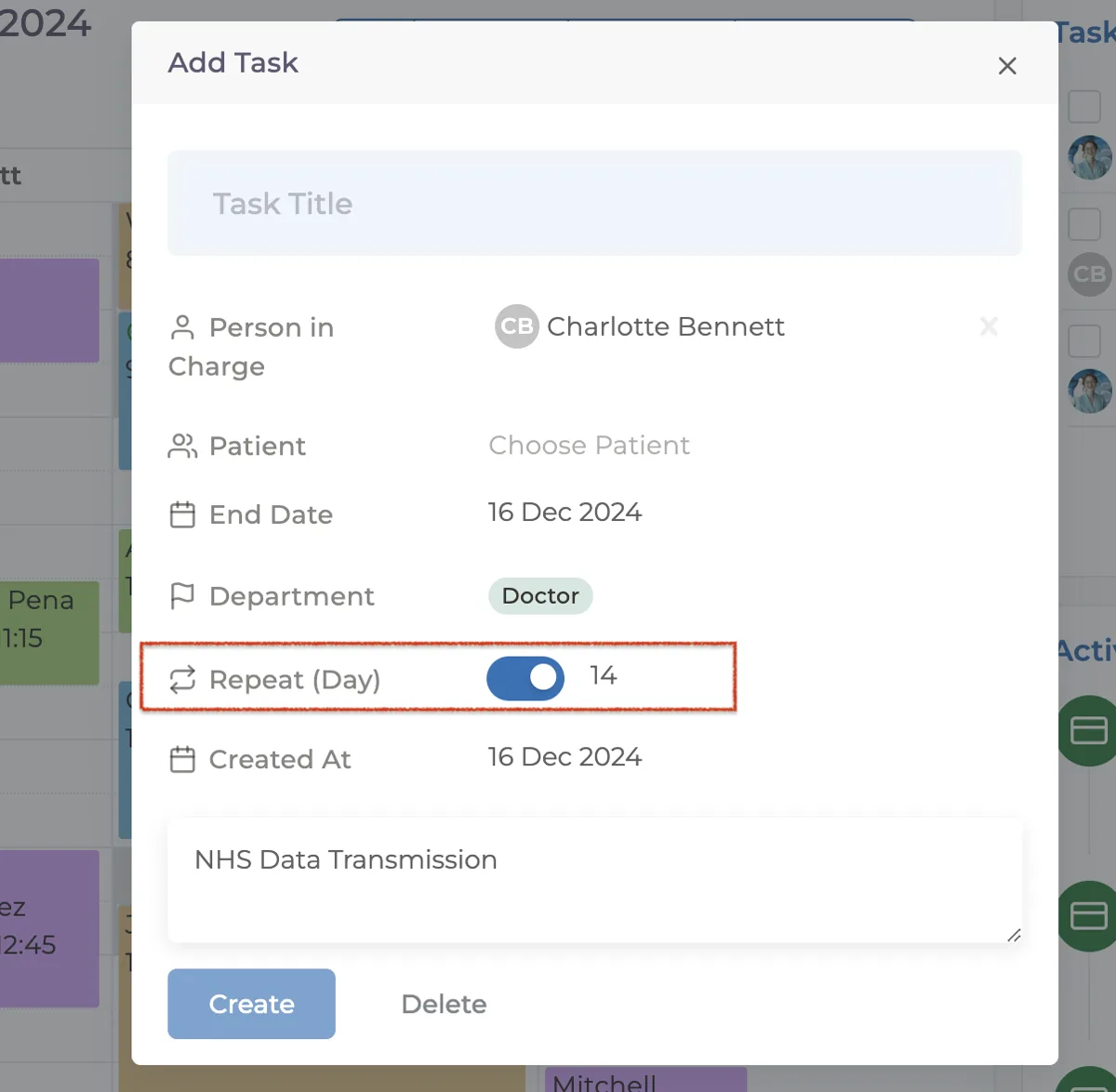
When you activate the toggle in the Repeat field, a section will open where you can specify how many days you want the task to repeat.
Then, fill in the following details:
- Task Title
- Responsible Person
- End Date
- Department
- Description
After filling in these details, click the "Create" button to create your recurring task.
Once a recurring task is completed, a new task will be automatically created by the system to be completed "X" days after the End Date. For example, if you create a task to repeat every 10 days, and it is completed on May 15, 2021, after clicking the "Complete Task" button, the system will create a new task with the same name due on May 25, 2021
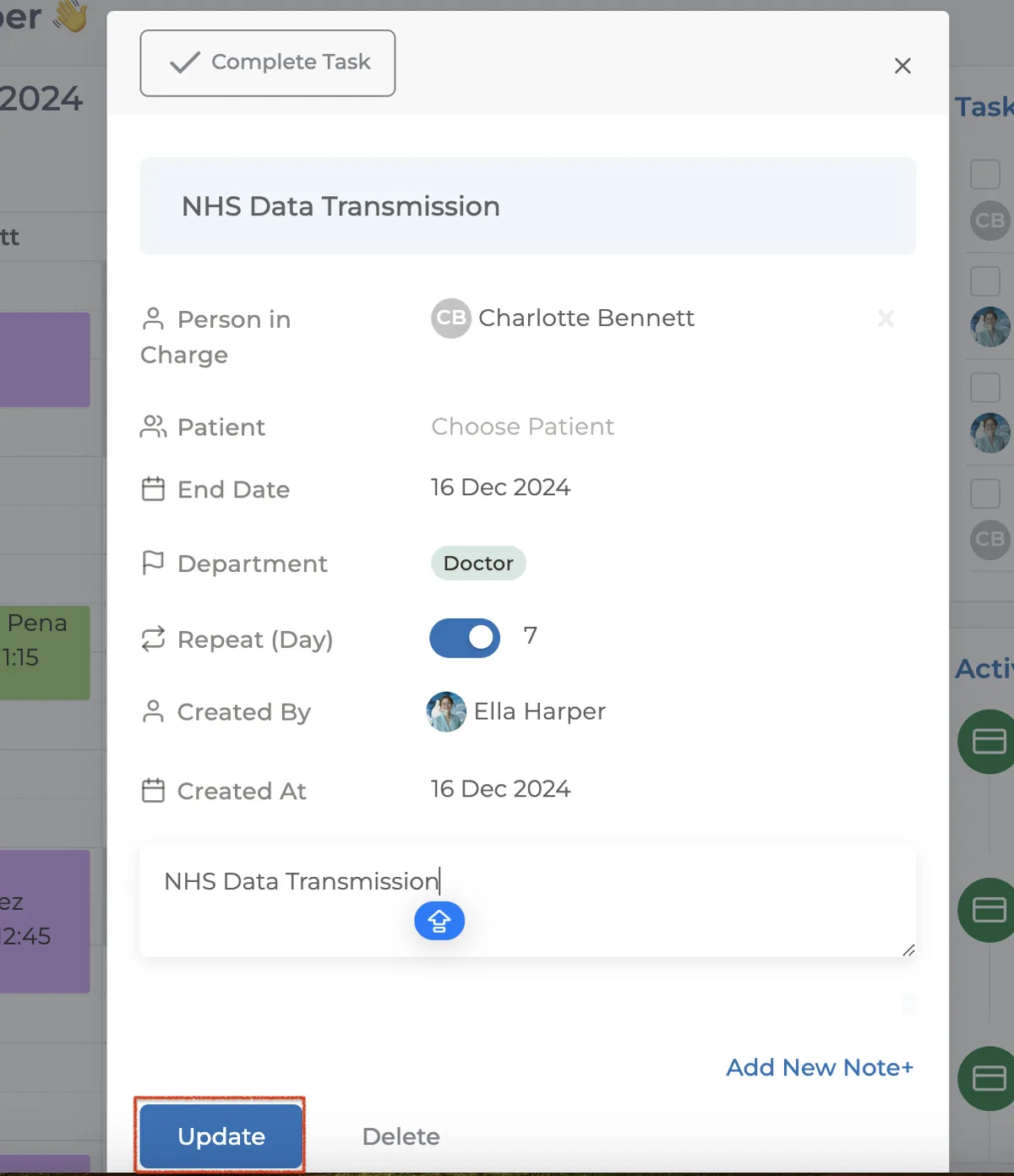
If there are any changes to the task, you can make the necessary adjustments and click the "Update" button to save the changes. If there is an incorrectly created task, you can click the "Delete" button to remove that task and then create a new one by following the same steps.
If you are still experiencing issues with recurring tasks, you can contact our team by using the chat button in the bottom right corner of the screen to explain the problem in more detail.
Keep going