


Reports
Reports are crucial for managing your clinic. To access this page, click on the "Reports" icon on the left side.
Updated
Reports are crucial for managing your clinic. To access this page, click on the "Reports" icon on the left side.
NOTE: If your administrator has not granted you the necessary permissions, this section will not be visible to you.
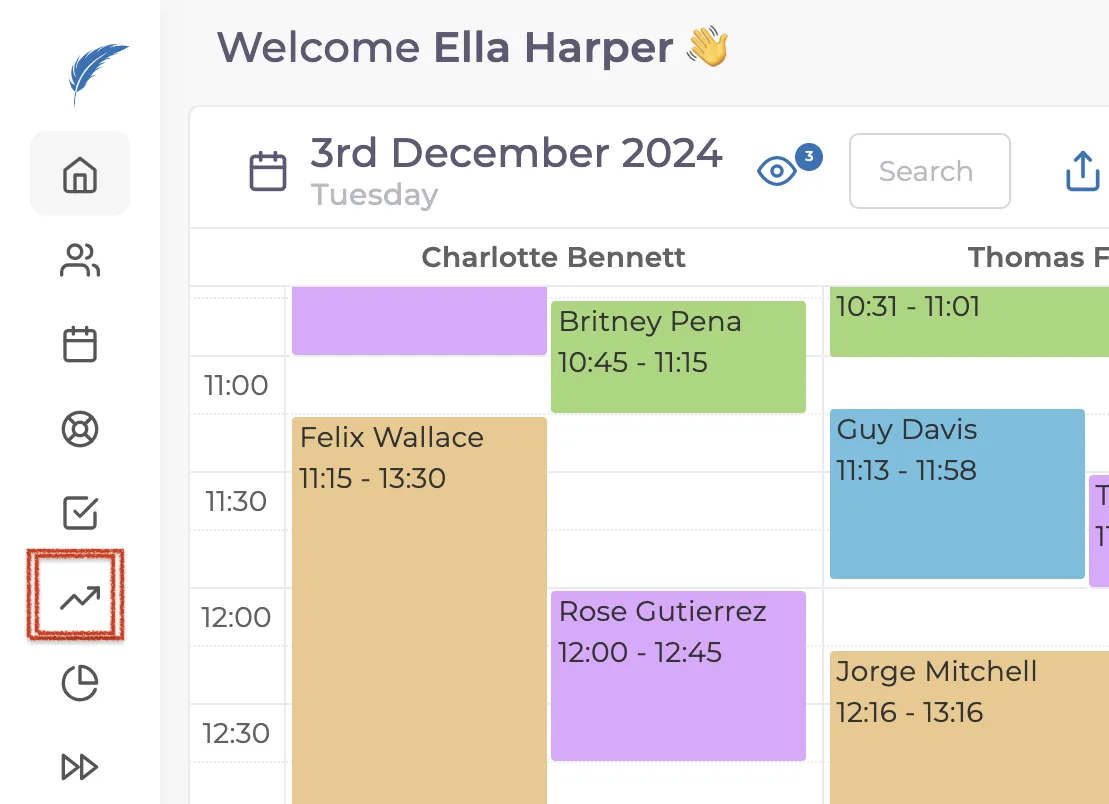
When you click on this icon, you’ll access a page where, from the top left corner, you can explore reports such as Daily Overview Report, Missing Patient Reports, and Expenses Report. These tools are designed to make your clinic management simple and efficient.
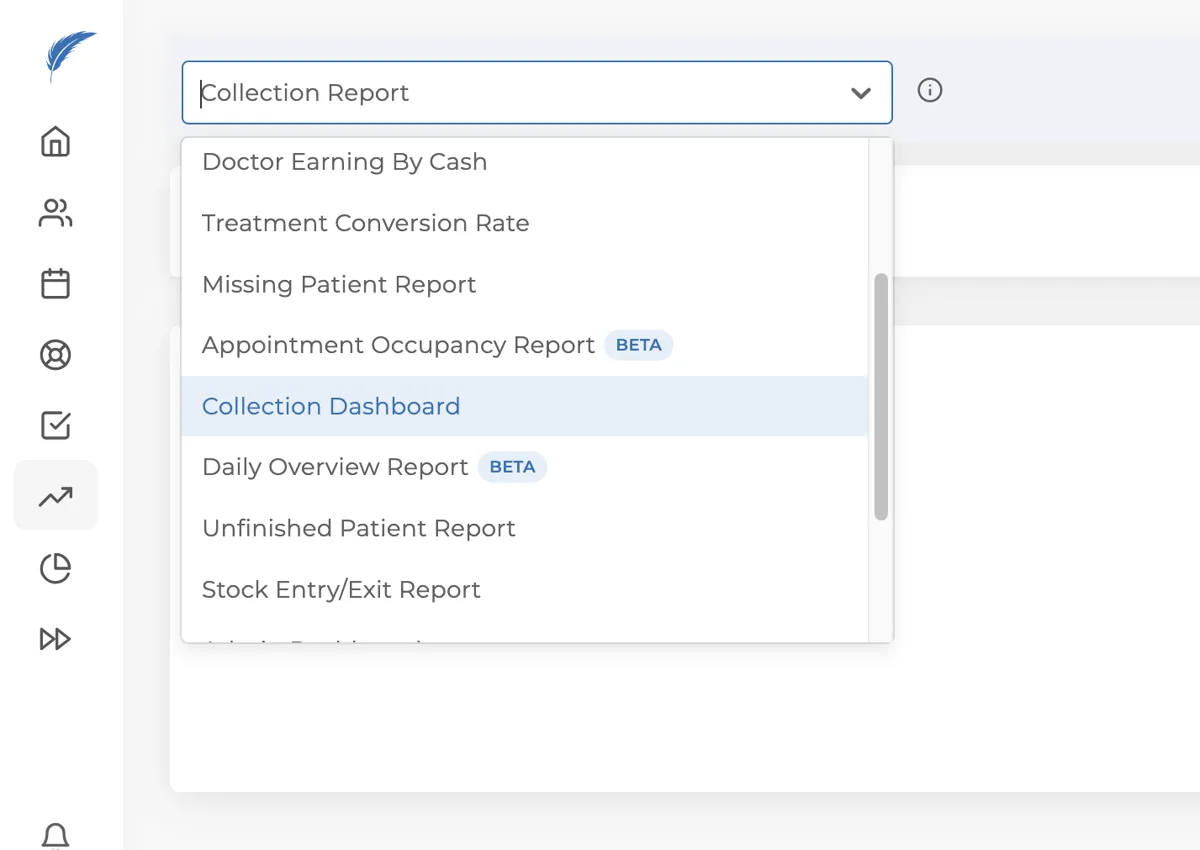
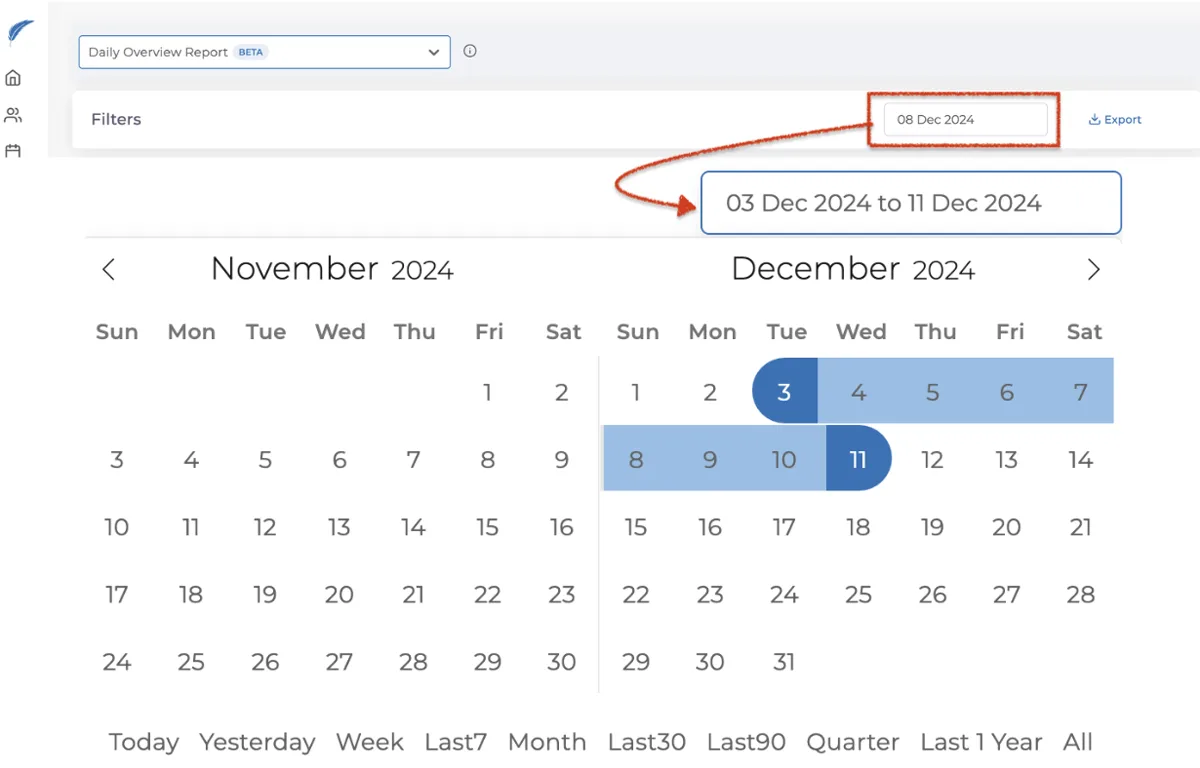
After selecting the type of report you want to view, you can easily choose your desired date range using the Filters section.
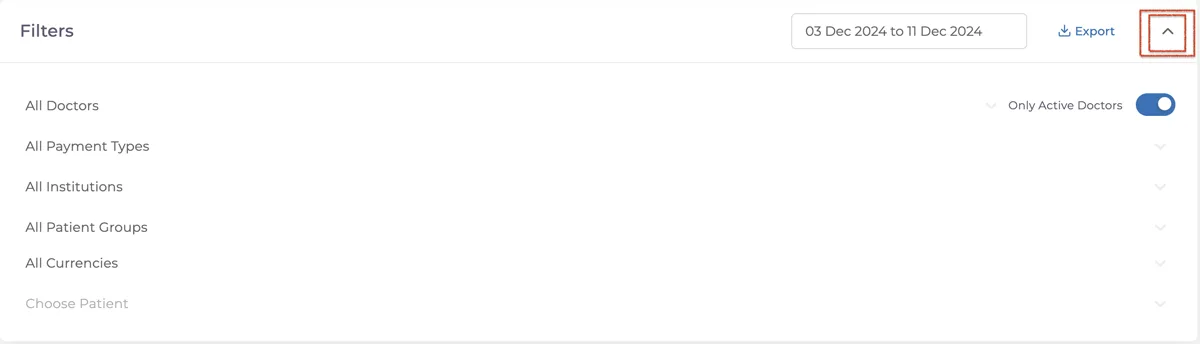
By clicking the arrow located in the top right corner, you can also add filters like Doctors, Payment Types, and Patient Groups to your reports.
When you want to print your reports, simply click the Export button located in the top right corner. Your reports will be saved as an Excel file on your device (please note that this feature may not be supported for certain charts).

If your issue with reports is not resolved, you can contact our team for detailed assistance by using the live chat button.