



User Permissions Management
In your clinic, you might not want every employee to have the same permissions or access to all areas.
Updated
In your clinic, you might not want every employee to have the same permissions or access to all areas. In this case, we have a permissions section that allows you to restrict user permissions.
To edit permissions, first go to the Settings screen and click on Profile under the Users section.
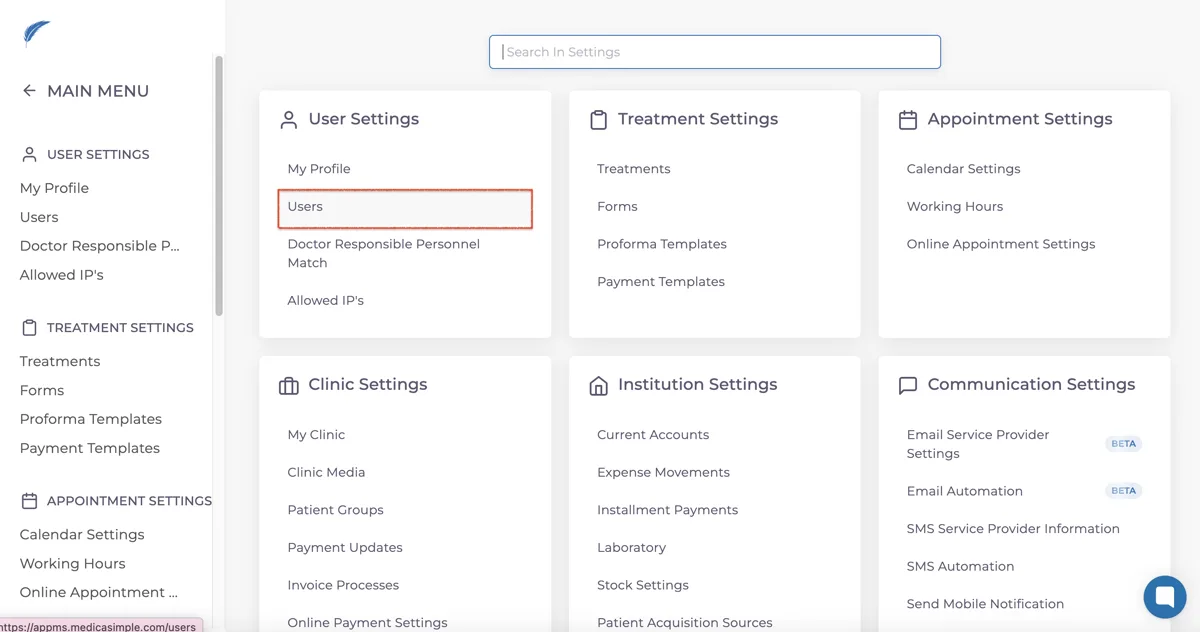
From the screen that opens, click the name of the user you want to edit. By clicking the “🔒 Permissions” button at the top of the user profile, you can limit the actions a user can perform within the application and restrict access to certain content.
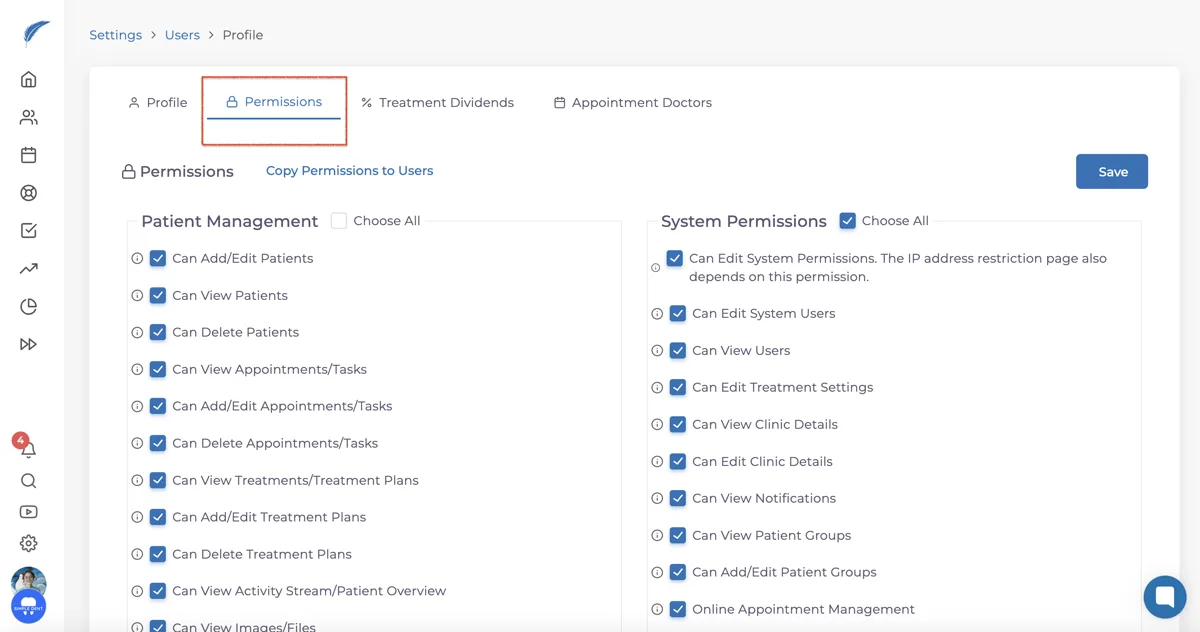
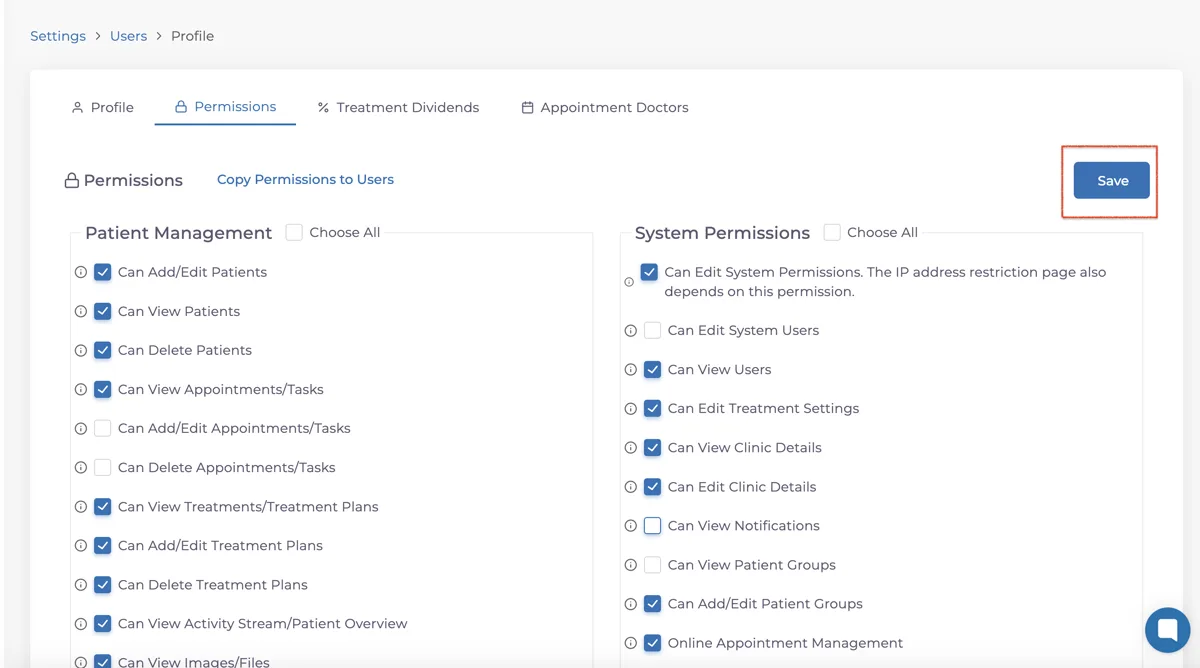
The Permissions panel consists of four different sections. On the right side, the actions that the user can perform are defined. The checkboxes on the left allow you to grant users permissions to view, create/edit, and delete these actions. After setting the permissions, you can save them by clicking the "Save" button in the top left corner.
Keep going