


Merging patients in Medicasimple
A careful merge keeps future treatment, appointment and payment activity attached to one intended patient record.
Updated
Merge only confirmed duplicate patients
Route: Patients → Patient Merge
Primary user role: Authorised practice administrator · Practice manager
Patient Merge is irreversible; do not repeat the action after an unexpected result.
1. Compare both records
Open the possible duplicates side by side and compare identity, treatments, payments, appointments, notes and images. Stop if the records may belong to different people.
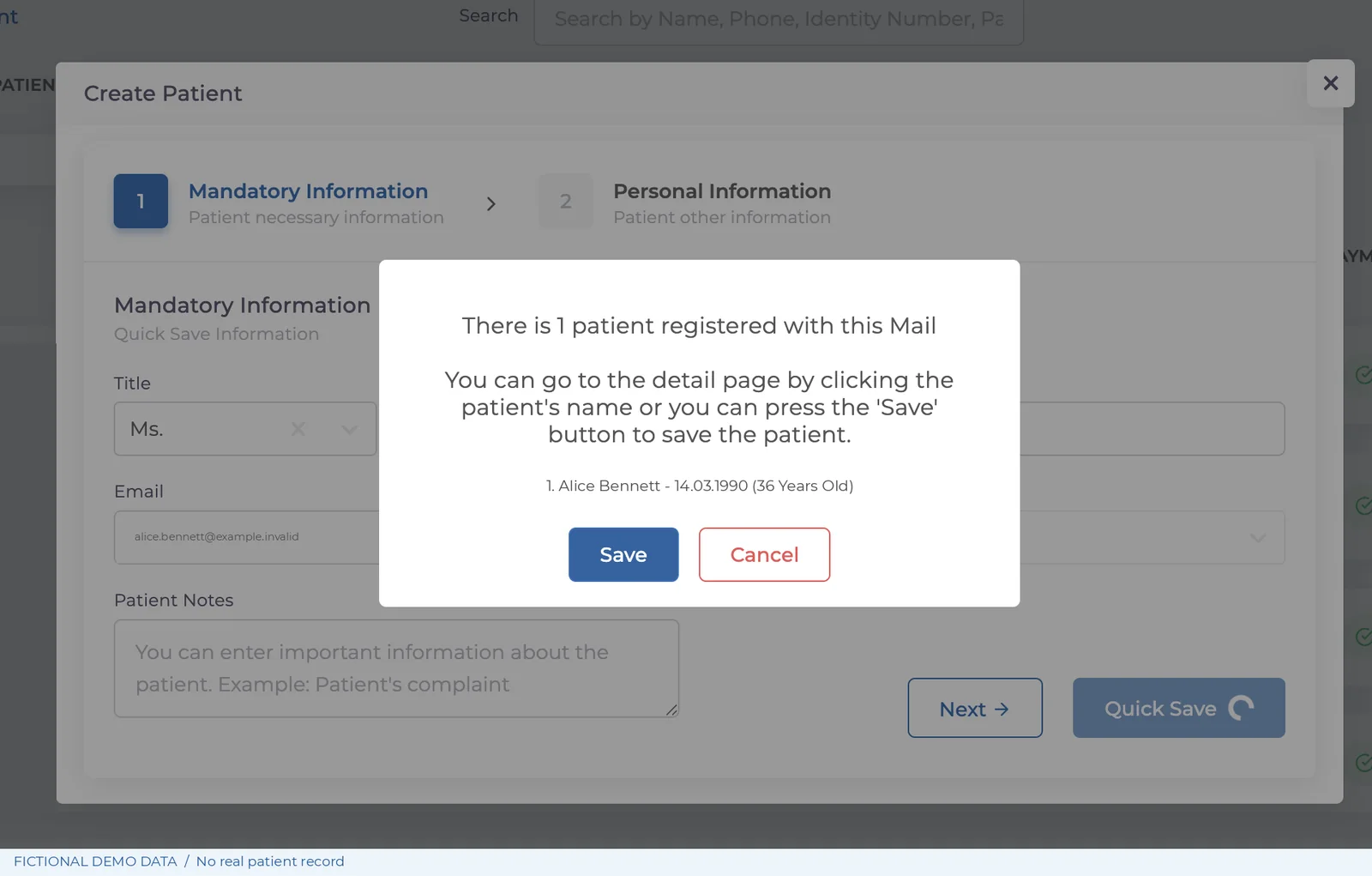
2. Choose the survivor
Select the more complete and reliable record as the main patient. Confirm the direction before opening the merge action.
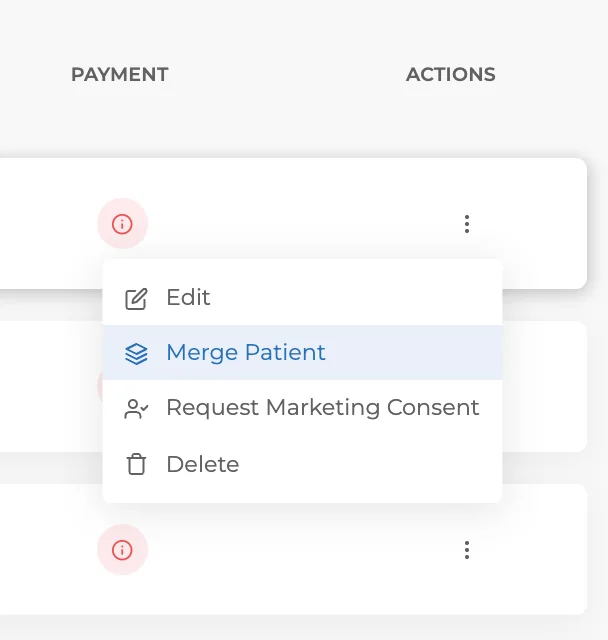
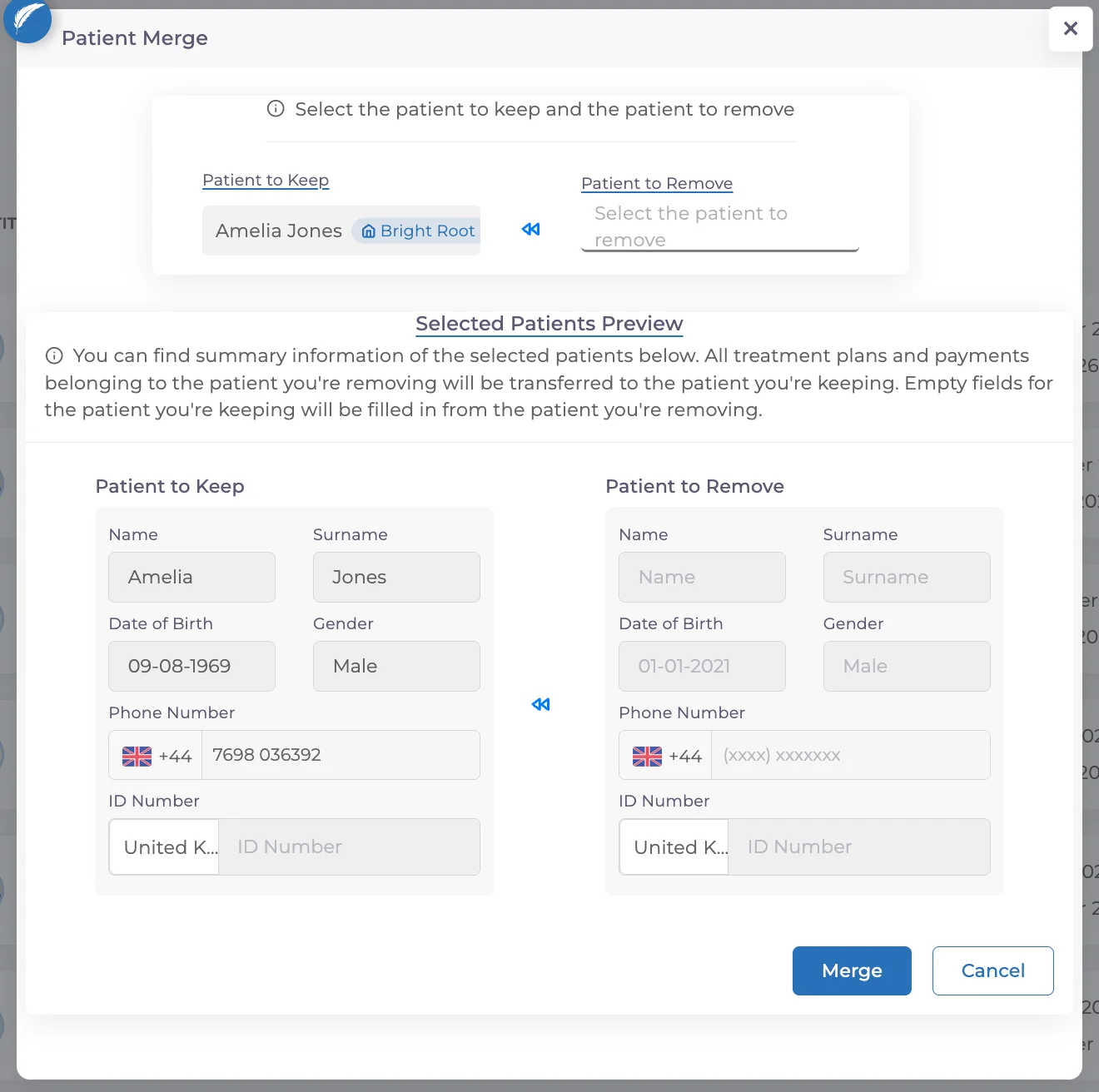
3. Confirm left and right
In the merge window, verify that the main patient is on the left and the record to be removed is on the right. Complete the confirmation only when both identity and direction are certain.
4. Check the result
Confirm that the old record no longer appears and that expected treatments, appointments, payments, notes and images are visible on the retained patient.
Keep going