


Patient Wall
Patient's entire clinical history and procedures performed on them can be accessed through the patient wall.
Updated
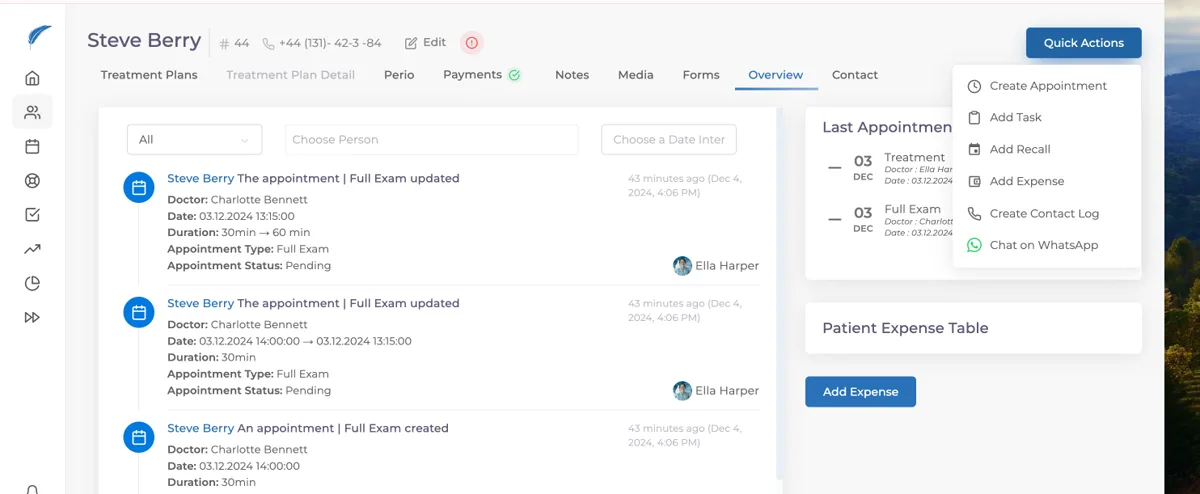
Patient's entire clinical history and procedures performed on them can be accessed through the patient wall. This information is displayed on the "Overview" screen, which is the first window that appears when the patient profile is accessed.
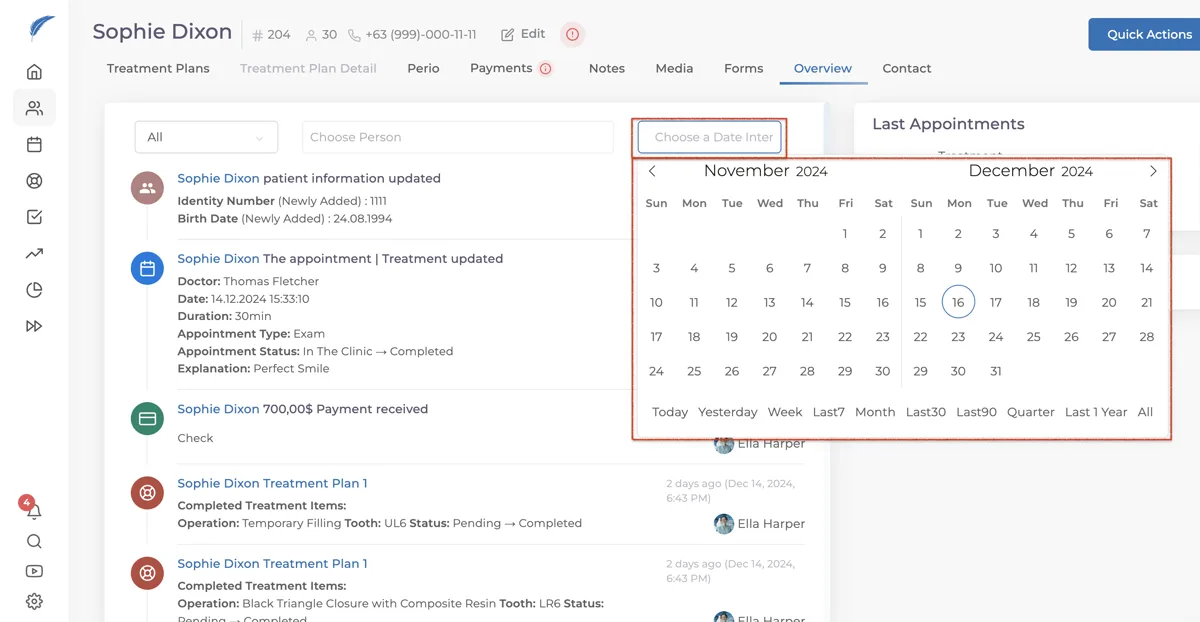
To view actions taken within specific time intervals, press the “Choose Data Interval” to select the desired date range. Once the range is selected, the actions will automatically appear on the screen.
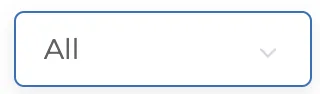
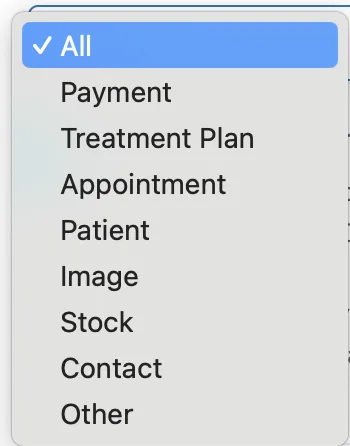
To view only specific types of actions, filtering is required. Click on the “All” , then select the action type from the dropdown menu. Once the selection is completed, only the relevant actions will be listed.
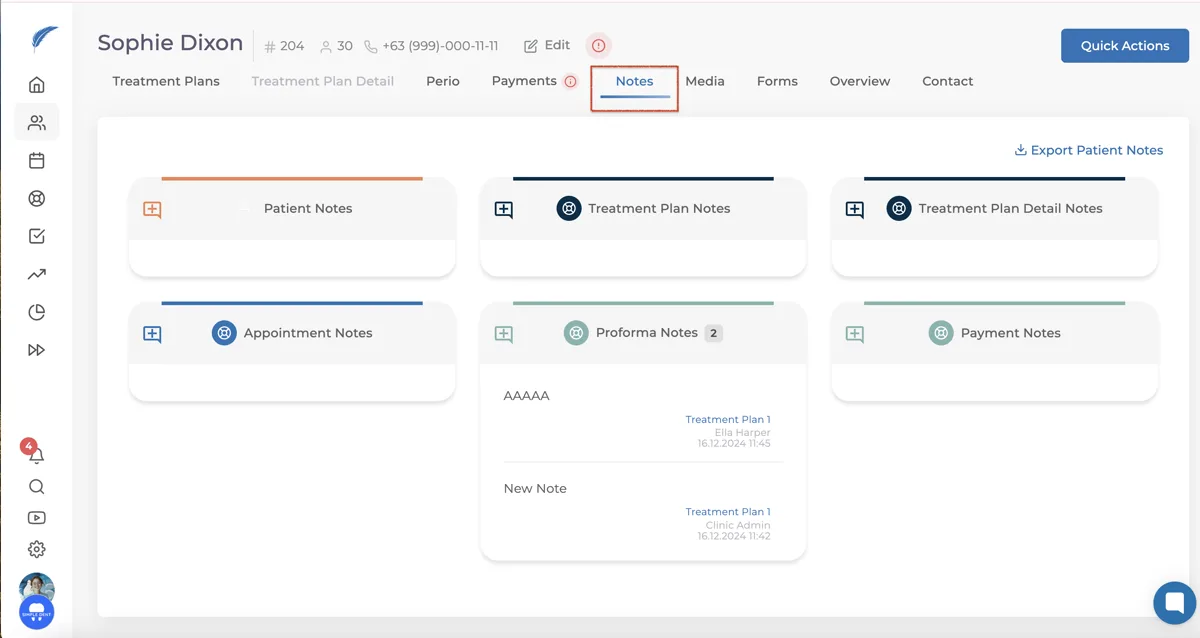
To add extra information or a note to the patient's profile, click on the "Note" section. You can select the type of note you want to add from there.
If your issue is not resolved, you can contact our team using the live chat button located at the bottom right corner of the screen.
Keep going