


Patient Segments
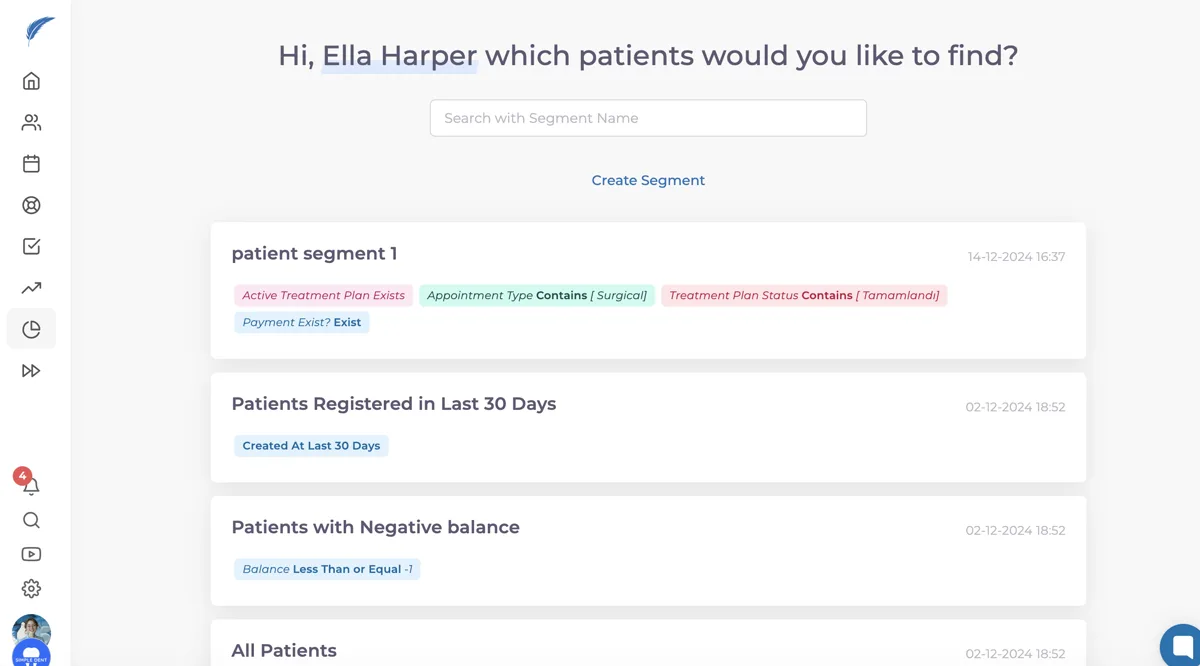
Patient segments are areas where you can apply filters when searching for your patients.
Updated
Patient segments are areas where you can apply filters when searching for your patients.
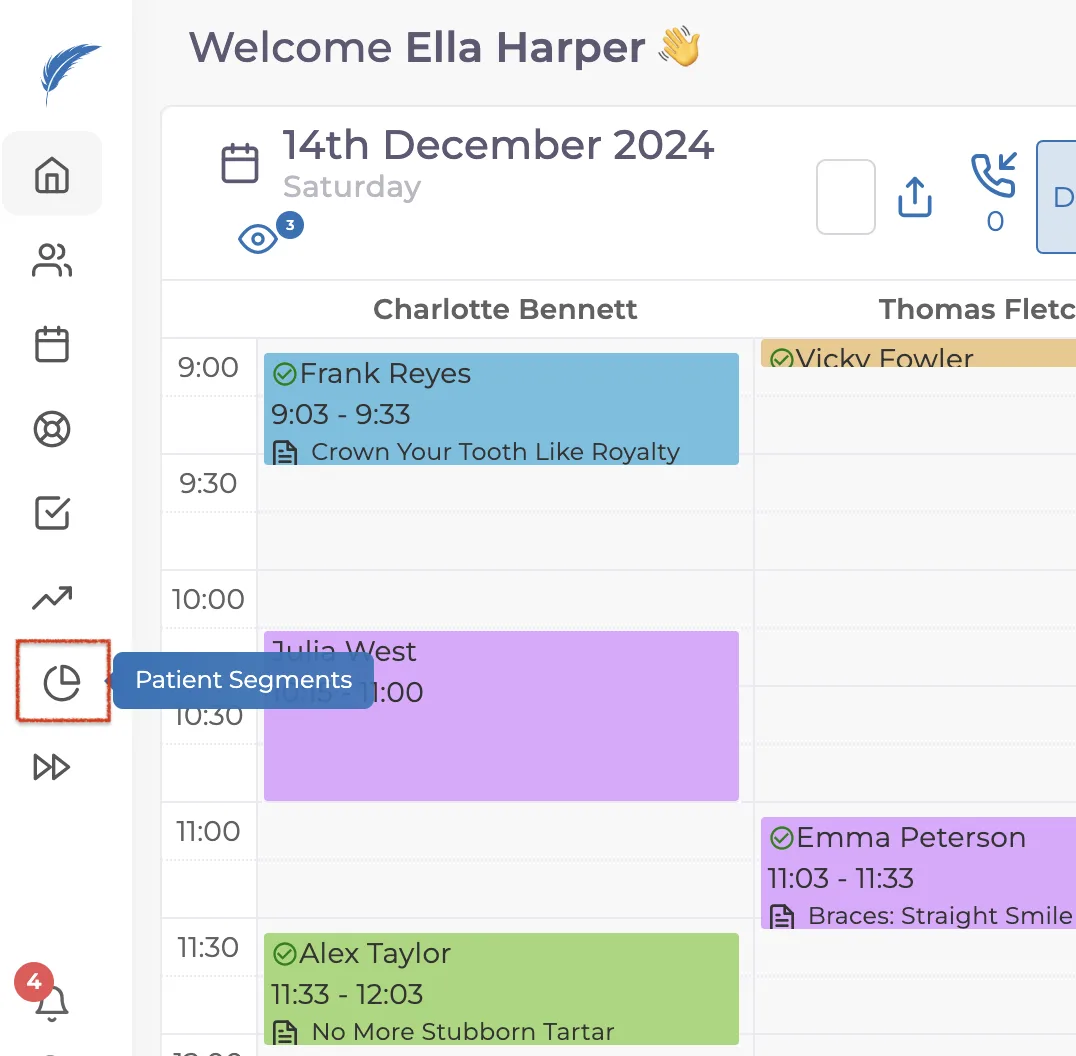
You can access the Patient Segments page by clicking on the pie chart icon located on the left side of your homepage.
To create a new patient segment:
Click on the "Create Segment" text found on the Patient Segments page.
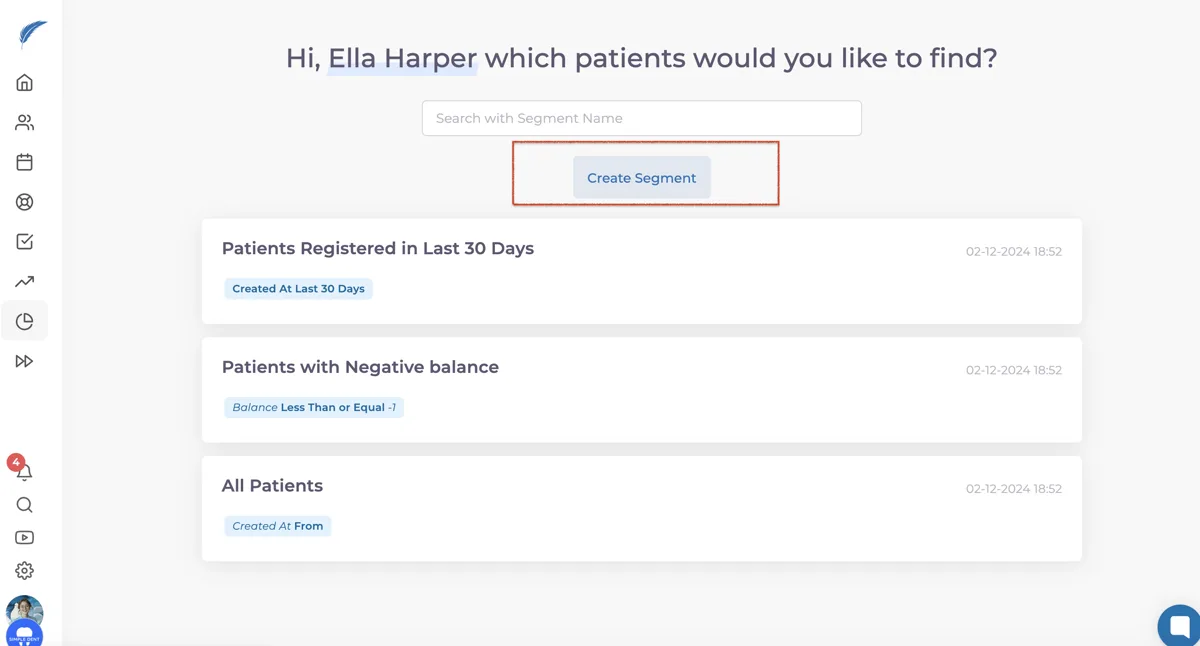
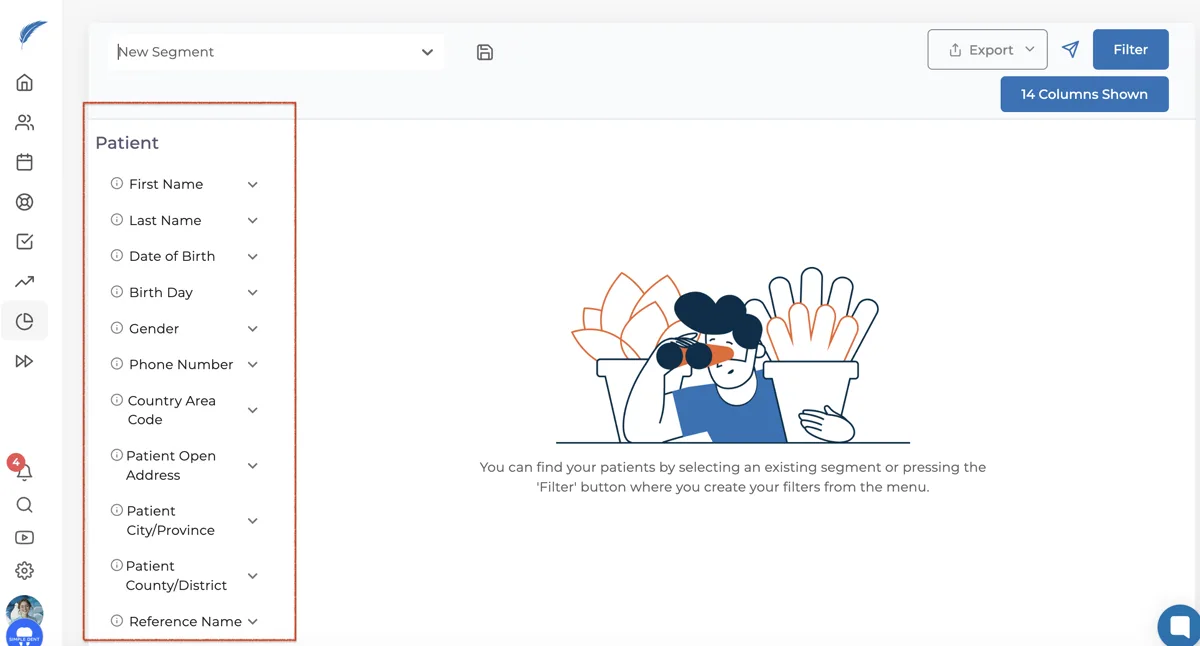
On the opened screen, you will find filtering options on the left side. When filtering patients, you can choose from categories:
After applying the relevant filters from these areas, click the Add icon to include the patient segments you want to list. The filters you have added will be displayed at the top of the page. By clicking the Filter button in the top right corner, your patients will be listed in order from most recent to oldest based on the creation date.
For example, if you want to filter patients who have undergone scaling (dental prophylaxis) and need to be contacted via SMS for a follow-up appointment in 6 months, follow these steps:
First, select the Scaling treatment option from the Treatment Item section. Click on One of and then click the Add icon. Next, adjust the filter in the Treatment Item Status section to filter for those marked as Completed, and click the Add icon again for this filter.
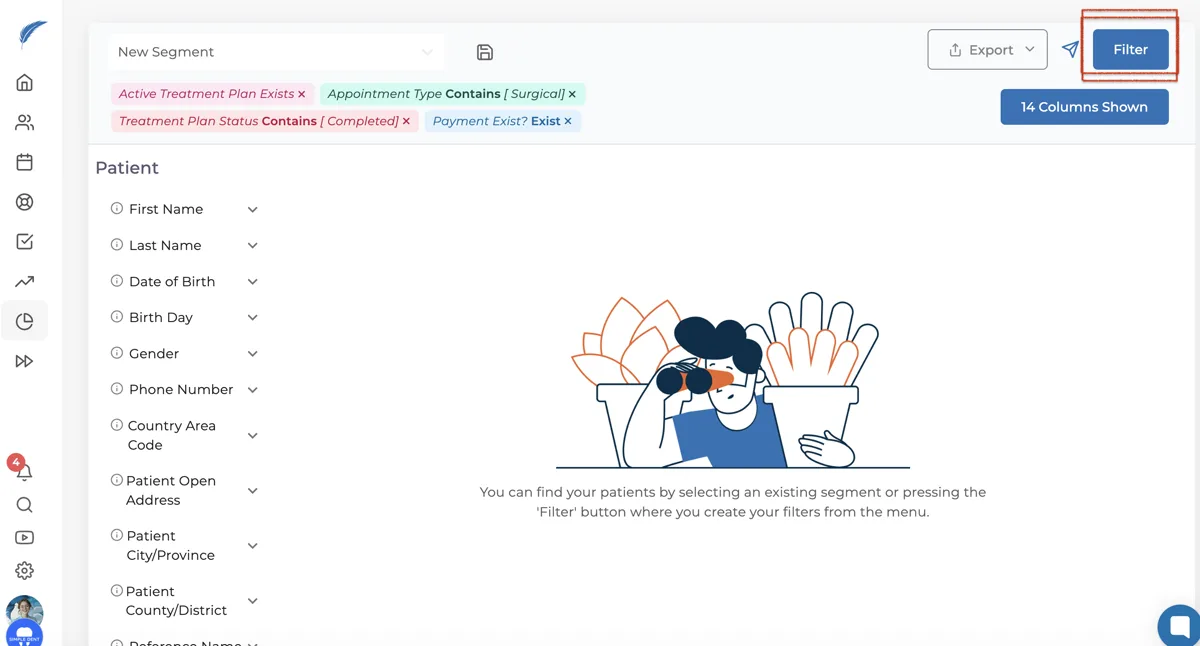
Once you have added these filters, they will be listed side by side at the top of the page.

When you click the Filter button in the top left corner, the relevant patients will be listed chronologically.
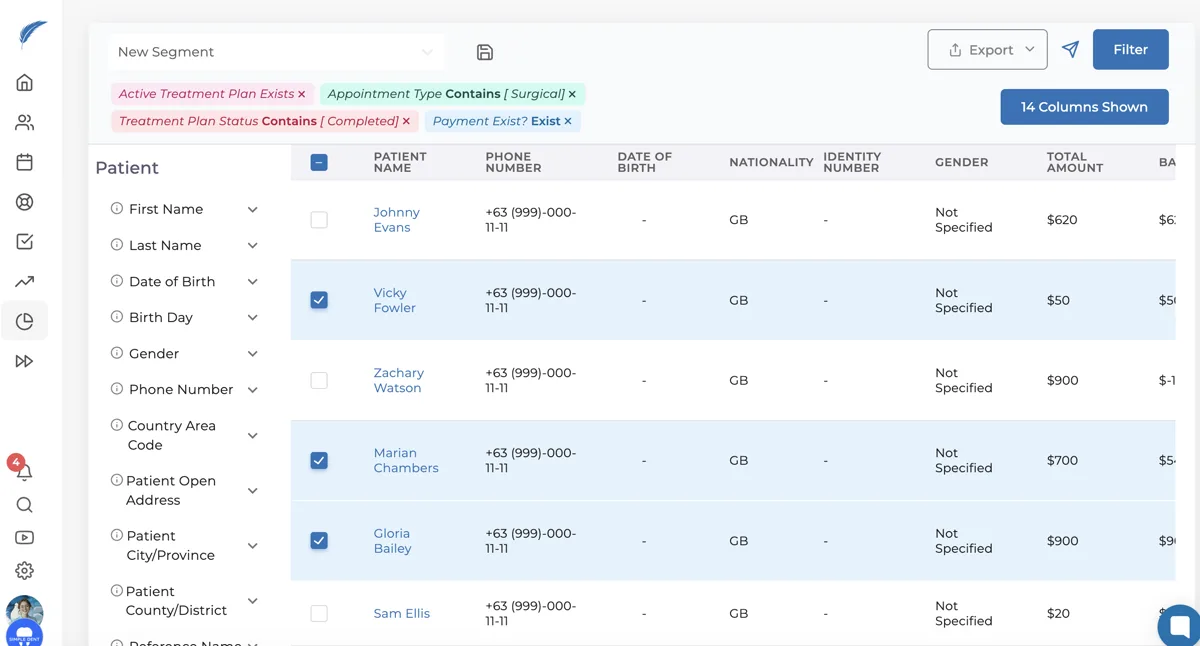
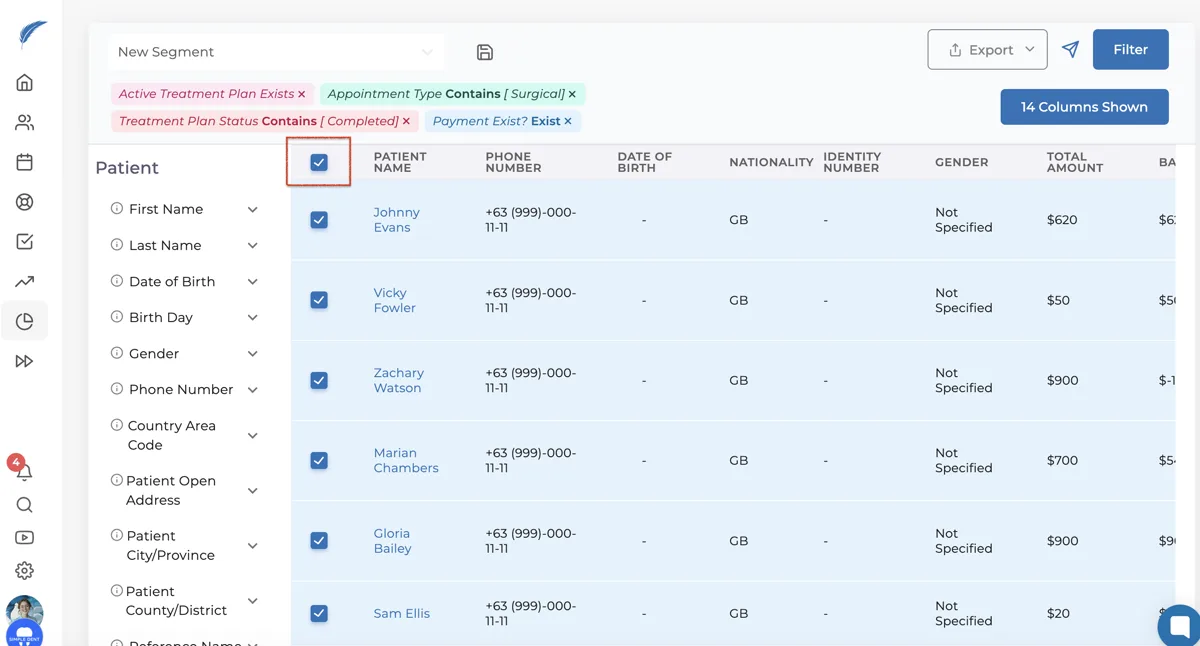
To list the filtered patients, you can either click the checkboxes next to each patient’s name individually or, if you want to select all patients, check the box to the left of the # symbol.
Listing patients one by one:
Listing all patients:
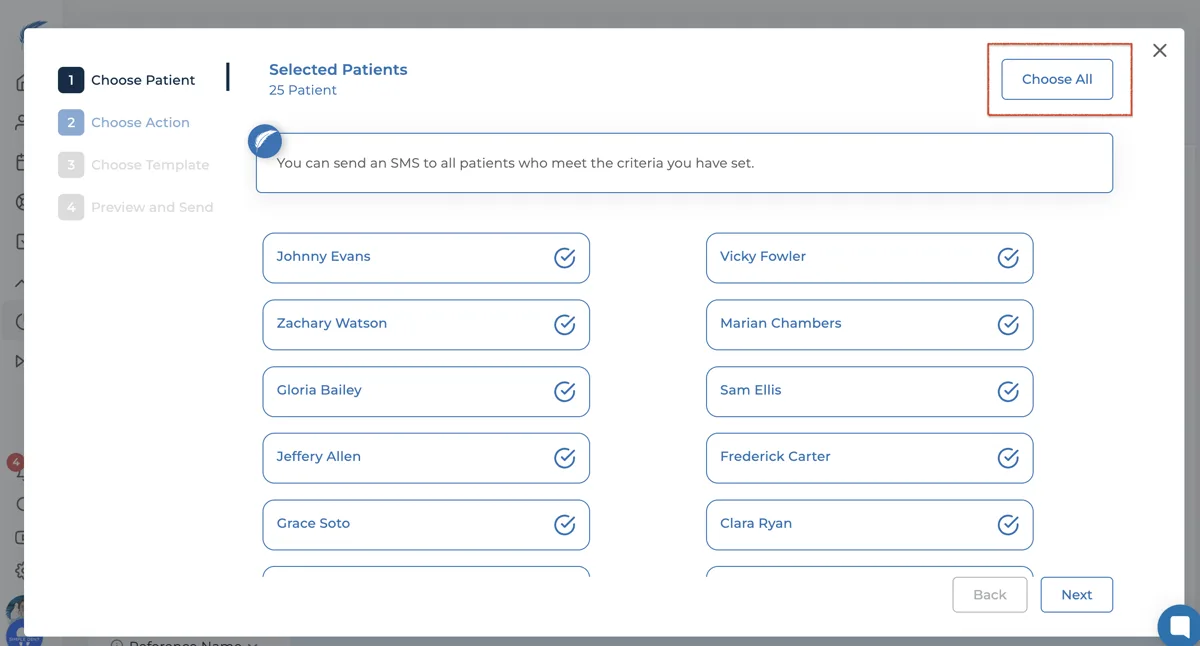
By clicking the airplane icon on the same page, a new window will open, allowing you to send SMS

From the newly opened Select Patient window, you can select all patients by clicking Select All,
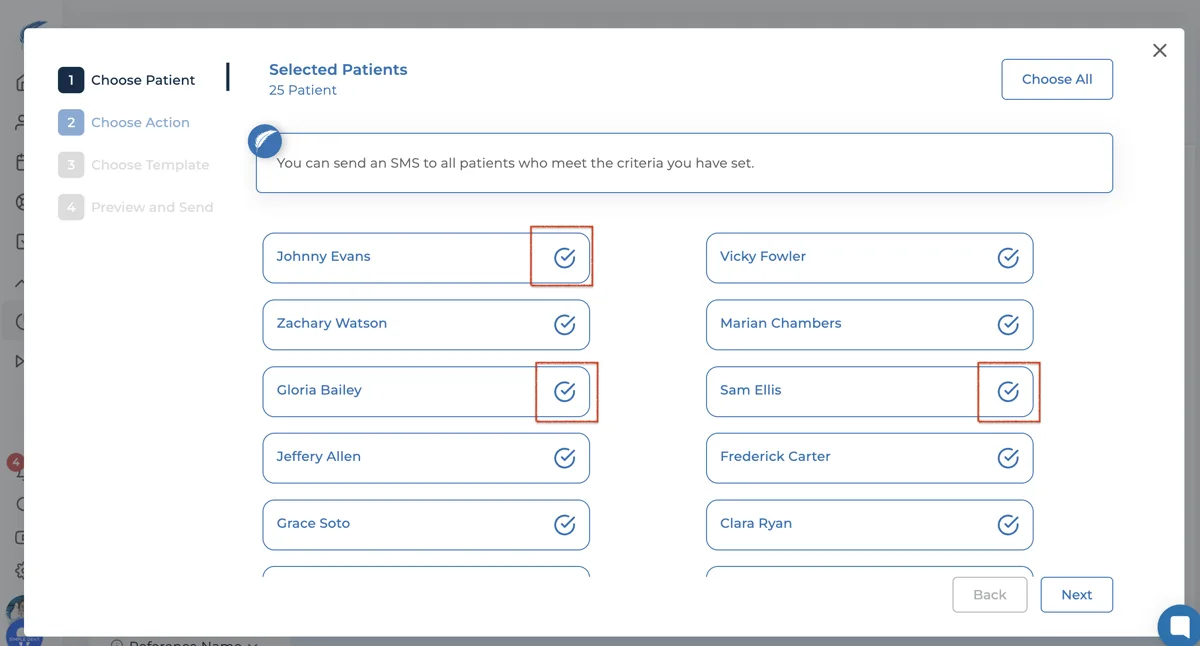
If you want to select specific patients, click the checkboxes next to the patient names and then click the "Next" button.
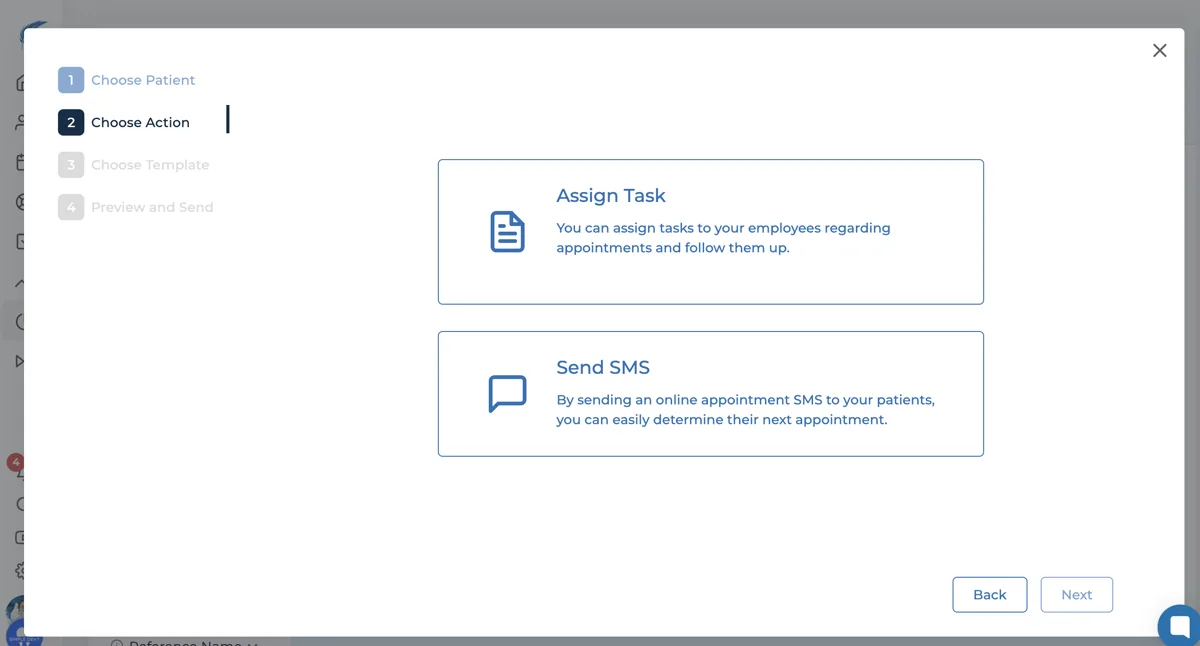
When you click the Next button, you will be taken to the second step, the Action Selection page. In this area, you need to click the Send SMS button and then click the Next icon.
On the next page, you need to select an SMS template as the third step. After creating the SMS template, SMS subject, and SMS content, click the "Next" icon.
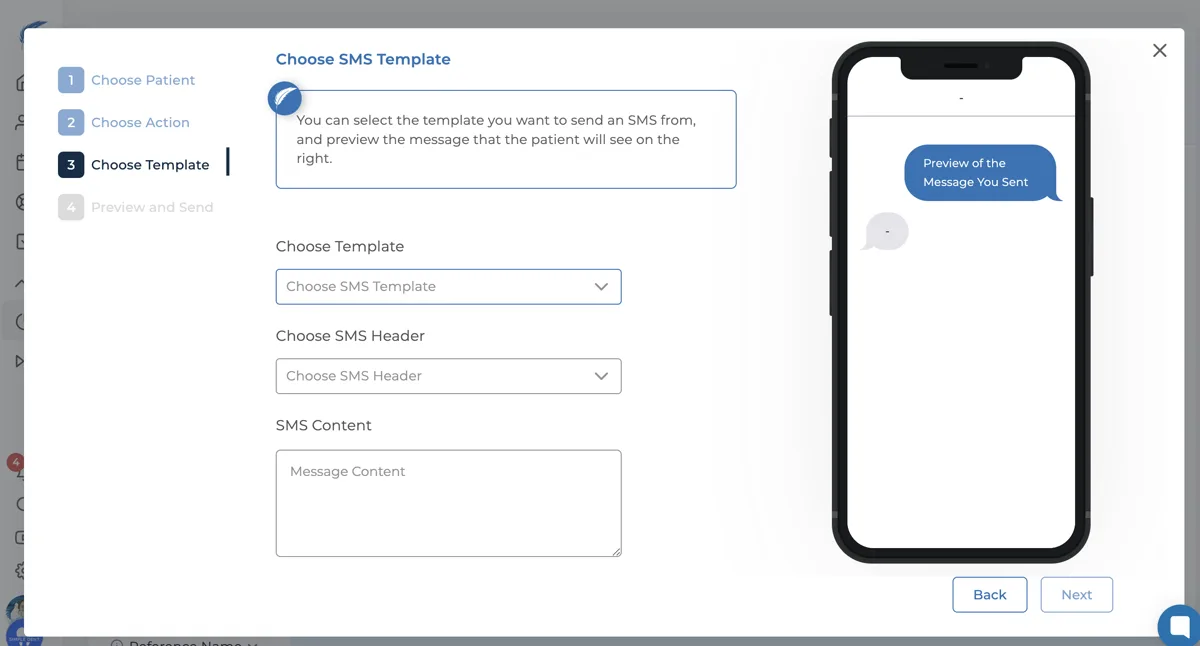
I
n the final window of this section, you can preview your SMS and send it to the selected patients.
Saving a Patient Segment
After selecting your filters, click the disk icon located at the far left of the icons at the top of the page. This will bring up a "Enter Segment Name" field. You can name your patient segment here, allowing you to select it from your saved segments for future filtering and viewing.


Once you complete these steps, your patient segment will be saved under the name you assigned. When you go to the Patient Segments page, you will be able to filter from the saved segment.
Exporting Selected Patients
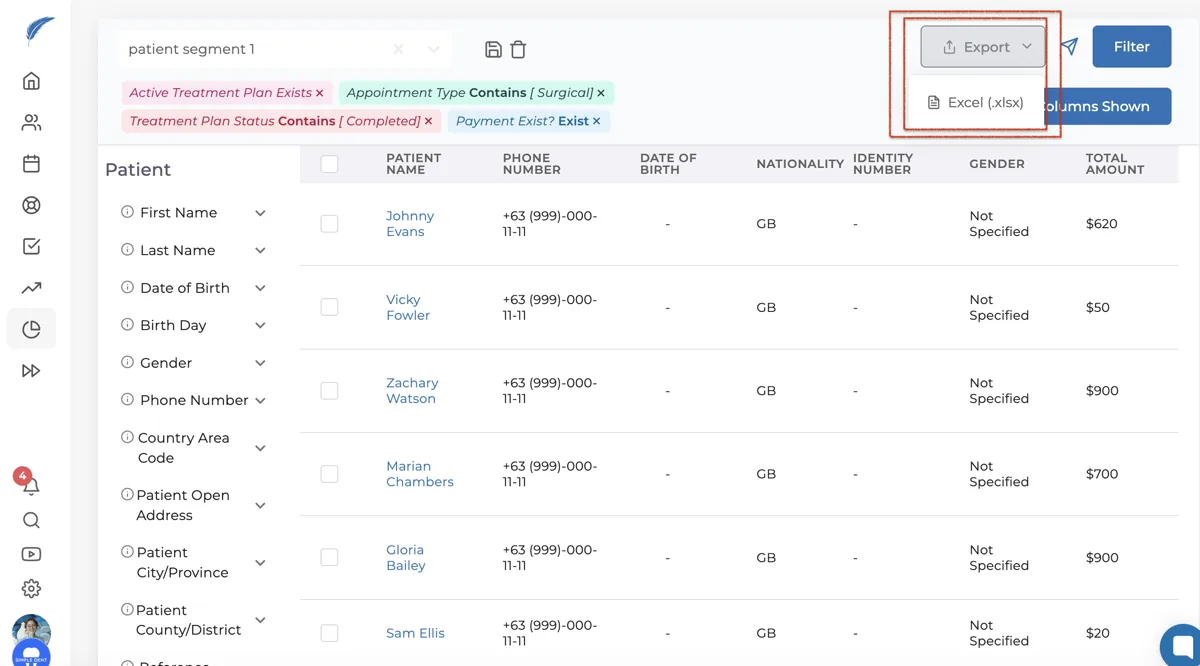
On the same page, click the "Export “ icon. You can then choose the document format you want to list, and save your patient list to your device.
If your issue with patient segments is not resolved, you can contact our team for detailed assistance by using the live chat button.
Keep going