



Registering a New Patient
You can find the "Add Patient" button on the page where patients are listed by clicking on the "Patients" menu on the left.
Updated
You can find the "Add Patient" button on the page where patients are listed by clicking on the "Patients" menu on the left.
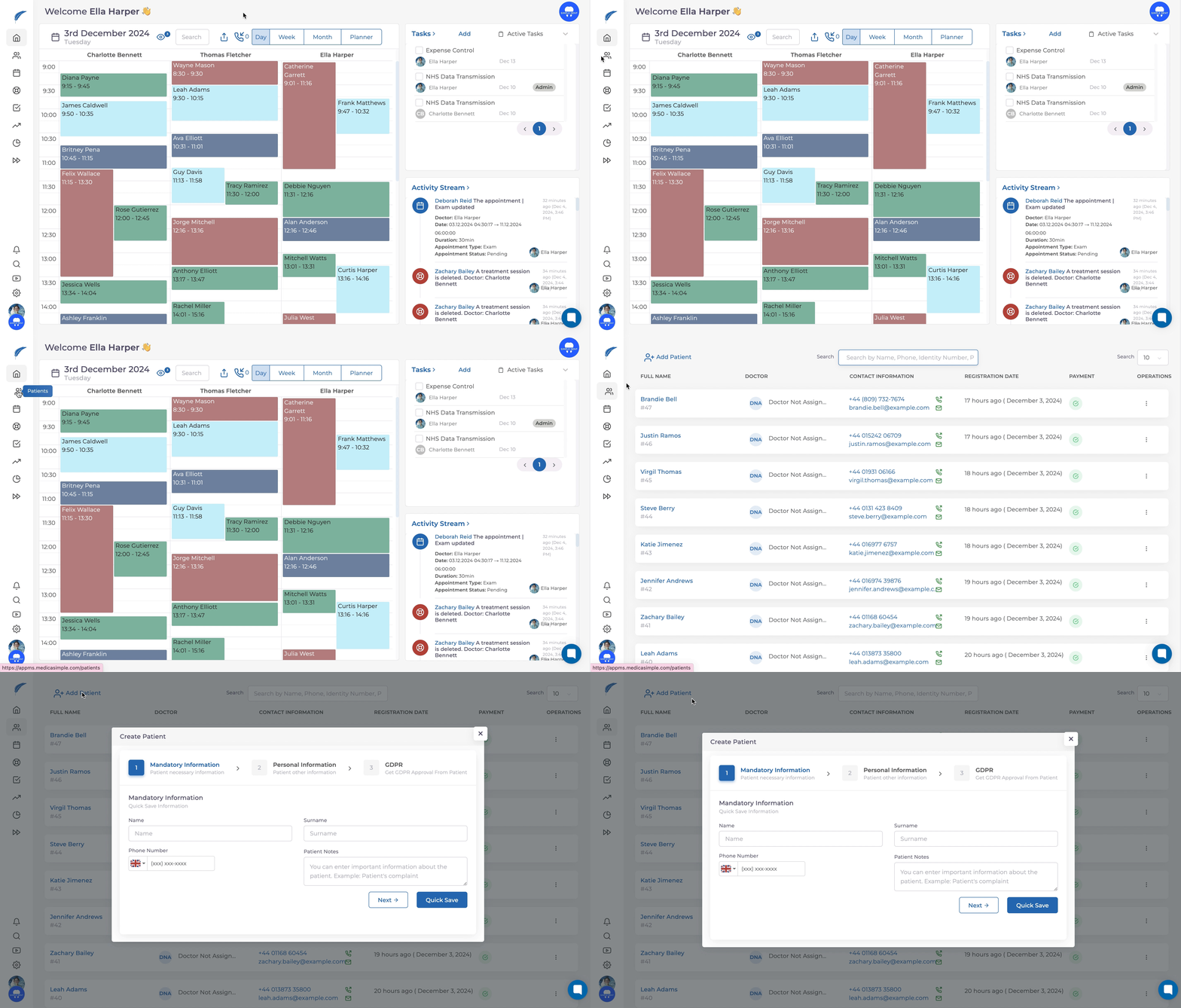
To add a patient:
1. Click on the "Add Patient" button.
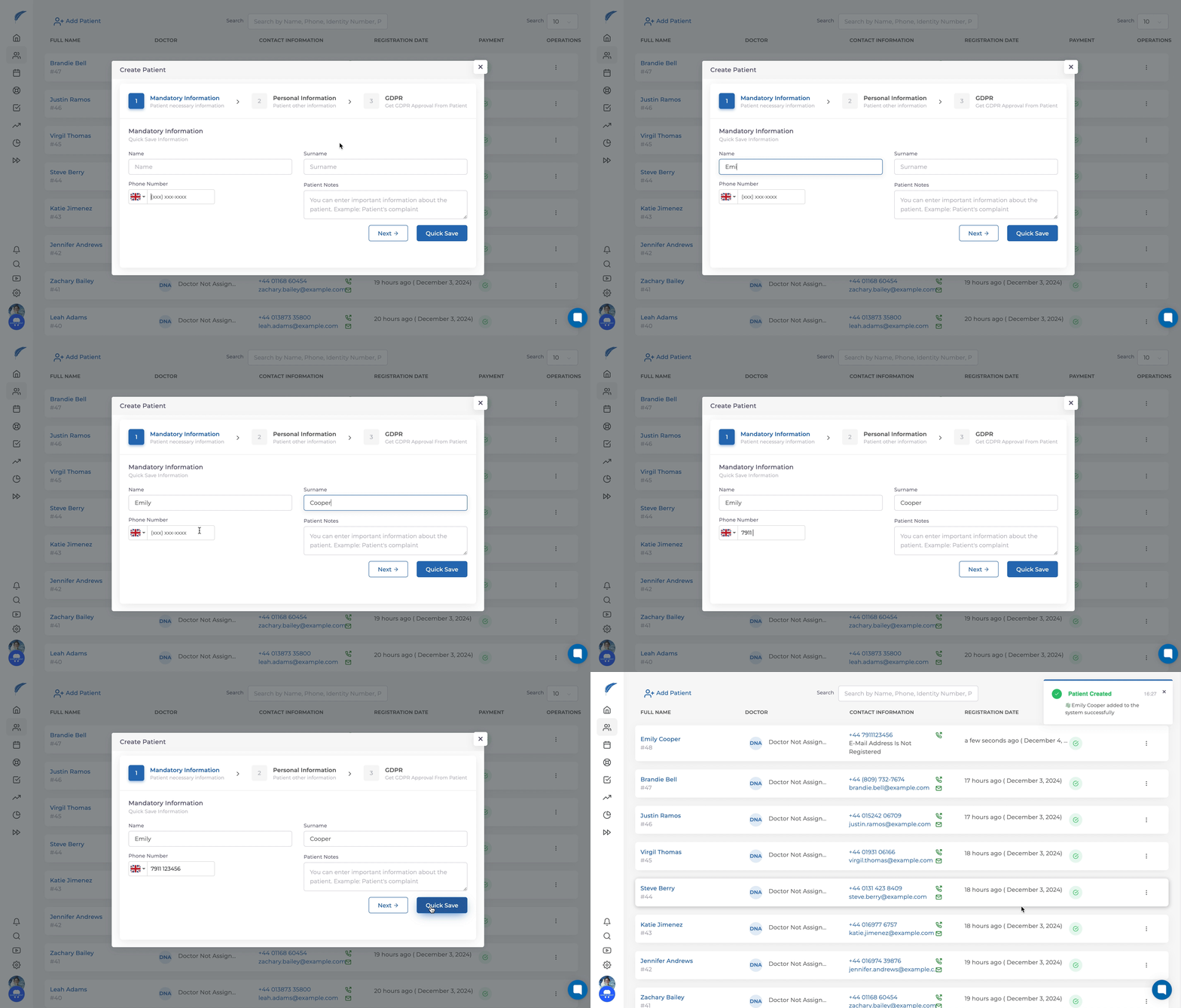
2. Fill in the patient's first name, last name, and phone number.
If you want to perform a quick registration, click the "Quick Save" button. Your patient will then appear as registered in the system. (Note: Quick registration with only a phone number is recommended for use in appointment scheduling calls.)
To continue with the registration process, click on the "Next" button.
In the continuation of the registration process, you can fill in additional detailed information such as the National ID Number, Date of Birth, Email, and other relevant details.

Once you have filled in the details and clicked the "Next" button, you will move to the final step of the registration process.
The person you registered will then appear at the top of the patient list.
- Creating a New Patient Record from the Calendar
- Opening a New Patient Record While Creating a Treatment Plan
Keep going