


Updating the Balance
When you start using Medicasimple, the balances of your old patients from the transferred data are visible in our application.
Updated
When you start using Medicasimple, the balances of your old patients from the transferred data are visible in our application. In some cases, you may need to update the transferred balance.
The " Balance" button is located at the top of the payments screen. To edit the balance, click on the icon located at the beginning of the Balance text. This will allow you to make the necessary changes to the balance.
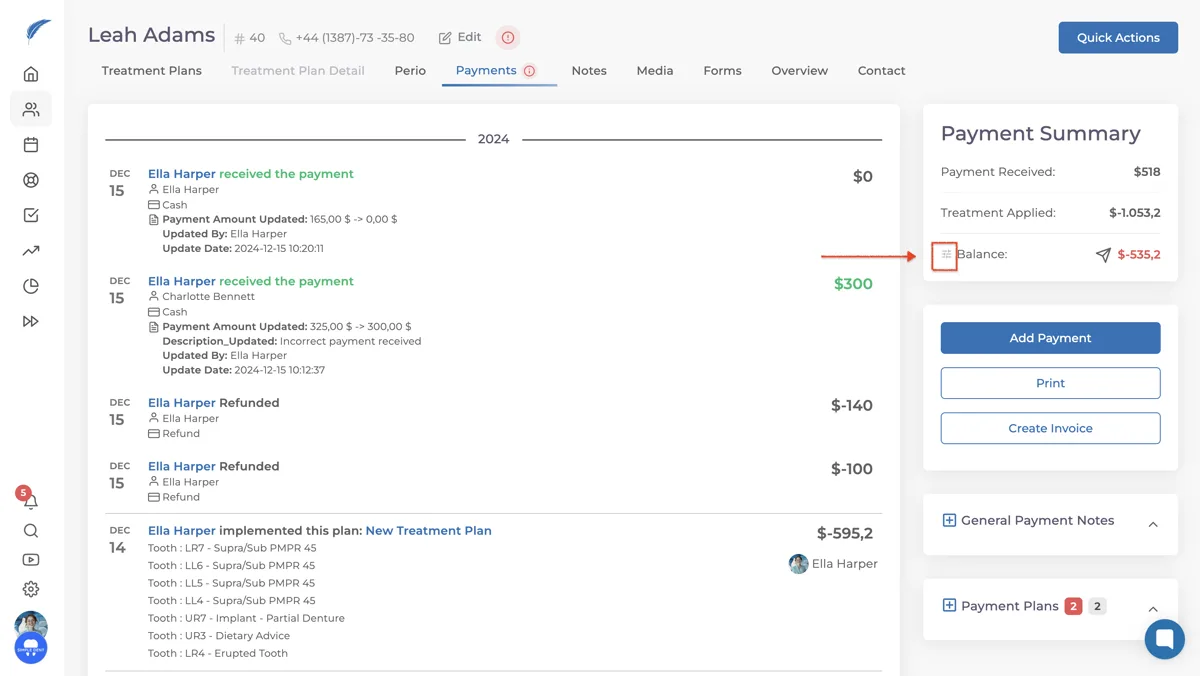
After clicking the button, you must definitely fill in the Amount and Description fields in the window that opens.

Note: The amount field should reflect the patient's new balance. For example, if the patient owes 1000 GBP, the balance will appear as "-1,000". To adjust the debt to 150 $, you should enter "-150" in the Amount field. To clear the debt, enter "0" in the Amount field.
The "Update Balance" function is suitable in the following situations:
If a discount is to be applied not before starting the transactions but at the final payment stage, it can be applied after the payment is collected. In the screenshot below, the patient's debt of 260 GBP is settled by applying the discount, resulting in a new balance of 0.

Some patients may appear indebted due to data from the system prior to the clinic's transition. In such cases, you should consult with administrators and physicians to confirm the transactions, and then update the balances.
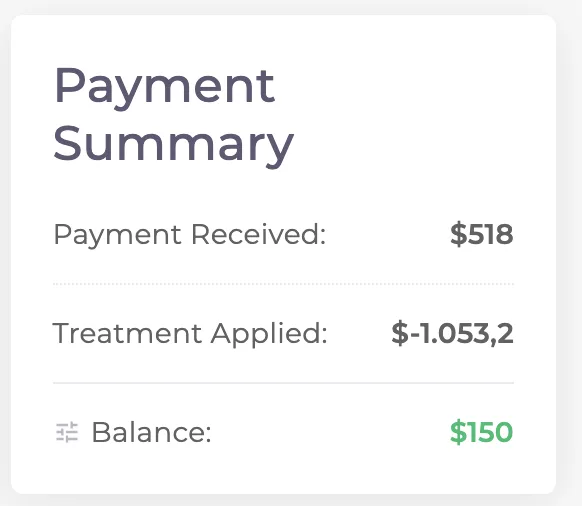
If there is data transferred from the previous system, a notification like the one shown in this screenshot will appear. After reviewing the patient transactions, the new balance should be defined.
Keep going