


🧩 How to Create a Facebook Business Account
The first step before connecting WhatsApp to Medicasimple.
Updated
Before you can use WhatsApp with Medicasimple, you need to create a Facebook Business (Meta Business Manager) account for your clinic. This account lets Meta verify your clinic's identity and manage your WhatsApp account on behalf of the business.
🔹 Step 1: Go to Facebook Business
Click Log in with Facebook and sign in with your personal Facebook account. This is only used to verify your identity; it does not mix your personal account with your clinic.
If you do not have a Facebook account, create one from the same screen.

🔹 Step 2: Enter your clinic information
When creating the Facebook Business account, enter your business name, the account owner's name and surname, and a corporate email address.
If the form does not appear, open your profile from the left menu and choose Create business portfolio. Then open WhatsApp Accounts, click Add, and continue with creating a new WhatsApp Business account.
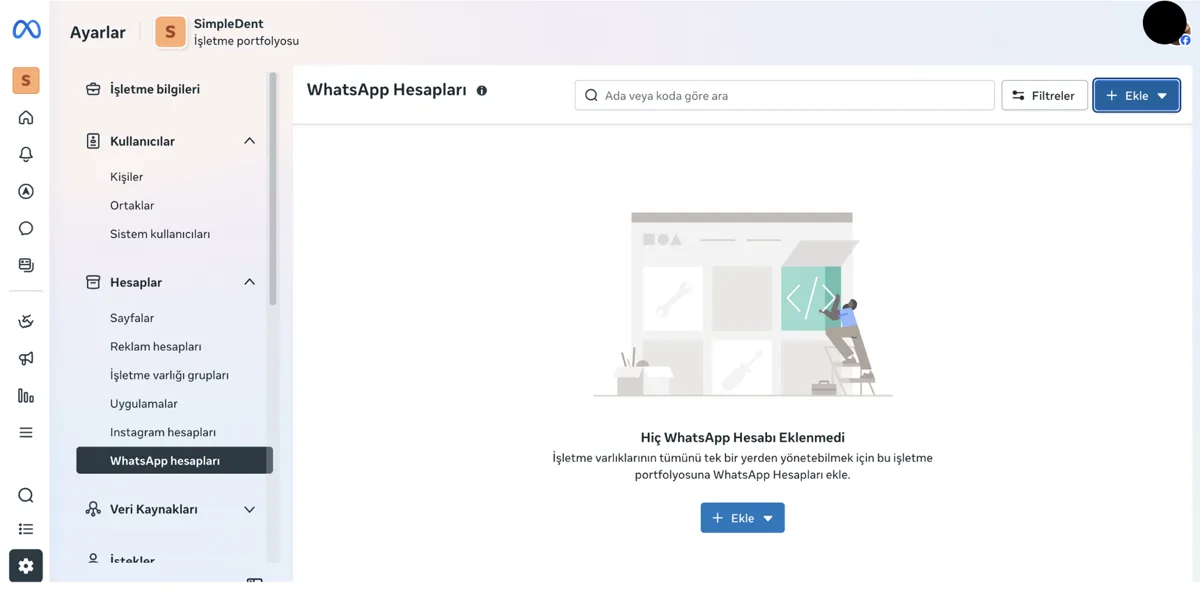
On the next screen, you can continue with the option to use only one display name. After this step, your WhatsApp Business account will be created.
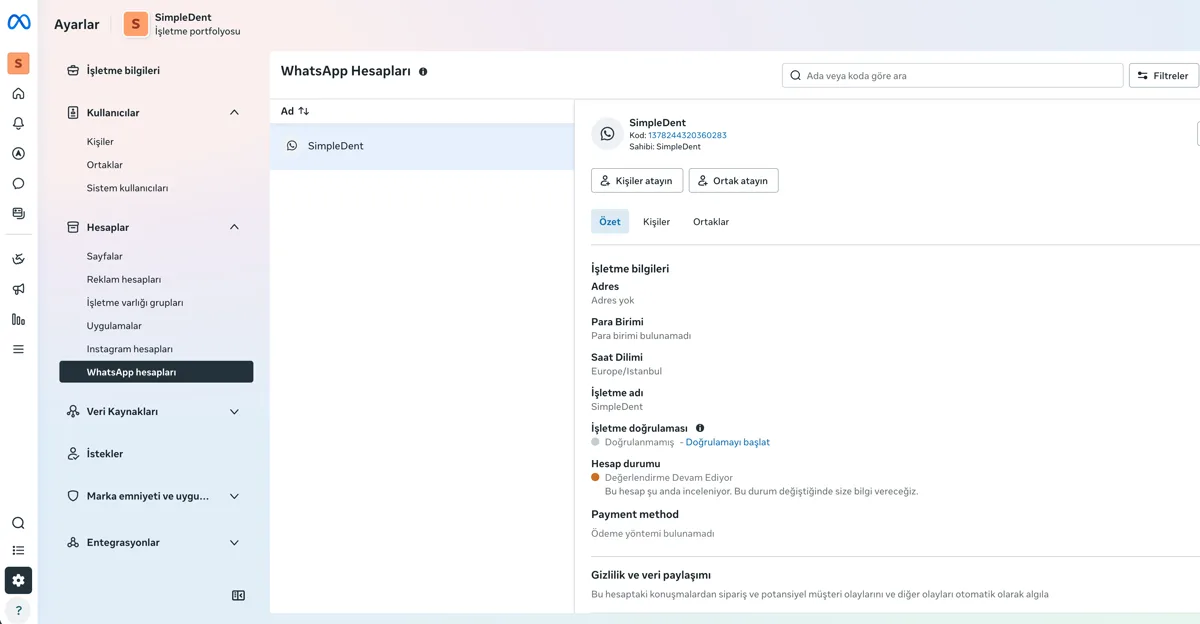
🔹 Step 3: Add your clinic page
From Business Settings > Accounts > Pages, add an existing page, request access to someone else's page, or create a new page. This is optional but recommended.
🔹 Step 4: Add authorized people
If more than one person will manage the Business account, go to Users > People, click Add, enter the person's email address, choose their role, and send the invitation.
🔹 Step 5: Check your information
Check that the business name, address, phone number, corporate email, admin user, and page information are correct from the Business Information area.
🔹 Step 6: Next step
Your Facebook Business account is now created. You can continue with the next stage: Facebook Business account verification.
Keep going