


🧾 How to Verify Your Facebook Business Account
The second step before connecting WhatsApp to Medicasimple.
Updated
Facebook needs to confirm that your business belongs to a real organization. This process is called Business Verification, and it is required before you can connect WhatsApp.
🔹 Step 1: Open Facebook Business settings
Sign in with your Facebook account if prompted.
You will see your business name, address, email, and website information.
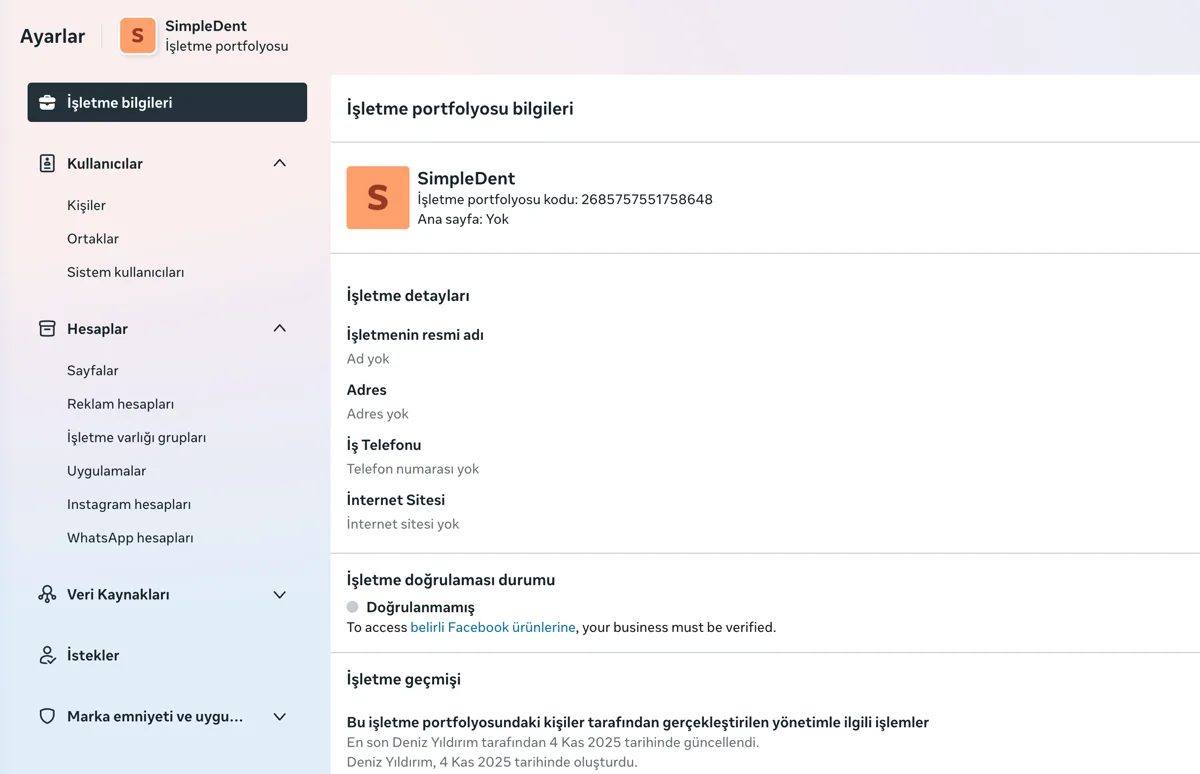
🔹 Step 2: Check your information
Before starting verification, make sure the business name, address, website, and email are complete and match your official business documents. If anything is missing or incorrect, click Edit and update it.
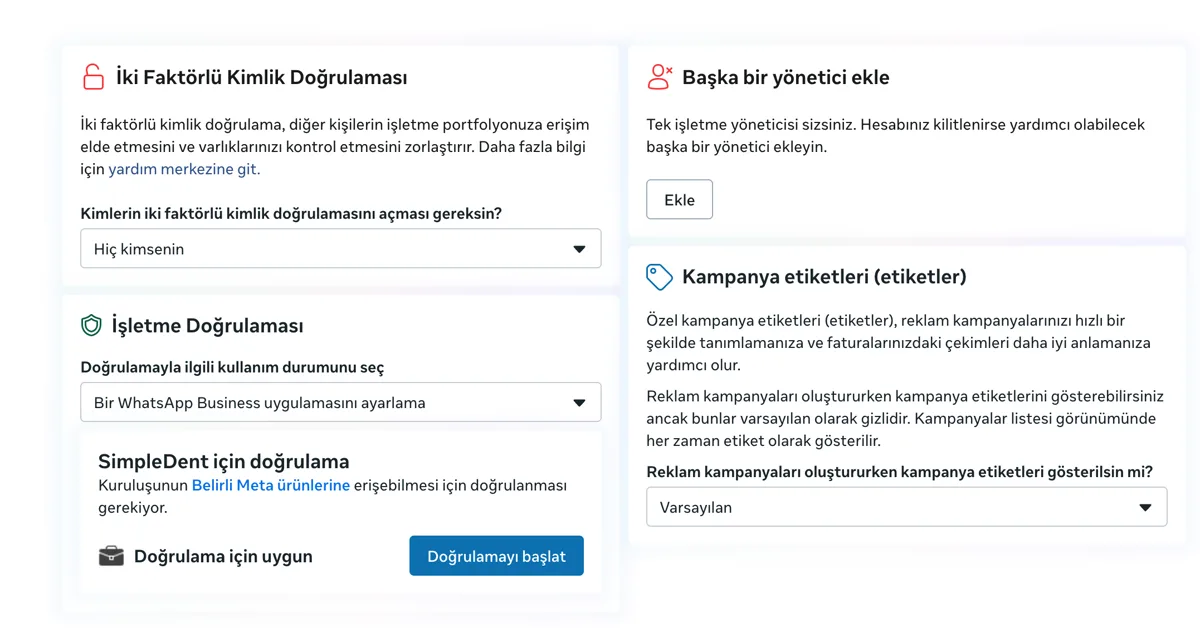
🔹 Step 3: Start business verification
In the Business Information page, find the business verification status area, click View details, and follow the prompts to start verification.
🔹 Step 4: Verify by email
The easiest method is email verification. Enter your business email address, receive the code Facebook sends, and enter it on the Facebook screen. Personal email addresses such as Gmail, Hotmail, or Yahoo are not accepted; use a corporate domain email address.
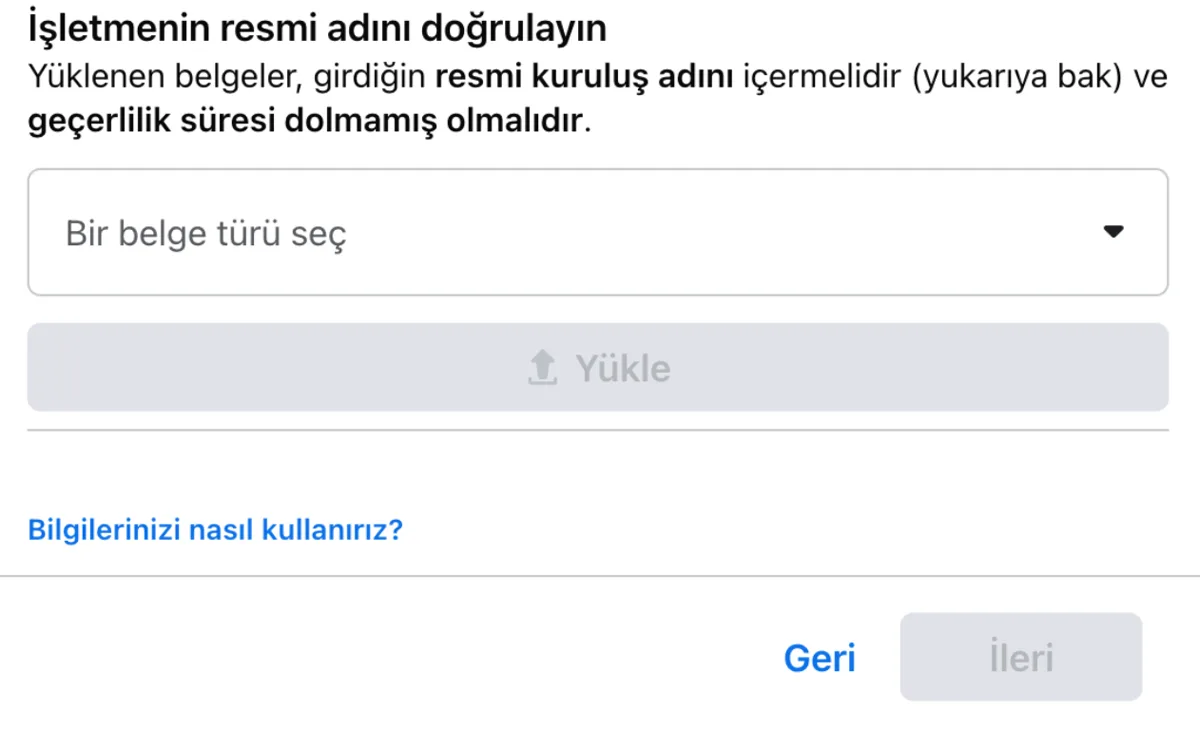
🔹 Step 5: Upload documents if needed
In some cases, Facebook may request proof of your business. Accepted documents can include tax registration, trade registry/activity documents, or a utility bill showing the address. Make sure the file is clear, readable, and that the business name and address match the information in your Business account.
🔹 Step 6: Wait for approval
After you upload documents or complete verification, Facebook starts reviewing the request. Review usually takes 1 to 3 business days. If approved, you will see Business Verified in your Business panel. If rejected, Facebook will send an email.
⚠️ Common issues
If verification is pending, wait and check your email. If a document is rejected, upload an updated document where the business name and address match. If the verification email does not arrive, make sure you are using a corporate email address. If the verification button is not visible, complete the business name, website, and address fields first.
🎉 Done
Once all checks are complete, your business account is verified. You can now continue with the Facebook login step in Medicasimple and complete your WhatsApp connection.
Keep going