


Missing Patient SMS Communication
Use missing-patient reports to identify patients who missed or canceled appointments and follow up by SMS.
Updated
First, open the lost patient report page. Click on the three lines next to the "Appointment Statistics" graph. From the dropdown list, select "Missing Patient List," and a window will open listing the patients who missed their appointments.
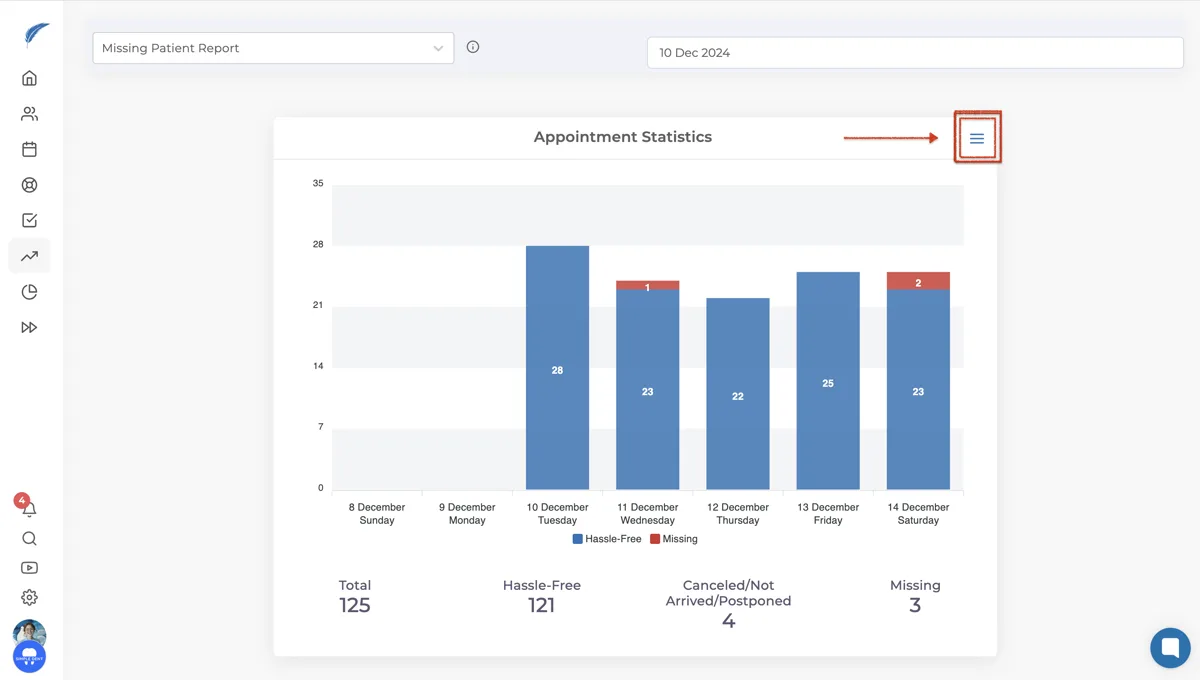
In this window, information about lost patients including name, surname, last appointment, appointment status, and doctor information is displayed.
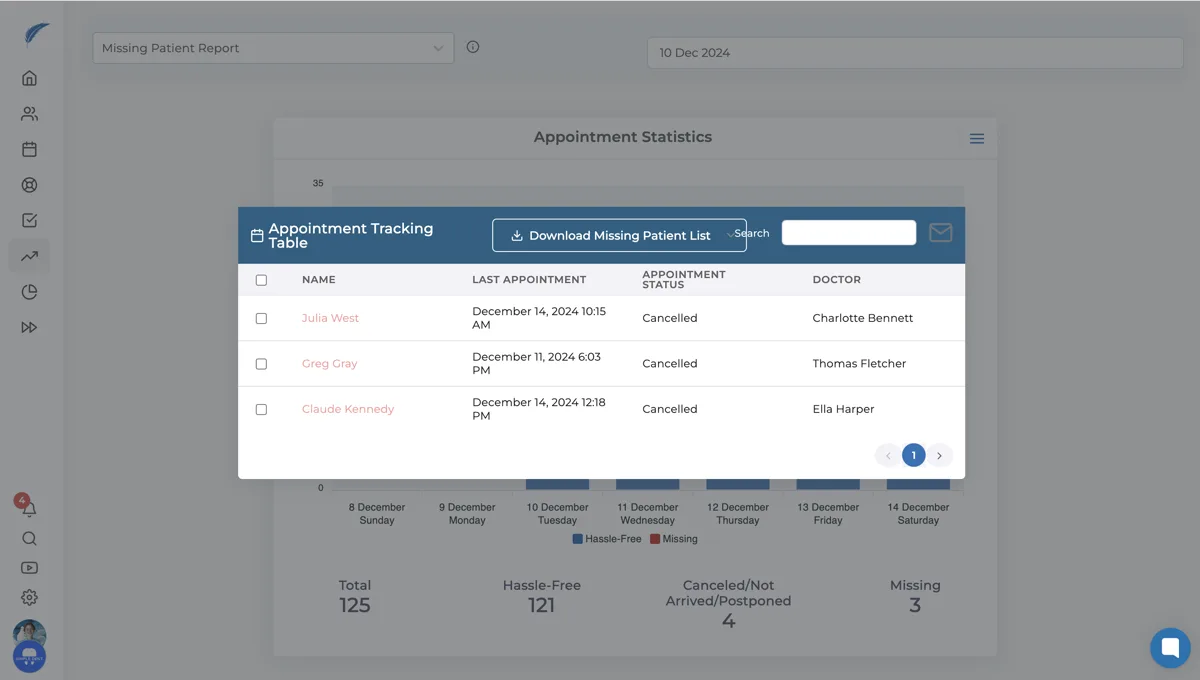
To perform actions with your missing patients, there is a checkbox next to each name. You can select either all patients or specific ones you choose. When you select any patient from this list, the "SMS Actions" button at the top will become active.
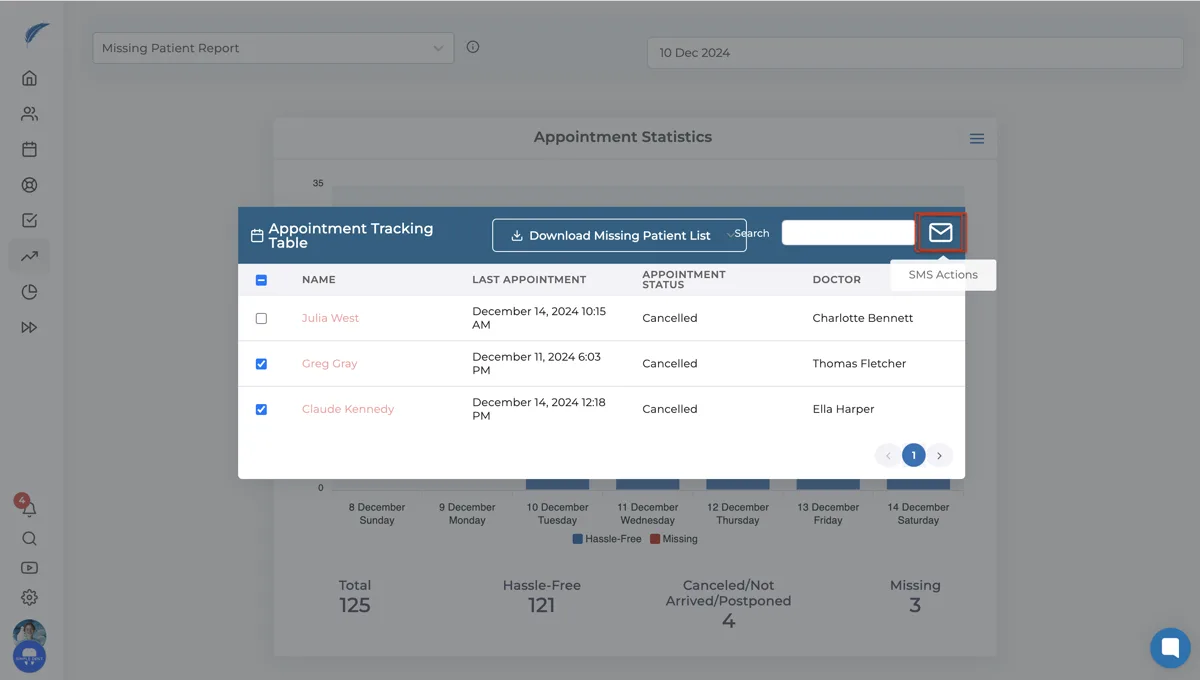
After completing your selection, click the message icon to open a page with the names of the selected patients.
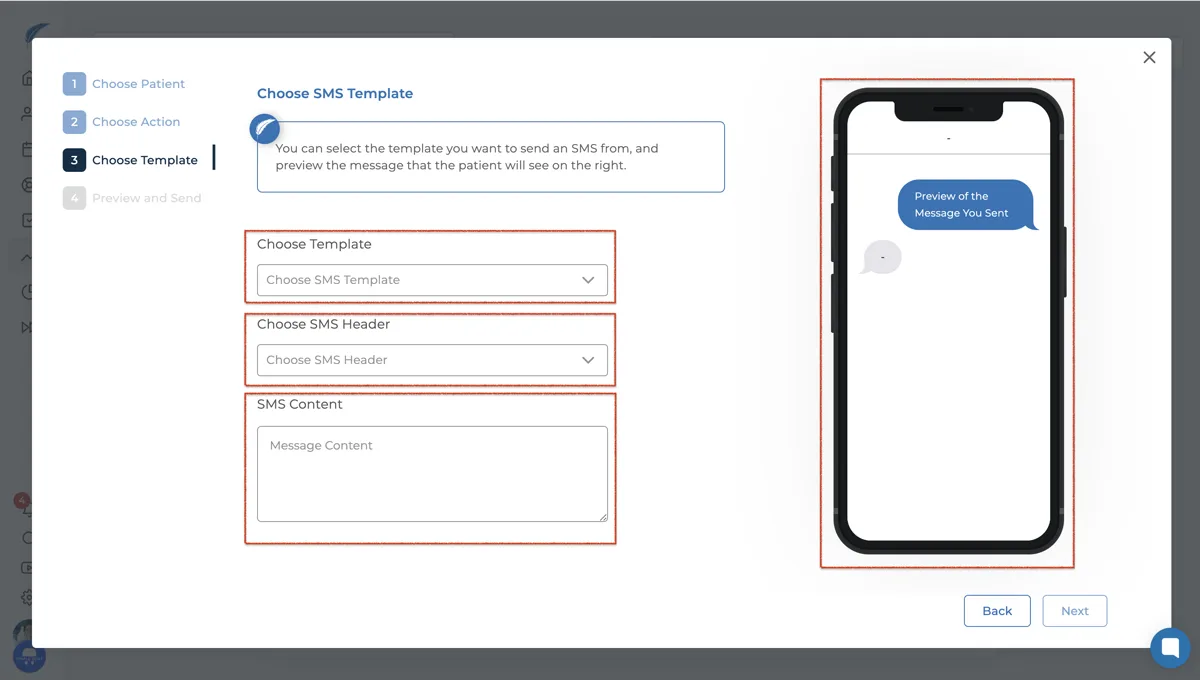
After creating your SMS text, there is a preview section where you can check how the content will appear. After reviewing, click the "Send to Patient" button at the bottom right to send the SMS to your patients. The number displayed will vary based on the number of patients you wish to send the message to.
The SMS sent to your patients will look like the following. By clicking on the online appointment link included in the message, they can create an online appointment request.
You can quickly reach out to your lost patients this way. For detailed information on this topic, you can contact us via the live support button located at the bottom right.
Keep going