


Receiving SMS Confirmation for Appointments
To enable SMS appointment reminders, go to the Settings screen and click on SMS Automation under the Communication Settings section.
Updated
To enable SMS appointment reminders, go to the Settings screen and click on SMS Automation under the Communication Settings section.
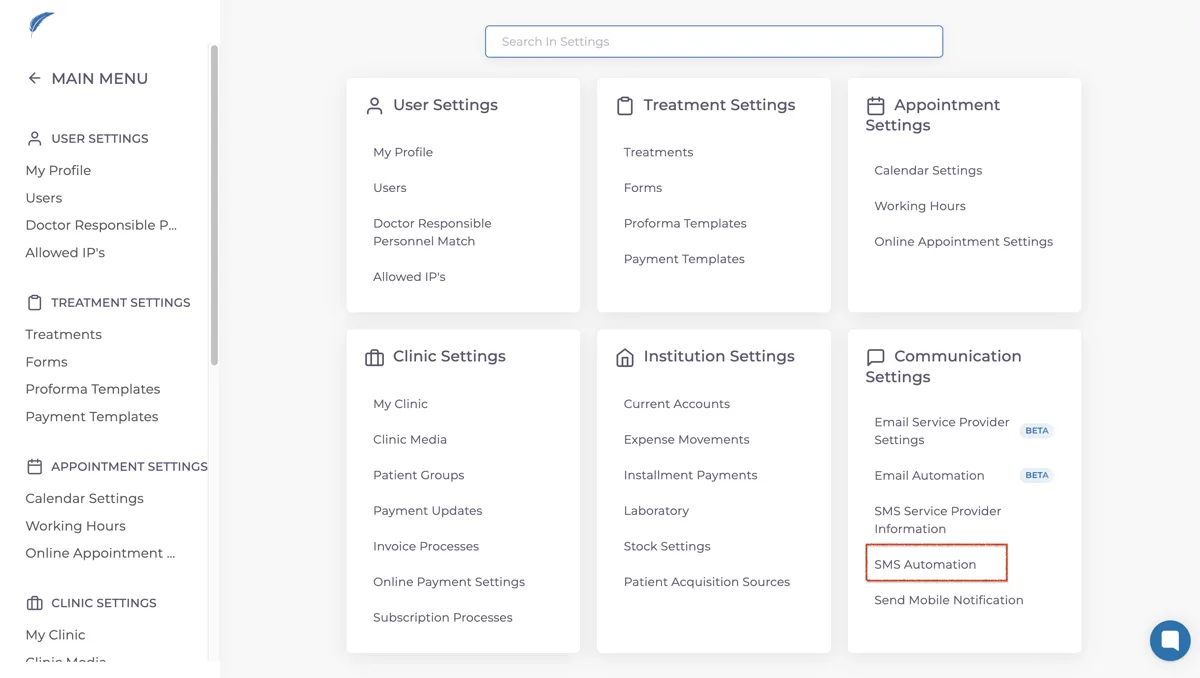
Once the SMS automation screen opens, select the Appointment Reminder from edit templates.

From the screen opened after, you can customize the SMS content to suit your needs. After finalizing the message, simply click Update to save it.
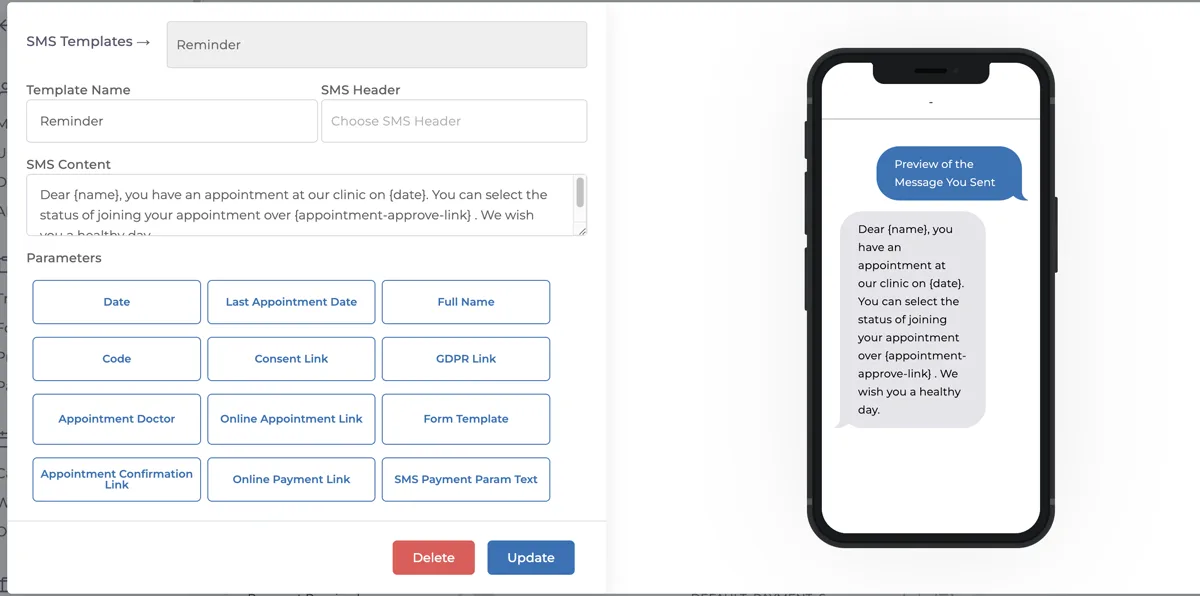
Please don't forget to include a link in the SMS content that allows patients to confirm their appointments.
With this feature, you can reduce the effort required to confirm whether patients will attend their appointments.
As the appointment time approaches, an automated SMS will be sent to the patients. You can also include a confirmation link in the message. When patients click on Confirm or Yes in the link, their appointment will be automatically updated and reflected on the calendar.
This simple setup streamlines appointment confirmations, ensuring your schedule stays organized and efficient
If you have further questions, feel free to reach out to us via the live chat button for detailed assistance.
Keep going