




Automatic Approval for Online Bookings
Set online booking to automatic or manual approval for each service, so eligible bookings go straight into your diary without waiting for review.
Updated
You do not have to approve every request from your online booking link one by one. For services with automatic approval turned on, bookings that pass the required checks go straight into your diary without anyone on your team having to act. The patient gets their appointment straight away.
You choose the approval method for each service. For example, you can approve check-up bookings automatically and keep specialist consultations on manual approval. This guide shows you how to turn on automatic approval, which requests still wait for your review and what to check during the day.
Before you start: You need an online booking group with services added to it. If you have not set one up yet, start with the Online Appointment Setup guide. Screens and options can vary with your user permissions.
How it works
Automatic approval on: bookings that pass the required checks are added to the diary as appointments.
Automatic approval off (manual approval): the booking goes to your approval list and is not added to the diary until your team approves it.
Patient matching: the system looks for an existing patient in the same practice using the phone number, first name and surname. Email details are used when needed.
Services with a deposit: where online payments are available to your practice, bookings for a service that requires a deposit are added to the diary after a successful payment.
1. Open the service settings
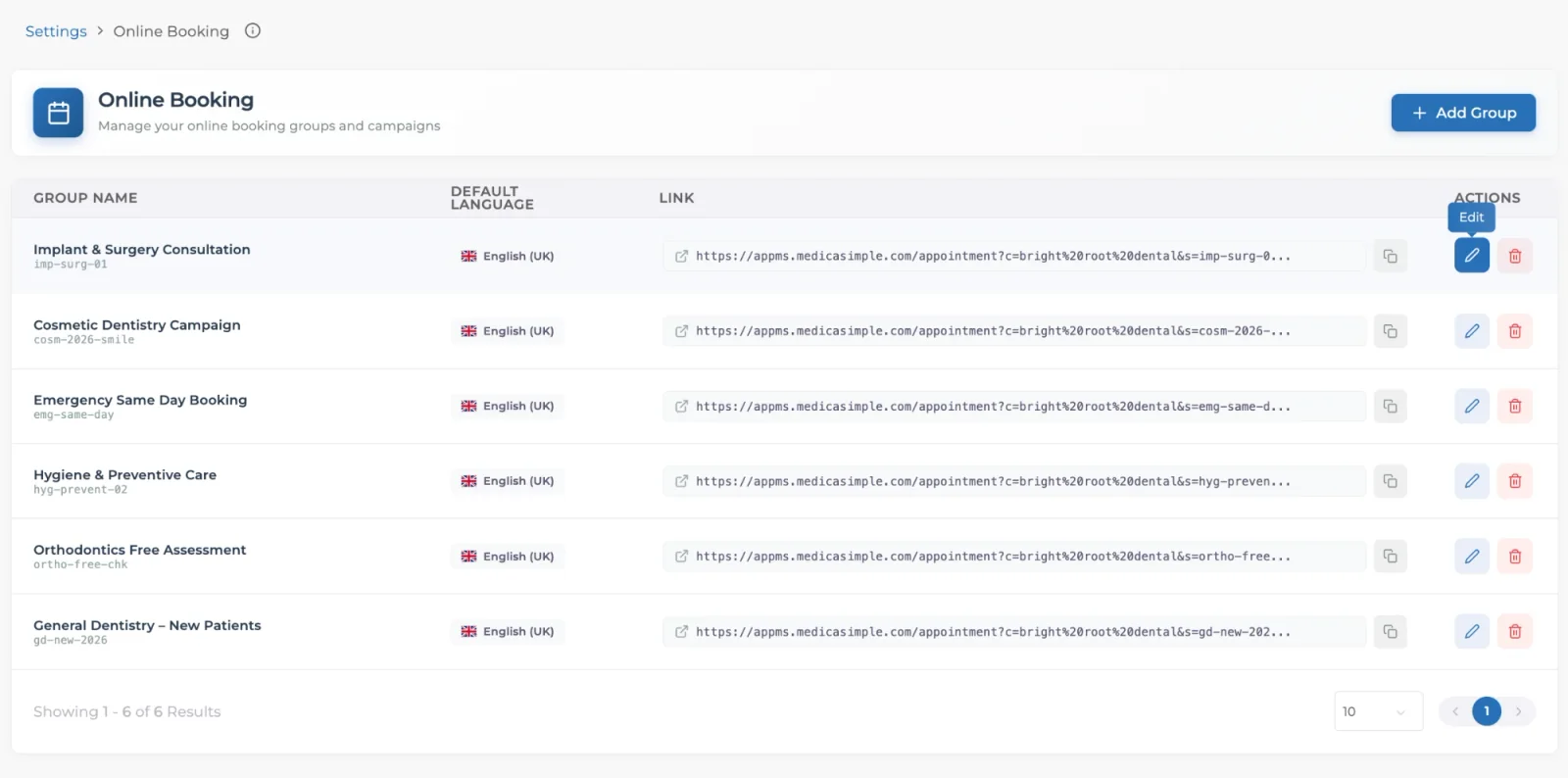
Open Settings → Online Booking. Your online booking groups are listed here with their default language and link.
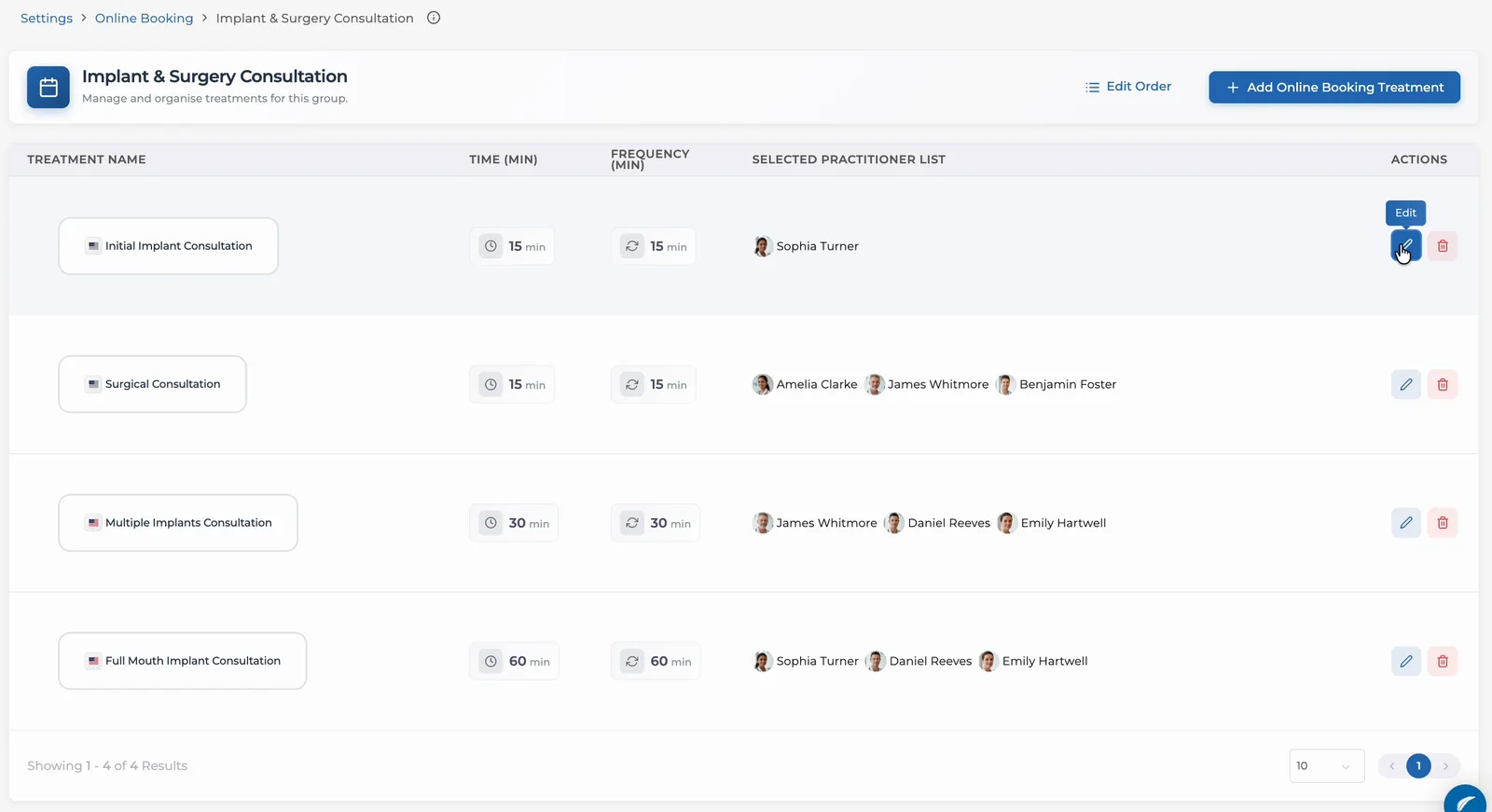
On the row of the group whose services you want to change, click the pencil icon (Edit) in the Actions column. The group’s services are listed with their time, frequency and selected practitioners.
On the row of the service you want to approve automatically, click the pencil icon in the Actions column. The Edit Online Booking Treatment window opens.
2. Turn on automatic approval
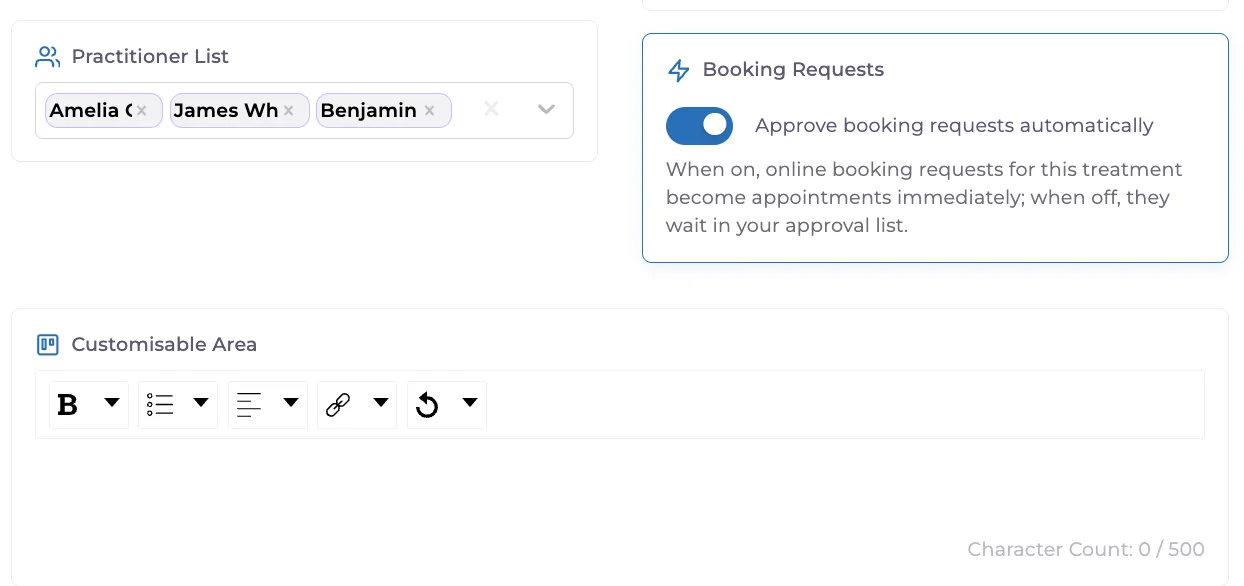
Find the Booking Requests section on the right of the window.
Turn on Approve booking requests automatically. The note below it sums up the setting: when on, online booking requests for this treatment become appointments immediately; when off, they wait in your approval list.
Click Update.
Repeat these steps for every service you want to approve automatically. The setting only applies to the service you edit. The other services in the group keep their own setting.
The same window also has a Deposit Fee field for the deposit required for the appointment. Where online payments are available to your practice, bookings for a service with a deposit are added to the diary after a successful payment.
To turn automatic approval off, switch it off in the same window and click Update. New requests for that service go back to your approval list.
Tip: When you decide which services to approve automatically, keep the bookings your team wants to see first on manual approval. Long appointments or treatments that need a clinician’s assessment are good examples.
3. Review requests left for manual approval
Even with automatic approval on, some requests need a check and wait in your approval list, for example when:
the request matches more than one patient record in the practice
the date of birth does not match the existing patient’s record
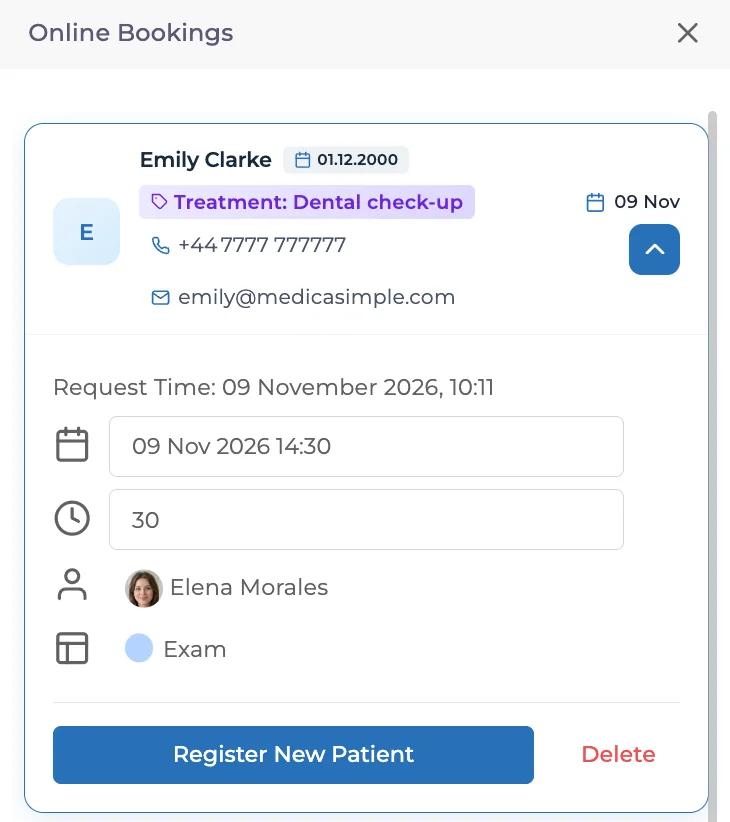
These requests appear in the same place as requests from services on manual approval: the phone icon next to the patient search box in the diary. The number on the icon shows how many requests are waiting. Click the icon to open the Online Bookings panel on the right. Open the request, choose the right patient card from the suggested records and create the appointment. For a patient who is not registered yet, click Register New Patient. For the steps, see the Online Appointment Request Approval guide.
Important: A request waiting in the approval list does not mean automatic approval has stopped working. When a match is not clear, the system leaves the decision to your team. Check the approval list regularly during the day.
Troubleshooting
A booking for an automatically approved service is not in the diary
Check the following:
Is the request waiting in the approval list? Cases such as multiple matches or a date of birth conflict stay on manual approval.
Is Approve booking requests automatically switched on for that service, and did you save it with Update?
Does the service require a deposit, and has the patient paid? Bookings with a deposit are added to the diary after a successful payment.
If all of this is in place and the appointment still does not appear in the diary, contact our support team.
I cannot see the Booking Requests section
The setting is in the edit window of each service in an online booking group. If you cannot see the section there, ask an authorised user to check your access. If the problem continues, contact our support team.
Good to know
The approval method is set for each service. One group can have services on automatic and manual approval side by side.
With automatic approval off, a request is not added to the diary until your team approves it.
Patient matching looks only at records in the same practice.
For services with a deposit, the appointment is added to the diary after a successful online payment.
Frequently asked questions
Does every request become an appointment when automatic approval is on?
No. Only requests that pass the required checks become appointments straight away. Cases such as multiple matches or a date of birth conflict wait in your approval list.
Can I approve some services automatically and others manually?
Yes. The approval method is set for each service. For example, you can approve check-ups automatically and keep other services on manual approval.
What happens if I turn automatic approval off?
New requests for that service go to your approval list and are not added to the diary until your team approves them.
Keep going