


Calendar and appointmentsAppointment management1 min read
Appointment Date Update
To update the appointment date, first find the date of the appointment on the calendar.
Updated
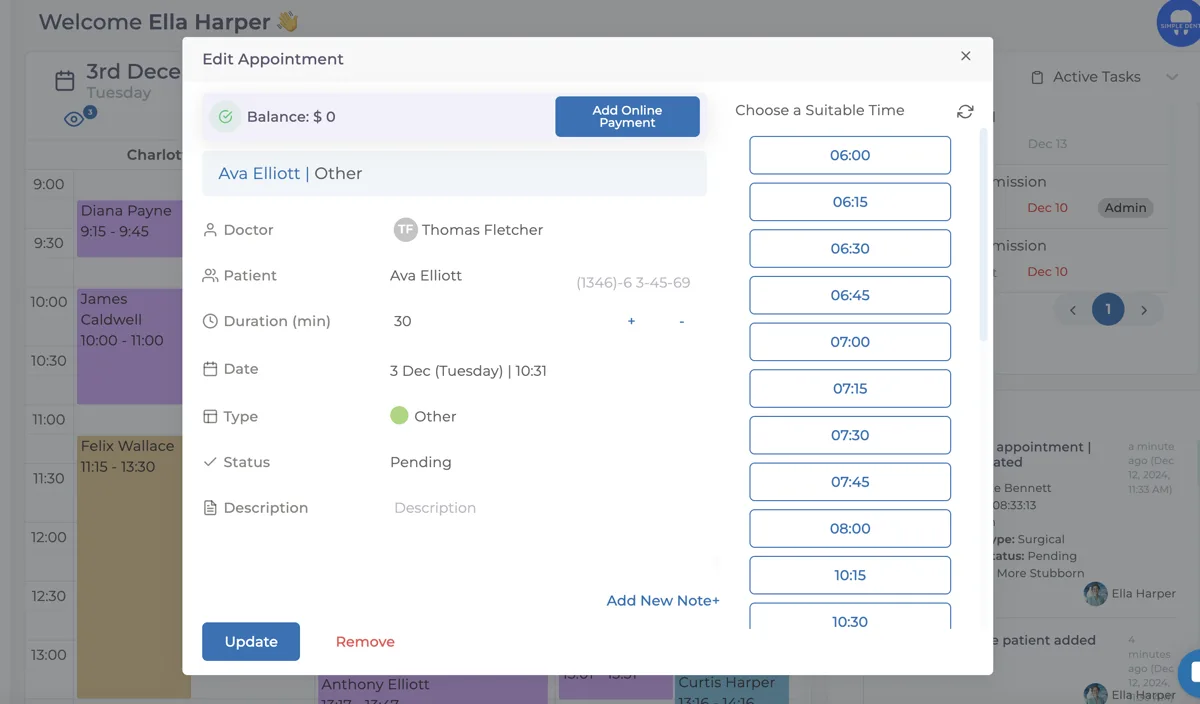
After finding the appointment whose date needs to be changed, click on the appointment. A window will open similar to the one used for creating an appointment.
In the opened window, click on the Appointment Date as shown in the image above and select the appropriate date from the calendar that appears
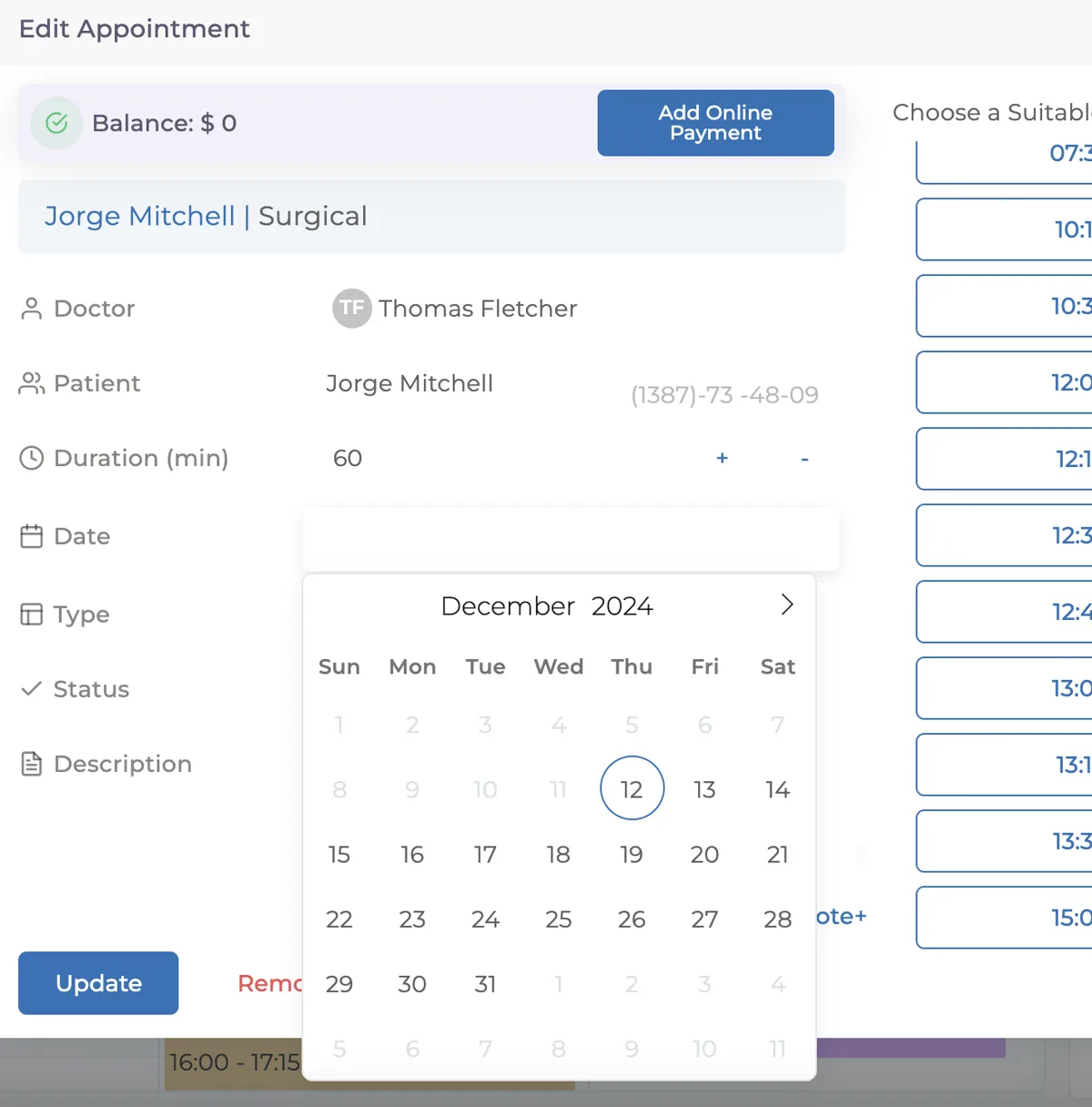
After selecting the new appointment date from the calendar, return to the previous screen. Make sure to pay attention to which month you are in before selecting the date from the calendar.
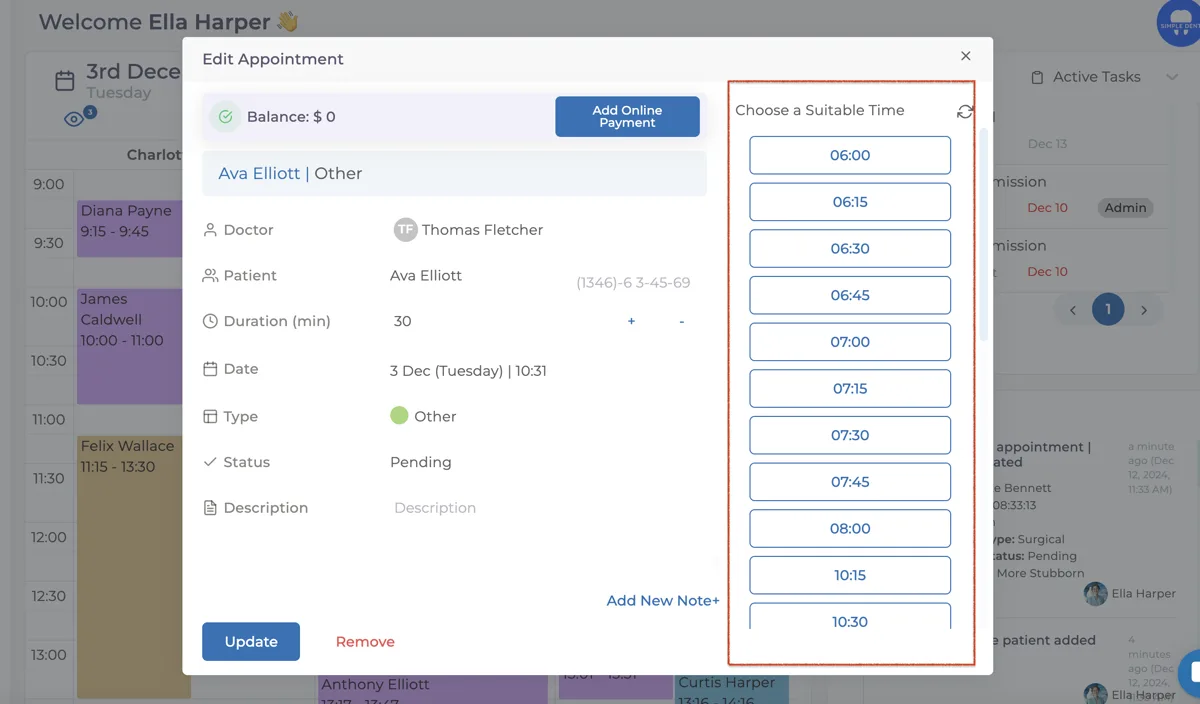
After selecting the appointment time on the right side of the screen for the new date, click the Update button to assign the new appointment date.
Keep going