


Viewing Patient Appointments
To view a patient's past, canceled, or no-show appointments, you first need to access the patient profile.
Updated
To view a patient's past, canceled, or no-show appointments, you first need to access the patient profile. On the right side of the screen, as shown in the image, you will find a list of appointments sorted by date.
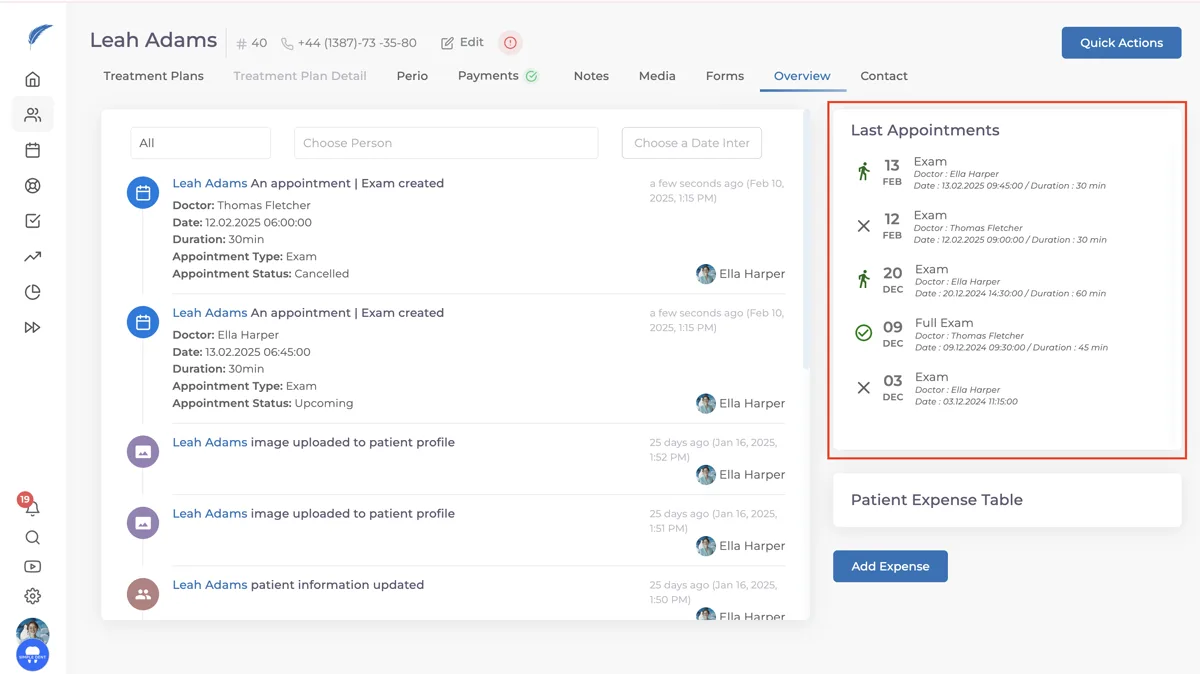
Appointments marked with "✔️" indicate those that were completed and marked as "Completed" in the calendar.
Appointments marked with "✖️" indicate those that were canceled and marked as "Canceled" in the calendar. These represent appointments canceled by the patient.
Appointments marked with "➖" indicate those where the patient did not show up and did not contact the clinic for cancellation.
This section should be used frequently to add comments about patients and provide information about their past and upcoming appointments. To ensure accurate records, all appointments in the calendar should be properly marked as completed or canceled.
Keep going