


Creating a Treatment Plan
How to create a treatment plan, list procedures for a patient, and understand the main ways to add treatments to the plan.
Updated
You can access the area where treatment plans are created in two ways. The first is from the Treatment Plans tab inside the patient profile. The second is from the Treatment Plans button in the left menu, which opens the screen where all treatment plans are listed.
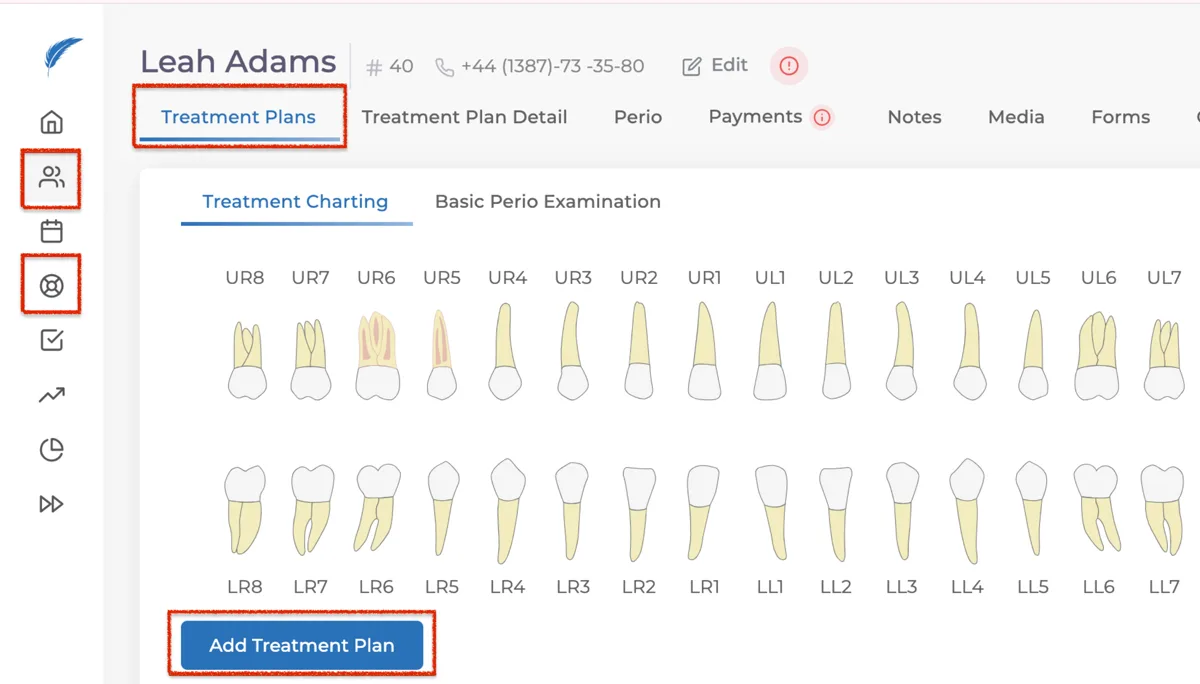
To create a new plan, click the "Add Treatment Plan" button available in both locations. Then select the doctor and patient, and click "Add" to open the treatment plan screen.
On the treatment plan screen, treatments are listed on the left, the tooth chart is shown in the top-right area, and the selected treatments are listed in the bottom-right area. You can prepare a treatment plan in several ways. The main options are listed below with examples.
Adding by selecting teeth and then clicking the treatment
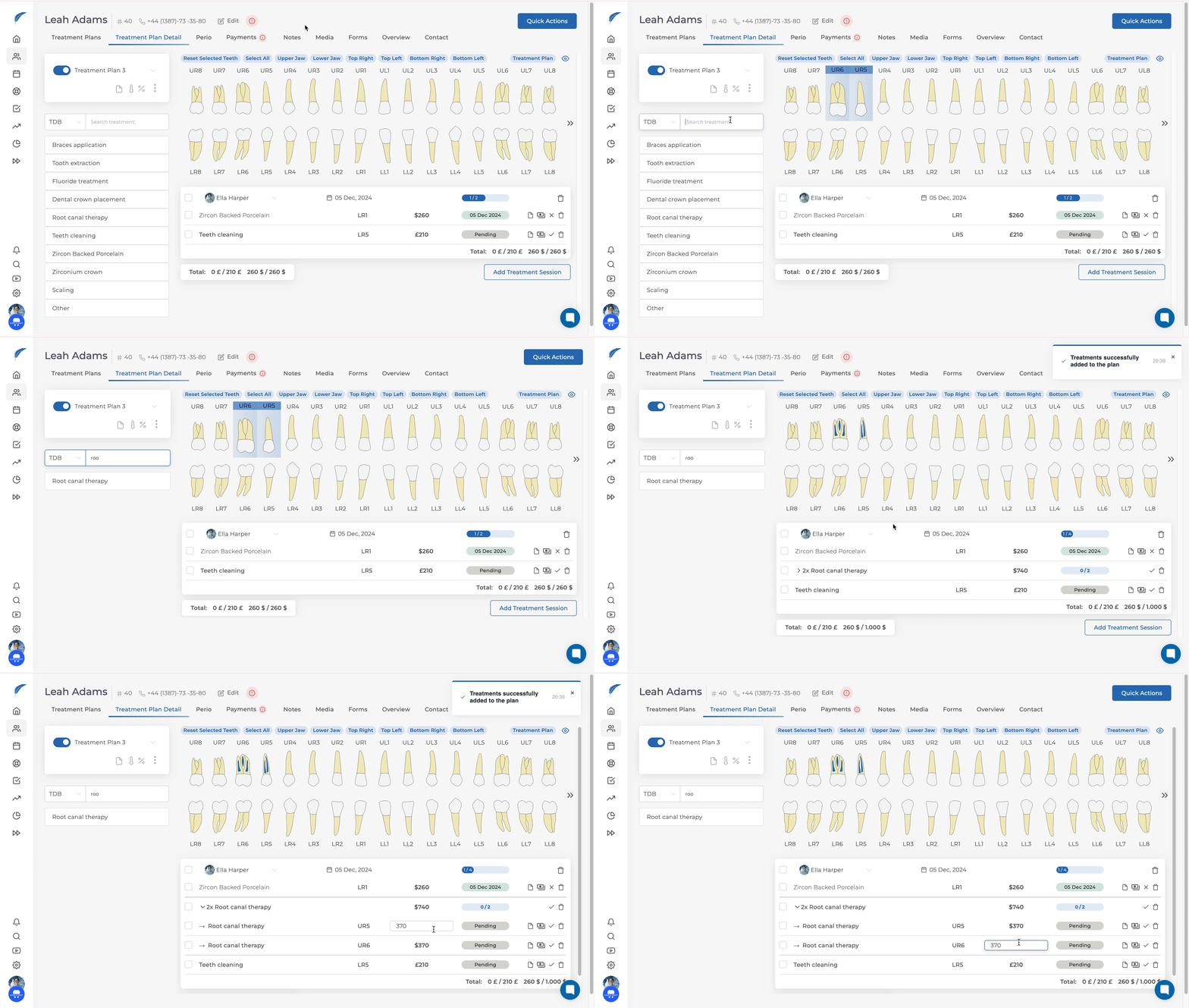
This is the method we recommend most often. First select the teeth where the procedure will be performed, then click the relevant treatment from the treatment list.
Adding by selecting teeth and dragging the treatment
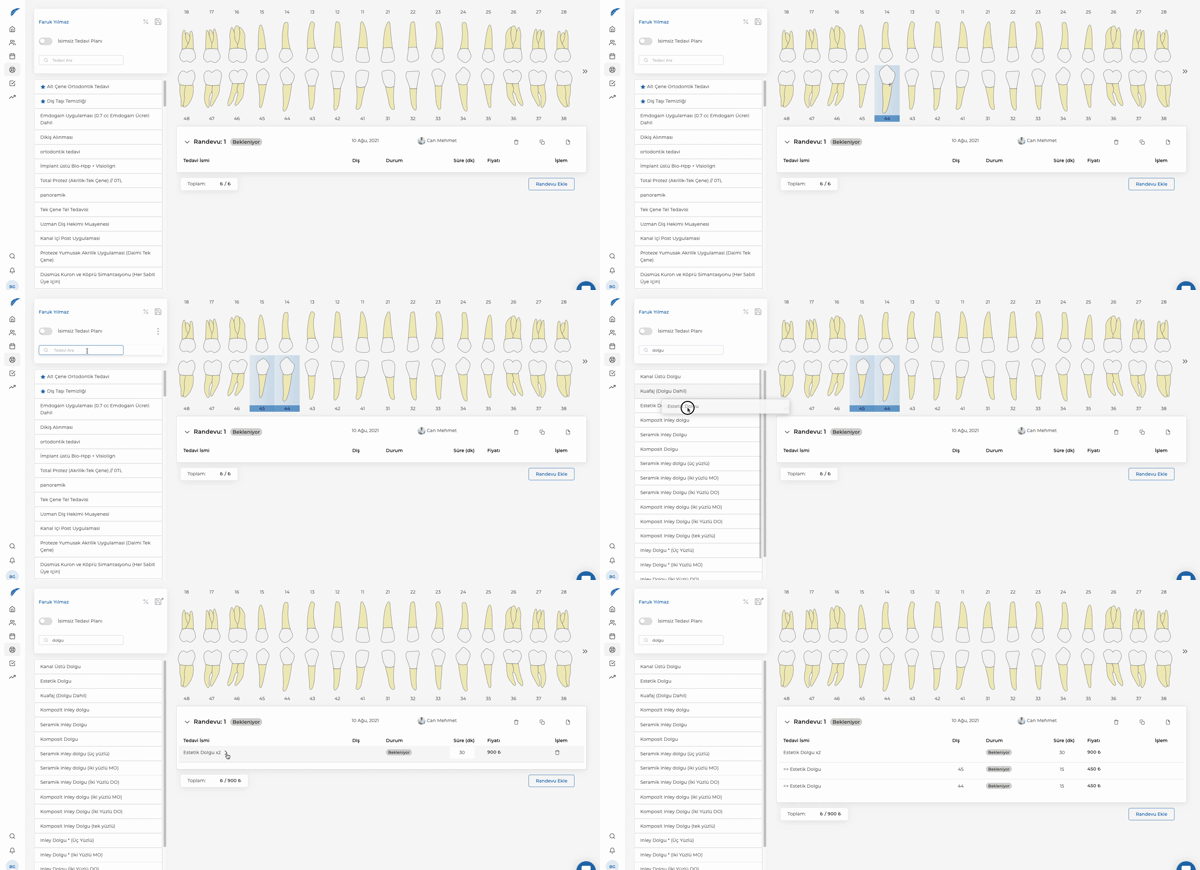
Dragging and dropping a treatment can be useful for treatments that are split across multiple appointments or sessions.
Adding a treatment first, then entering the related tooth
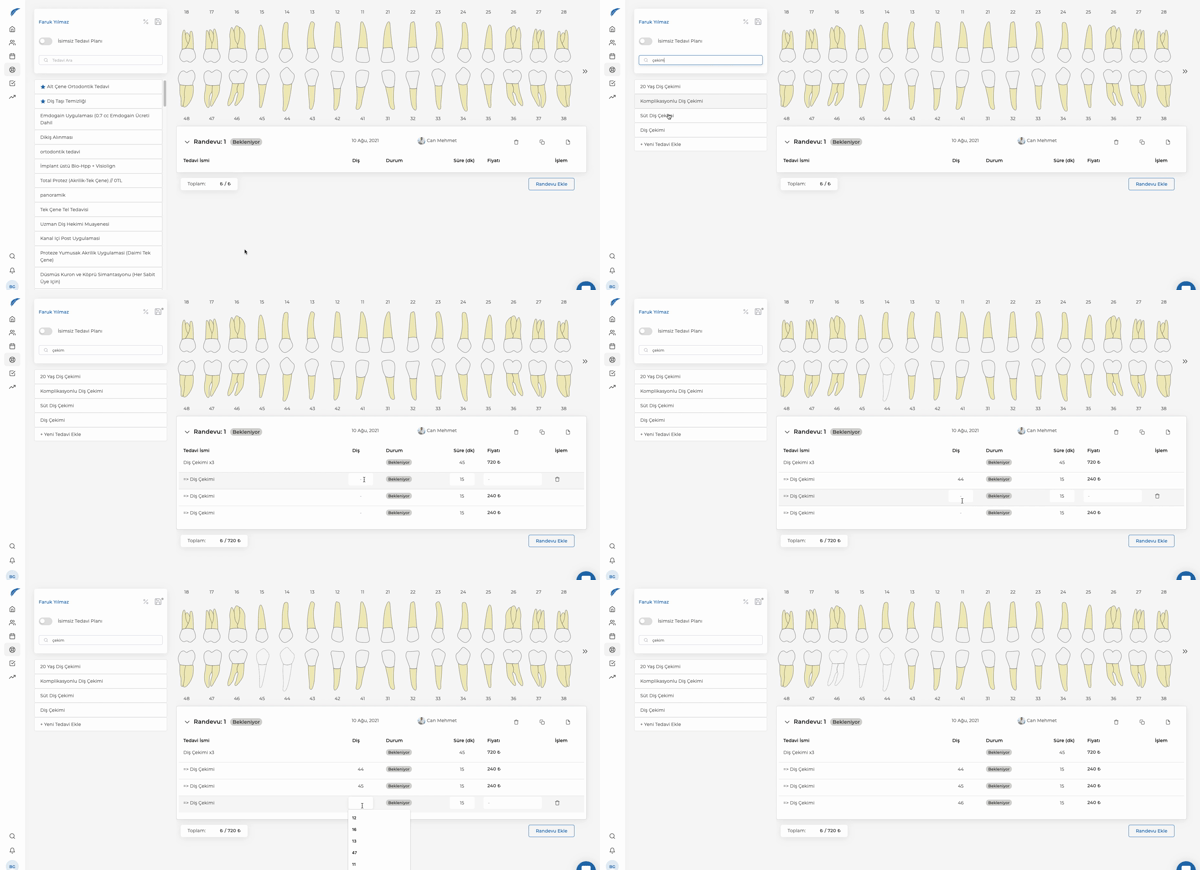
You can also click the treatment first and then enter the tooth number in the empty fields under the "Tooth" column for the relevant treatment line.
Adding a treatment that is not linked to a specific tooth
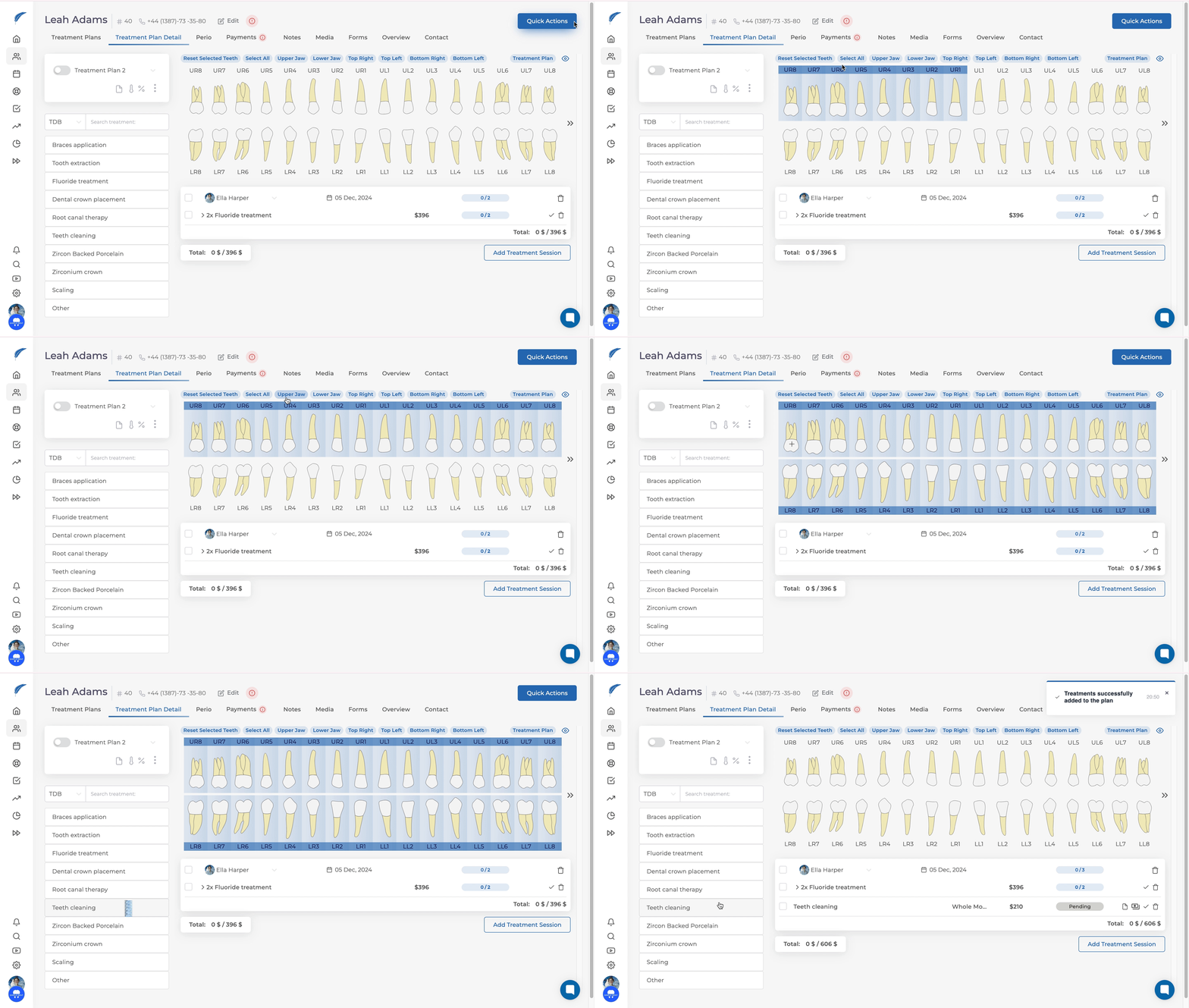
This method is usually used for treatments such as scaling or curettage that are applied to the whole mouth or to a specific region of the mouth. In this case, you can continue by clicking only the treatment.
After creating the treatment plan, save it by clicking the save icon located to the right of the patient name.
After clicking Save, you need to name the treatment plan. To avoid confusion later, we recommend using names that describe the treatments included in the plan, such as Filling_37 or Root canal - 25.
Keep going