


Organisation Agreements: Set Up Agreed Prices
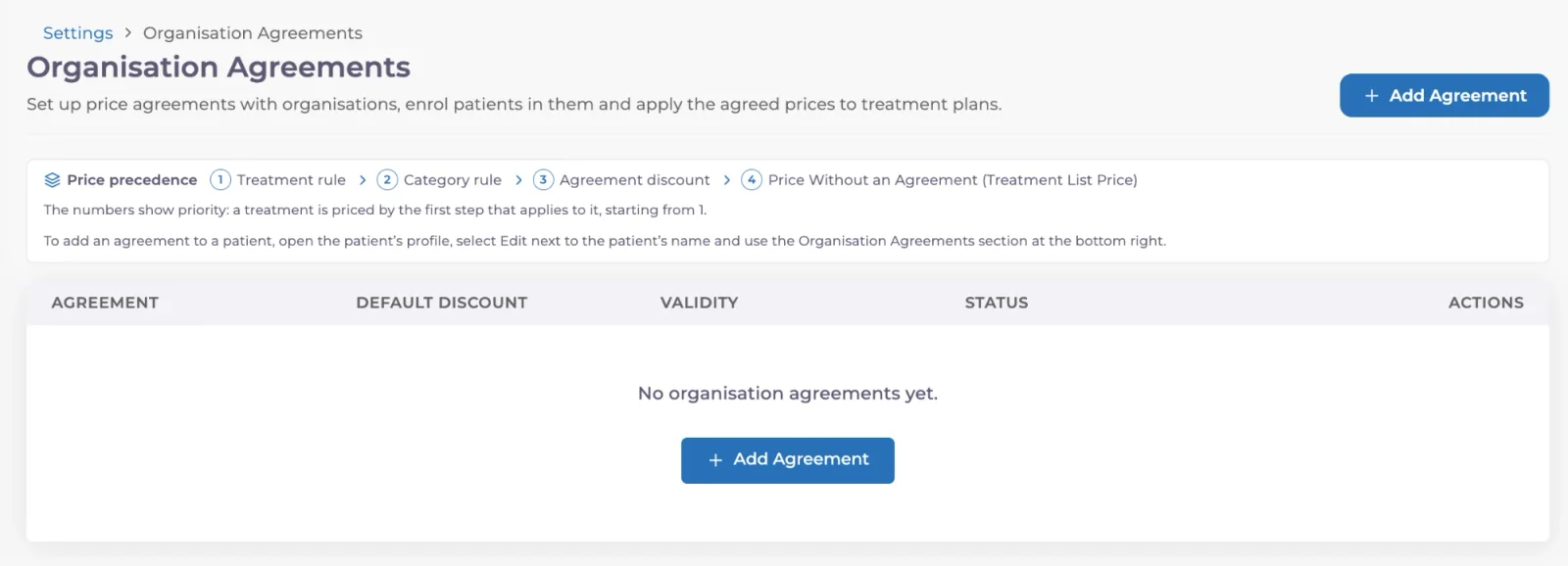
Set up pricing agreements with insurers and companies, add them to patients and apply the agreed prices to the treatment plan and estimate.
Updated
If your practice has pricing agreements with insurers, companies or other organisations, you can set them up in Medicasimple as Organisation Agreements. You create the agreement once, add it to the patient and apply the agreed prices to the selected treatments in the treatment plan in one step.
This guide shows you how to create an agreement, set treatment and category rules, add the agreement to a patient and apply the agreed prices to the treatment plan and estimate.
Before you start: If Organisation Agreements is not included in your package, start the purchase in Settings → App Store → Organisation Agreements. See the App Store guide for details. Screens and options can vary with your user permissions.
How it works
Agreement: the agreement name, the organisation it belongs to (optional), a default discount rate, validity dates and status.
Rules: a separate discount percentage or fixed price for specific treatments or categories.
Patient record: the agreement the patient belongs to, their policy number and validity dates.
Treatment plan: where the agreed price is applied to the selected treatments.
1. Create the agreement
Open Settings → Organisation Agreements. The top of the page summarises the price precedence and where to add an agreement to a patient.
Click Add Agreement at the top right.
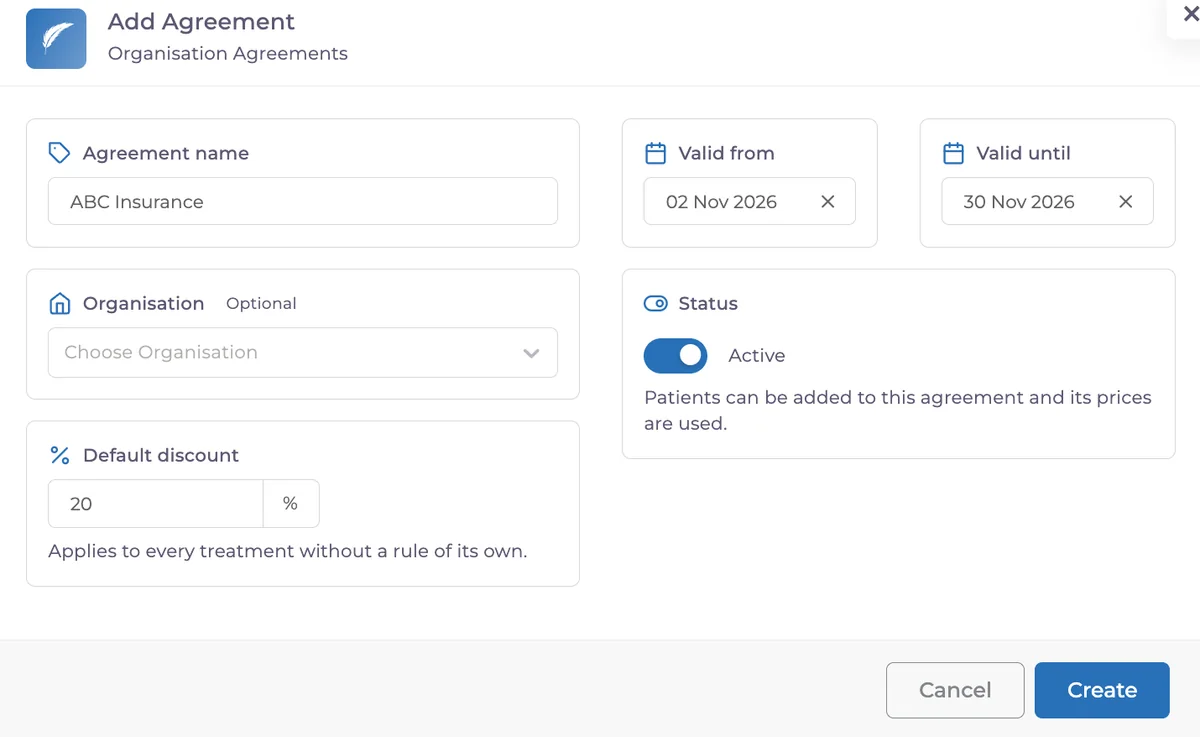
In Agreement name, enter a name your team will recognise, for example ABC Insurance.
If you want, choose the organisation in Organisation. This field is optional.
Enter the discount percentage in Default discount. It applies to every treatment without a rule of its own.
Choose the Valid from and Valid until dates.
Make sure Status is set to Active. Patients can be added to an active agreement and its prices are used.
Click Create.
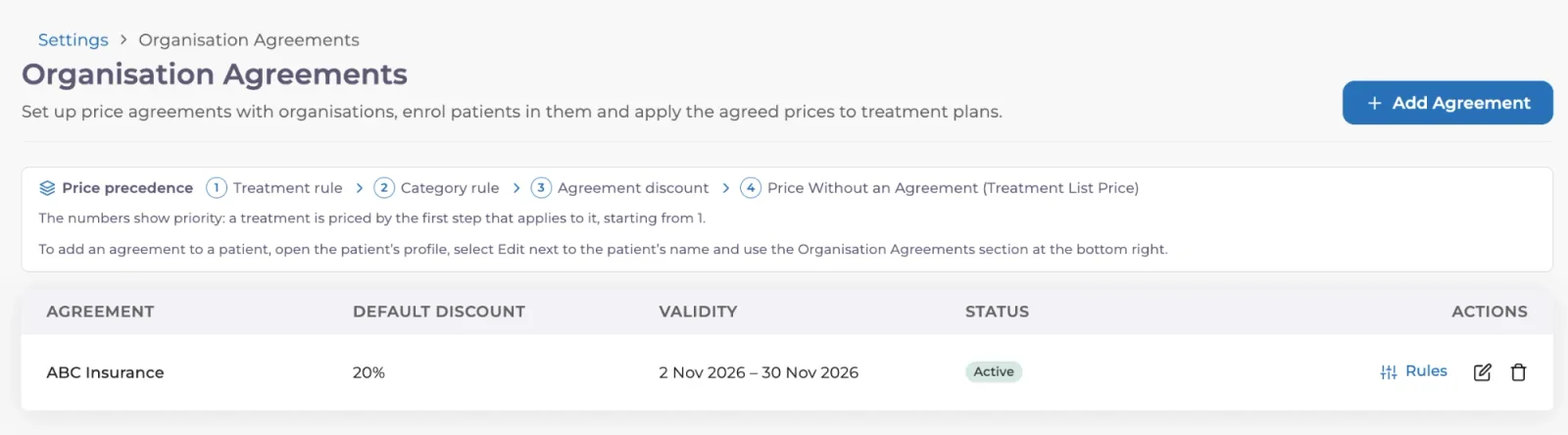
The new agreement appears in the list with its default discount, validity dates and status. In Actions, use the pencil icon to edit the agreement or the bin icon to delete it.
2. Set treatment and category rules
The default discount applies to every treatment without a rule of its own. If you agreed a different price for some treatments, add a rule.
In the list, click Rules on the agreement’s row.
Choose a category rule to set one price for every treatment in a category, or a treatment rule to set a price for a single treatment.
Enter a discount percentage or a fixed price for each rule and save.
Which price applies?
When a treatment has more than one rule, the more specific rule wins. The order is:
Treatment rule
Category rule
Agreement discount
Price without an agreement (treatment list price)
The same order is shown at the top of the Organisation Agreements page.
Example: An agreement has a 10% default discount, a 20% discount for the Orthodontics category and a fixed price for one implant treatment. The implant treatment is charged at the fixed price, orthodontic treatments at 20% off and all other treatments at 10% off.
Category rules follow the category each treatment belongs to. To organise your categories, see the treatment categories guide.
3. Add the agreement to a patient
Open the patient’s profile and click Edit next to the patient’s name.
In the Organisation Agreements section at the bottom right of the window, choose the agreement.
The agreement appears in the section as a card marked New. If needed, fill in Policy no., Valid from and Valid until.
Click Save.
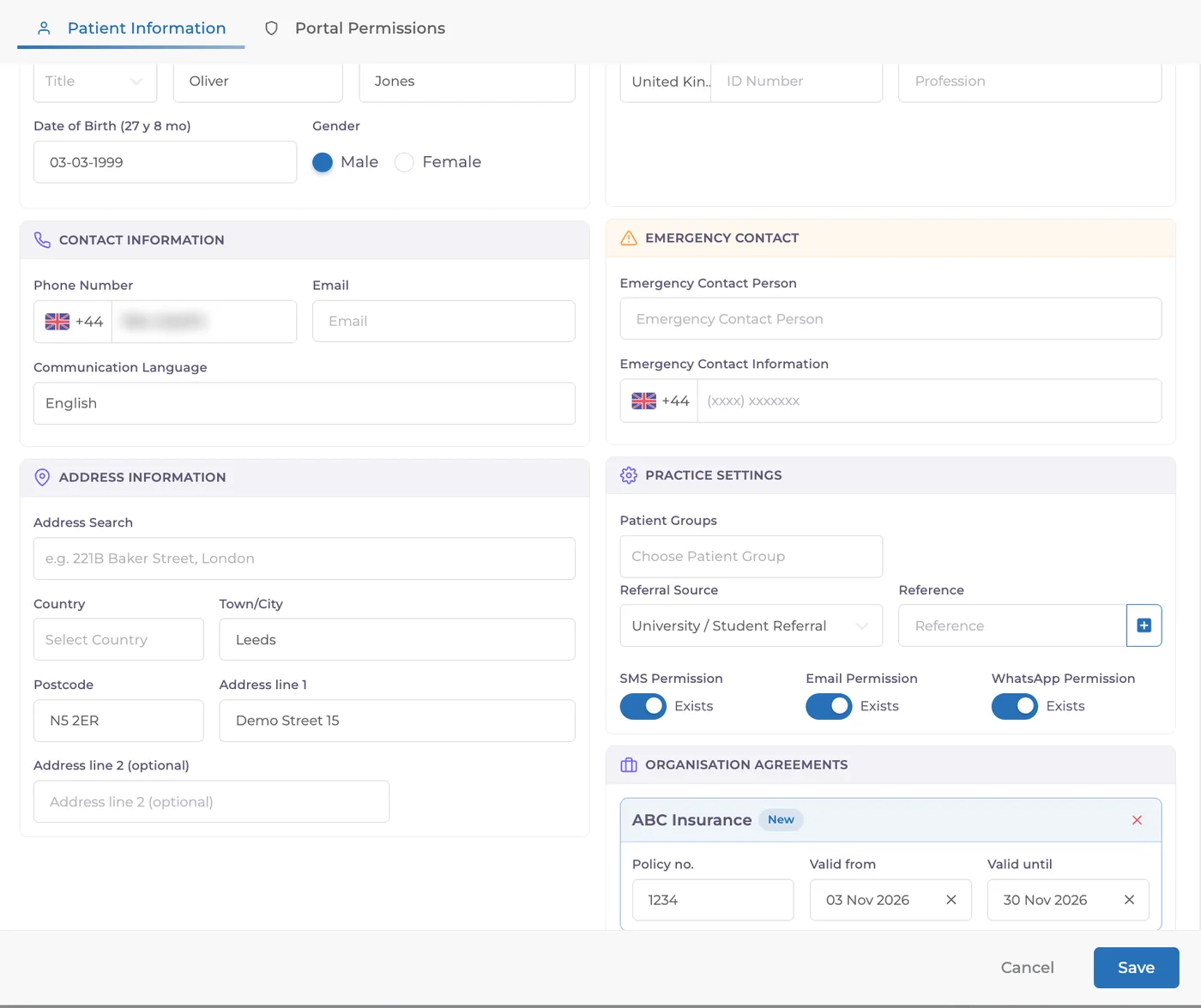
Adding the agreement to a patient does not apply it to all of their treatments automatically. You apply the agreed price to the treatments you select in the treatment plan in the next step.
4. Apply the agreed price to the treatment plan
In the patient’s treatment plan, open the Discount and Estimate window.
Make sure the treatments the agreement covers are ticked.
Choose the agreement in Agreement. The agreed prices are shown on the selected treatments: the agreement’s name appears under each treatment, the list price is struck through and the rate appears in the Discount column.
Check the Subtotal, Discount and Total on the right.
Click Apply Discount.
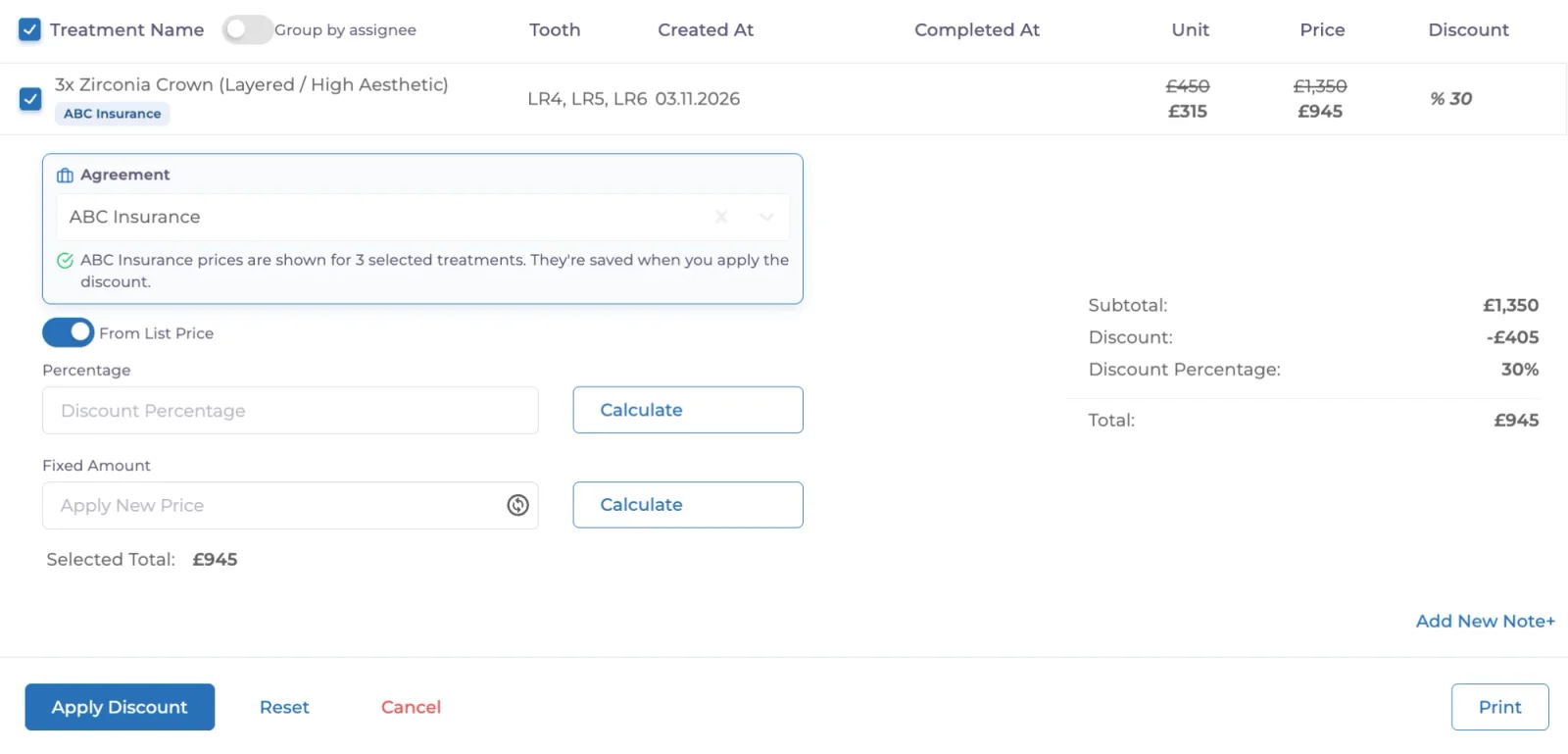
Important: Choosing the agreement only shows the agreed prices in the window. As the window says, they are saved when you click Apply Discount. To leave without saving, click Cancel.
5. Check the estimate
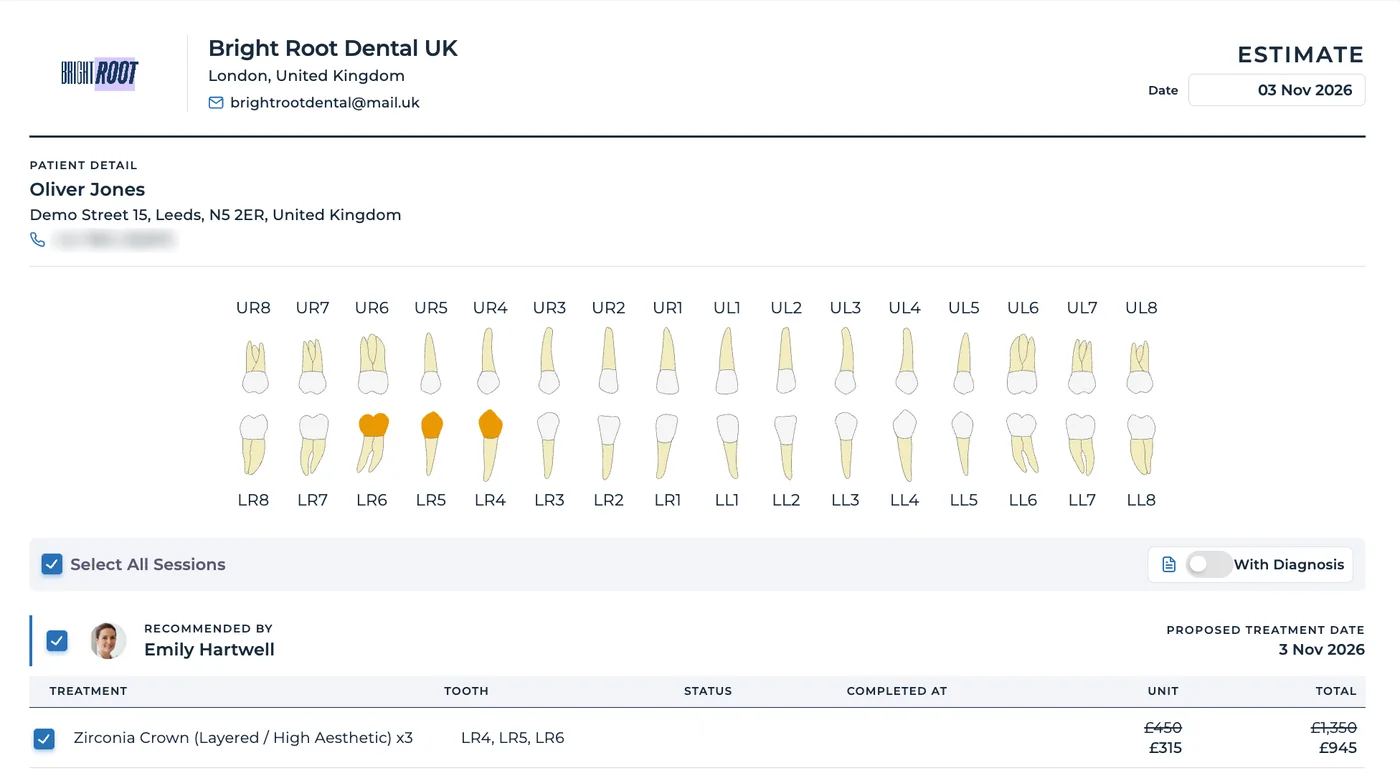
Agreed prices saved with Apply Discount appear on the estimate. Each treatment shows its list price struck through with the agreed price below it. Check the treatment items and the total before you share the estimate with the patient.
Expired agreements and memberships
When an agreement or a patient’s membership of an agreement has passed its validity date, Medicasimple shows a warning. When you see it, check that the agreement and the patient’s policy are still valid and update the dates if needed.
Troubleshooting
I cannot see Organisation Agreements
Check in Settings → App Store whether the feature is included in your package. If it is, ask an authorised user to check your access. If the problem continues, contact our support team.
The treatment plan does not show the price I expected
Check the following:
Is the agreement added in the Organisation Agreements section of the patient’s profile?
Did you tick the treatments the agreement covers in the Discount and Estimate window?
Did you click Apply Discount? The prices are saved at that step.
Is there a more specific rule for the same treatment? A treatment rule comes before a category rule.
Is the treatment in the right category?
If the agreement cannot be saved, cannot be added to the patient or the right price is not applied, contact our support team.
Good to know
The agreed price applies only to the treatments you select in the treatment plan.
Each rule can use a discount percentage or a fixed price.
Setting up an organisation agreement in Medicasimple does not mean the organisation has paid or approved the treatment.
Frequently asked questions
When I add the agreement to a patient, is the discount applied to all of their treatments?
No. You apply the agreed price to the treatments you select in the treatment plan, in the Discount and Estimate window.
Can I set a fixed price for one treatment instead of a discount?
Yes. Add a treatment rule with a fixed price for that treatment. It comes before the category rule and the default discount.
Organisation Agreements is not in my package. Where can I get it?
Start the purchase in Settings → App Store → Organisation Agreements.
Keep going